
 GSplit
GUnite 4 in the GSplit Portable ZIP
Includes GSplit 4, GUnite 4 and the console tools. No installation required.
gsplitp.zip5.9 MB
Checksums
MD5B8DCF93838CCC79AEDBDB6A4E8C57677
Received a file in pieces? GUnite restores the original and checks it as it goes. A small, standalone Windows app, included with GSplit 4.
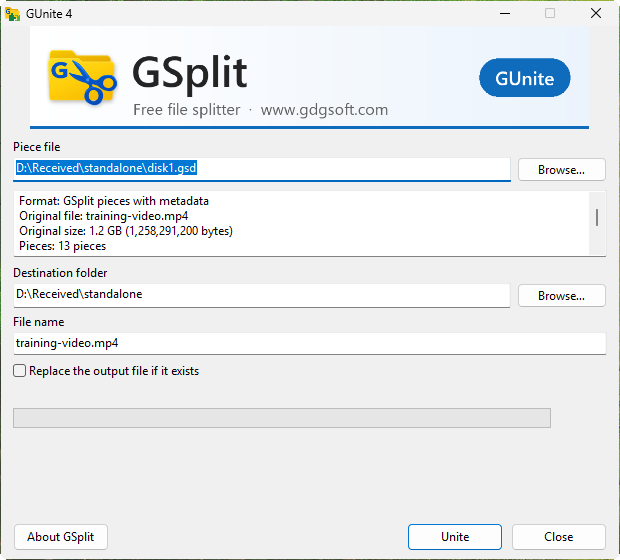
See what you received, choose where it goes and follow the restoration.
Browse to a piece or drop it onto the window. With a V4 set, any piece can identify the set. Review the original file, the piece count and the destination before you unite.
For V4 sets, GUnite checks each piece before writing it and verifies the restored file against the original SHA-256. If a piece is missing or damaged, the message identifies it.
Restore GSplit 1, 2 and 3 pieces, as well as raw sets from HJSplit, the 7-Zip Split file command, GNU split and Total Commander. Checks depend on the information stored in the set.
The same restoration tool, ready for different situations.
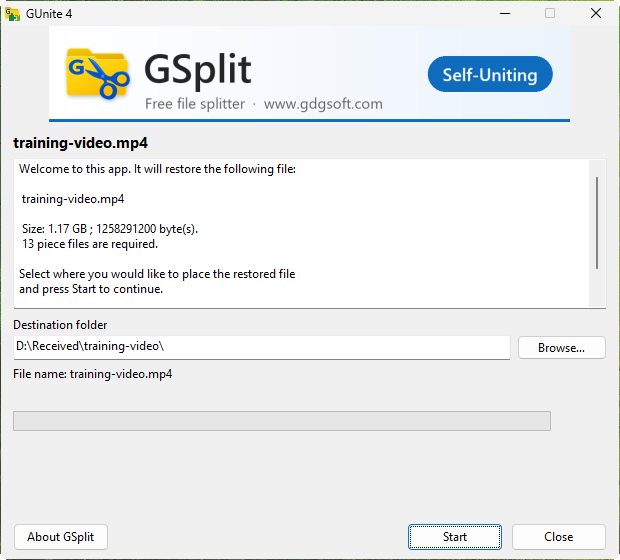 Enlarge screenshot
Your recipient opens the companion, chooses a destination and clicks Start. There is no software to install.
Explore this feature.ini file in the same folder. Enlarge screenshot Open a piece, inspect the detected set and restore it. GUnite also reads pieces created with earlier versions.
Explore this featureGUnite.exe and browse to a piece.You can also use the Unite view in GSplit, or gunitec from a script. On Linux, use one of these two options; the standalone GUnite window is Windows-only.
Use the portable GSplit 4 ZIP to get the current restoration tool.
Download and extract the ZIP, then open GUnite.exe from the extracted folder. You do not need to install or launch GSplit. Keep the locale folder alongside it for the translations.
Includes GSplit 4, GUnite 4 and the console tools. No installation required.
gsplitp.zip5.9 MB
MD5B8DCF93838CCC79AEDBDB6A4E8C57677
gunitec console for automation, with documented exit codes on Windows and Linux.