
Why does Excel protection not stop copying?
In This Article
Excel offers four kinds of protection: a password on a sheet, a password on the workbook structure, a password on the VBA project and a password to open the file. Each of them was designed to prevent accidental changes or to keep the file closed, not to keep its contents from being copied. Once a workbook is open, its values, formulas and macros are data in a file the user owns, and Excel's passwords do not change that. This article explains what each protection does, why copying still works, and what a workbook you distribute needs instead.
What each Excel protection really does
Section titled “What each Excel protection really does”Sheet protection
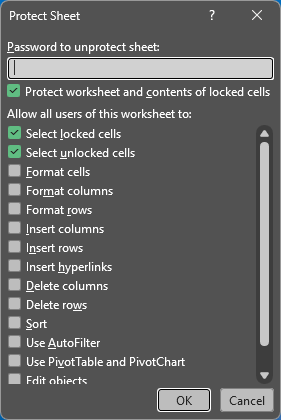
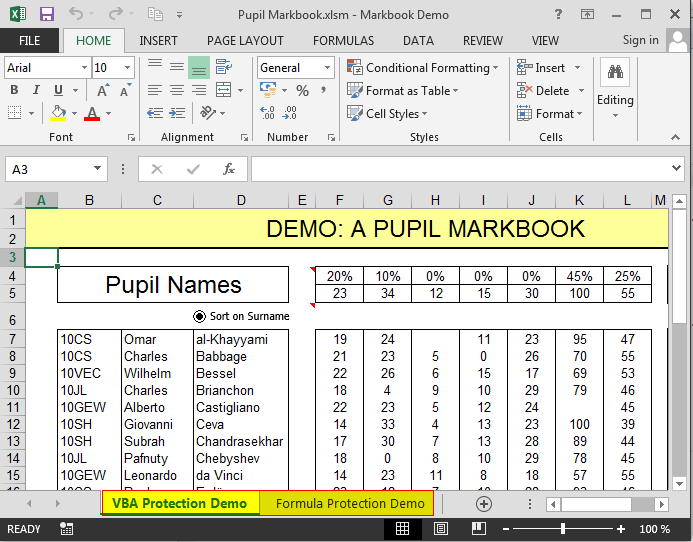
Section titled “Sheet protection”Review > Protect Sheet stops users from changing the cells marked as locked and from running the actions you did not allow. Microsoft's own documentation of the file format says that worksheet and workbook protection should not be confused with file security: it cannot protect against malicious modification, and an application that does not support the mechanism can simply ignore it (Microsoft Learn, workbookProtection). A protected sheet can still be read, selected and copied; the protection is about editing.
Workbook structure protection
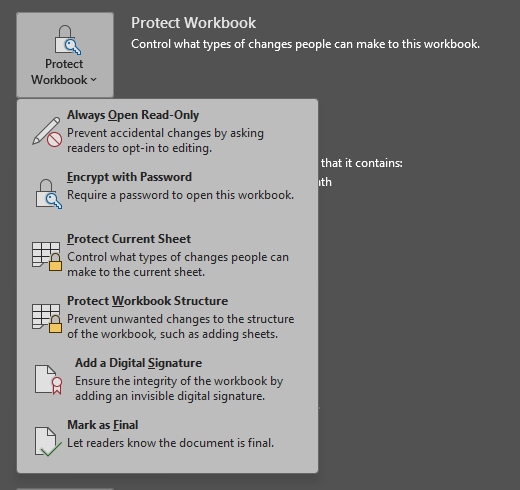
Section titled “Workbook structure protection”Protect Workbook stops sheets from being added, deleted, moved, renamed, hidden or unhidden. It does nothing to the contents of the sheets.
The VBA project password
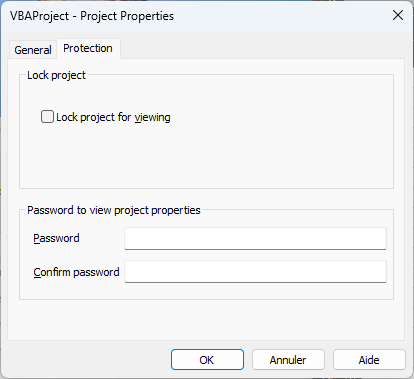
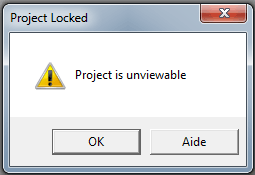
Section titled “The VBA project password”In the Visual Basic Editor, Tools > Project Properties > Protection > Lock project for viewing hides the code from the editor. The code is not encrypted by that password: the file stores a hash of the password next to the code, and free tools remove the lock in seconds, as the VBA Padlock comparison shows in detail. The lock keeps the editor closed; it keeps nothing out of the file.
The password to open
Section titled “The password to open”File > Info > Protect Workbook > Encrypt with Password is the only one of the four that encrypts the file. Without the password, the file cannot be opened. With the password, everything is available: this protection decides who opens the workbook, not what they can do once it is open.
Why copying still works
Section titled “Why copying still works”- A protected sheet is still a sheet. Its values can be selected, copied and pasted into another workbook. Formulas can be hidden with the Hidden attribute of Format Cells, but that is part of the same sheet protection and goes away with it.
- The file is the data. An XLSX file is a set of XML parts. Everything a user can see in Excel is in that file, and the sheet and structure passwords are flags that Excel honours. Other spreadsheet applications do not have to: a Microsoft Q&A answer confirms that Excel's sheet and workbook protection does not fully carry over to Numbers or Google Sheets, which do not support workbook protection or the file encryption (Microsoft Q&A).
- Macros ship as source. A workbook with VBA carries the VBA source. The project password only asks the editor not to display it.
- A password to open is shared with the buyer. If you sell the workbook, the customer must have the password, and from then on the file is as open as any other.
For a workbook used inside a team, this is fine: the protections prevent accidents and signal what should not be changed. For a workbook you sell, or that holds formulas and code you spent years on, they stop nobody.
What protects a workbook you distribute
Section titled “What protects a workbook you distribute”The formulas and the code must not be in the file that the customer receives, and the file must not be a plain spreadsheet on their disk. That is what XLS Padlock does for Excel workbooks:
- The workbook becomes a Windows EXE. The customer runs the EXE and works in their own Microsoft Excel for Windows; the workbook is stored in an encrypted container inside the EXE and never lands on their disk as a plain XLSX or XLSM file.
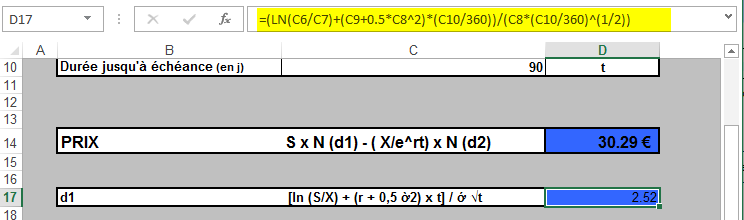
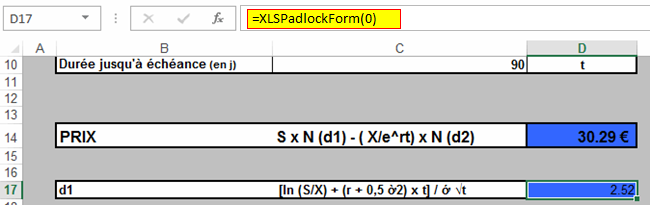
- Formulas are protected cell by cell. The protected cells still calculate, but the formula bar shows a protected call instead of your logic, and removing the protection stops them from working.
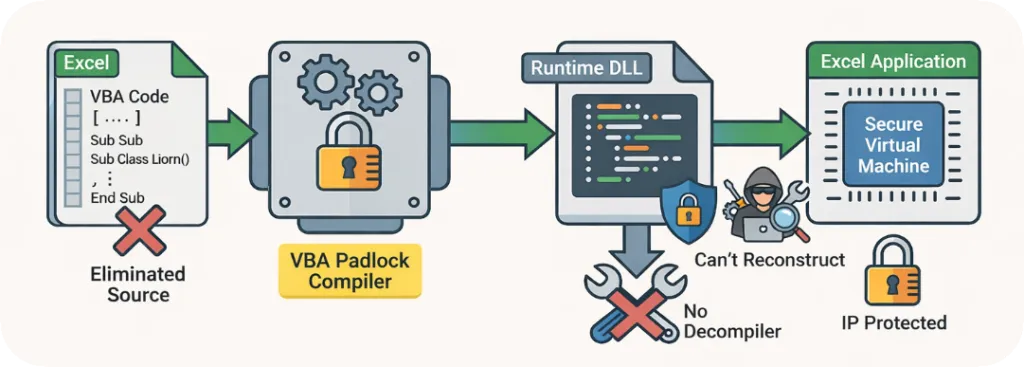
- VBA is compiled. The subs and functions you select are turned into bytecode and their source is removed from the workbook; access to the Visual Basic Editor can be blocked.
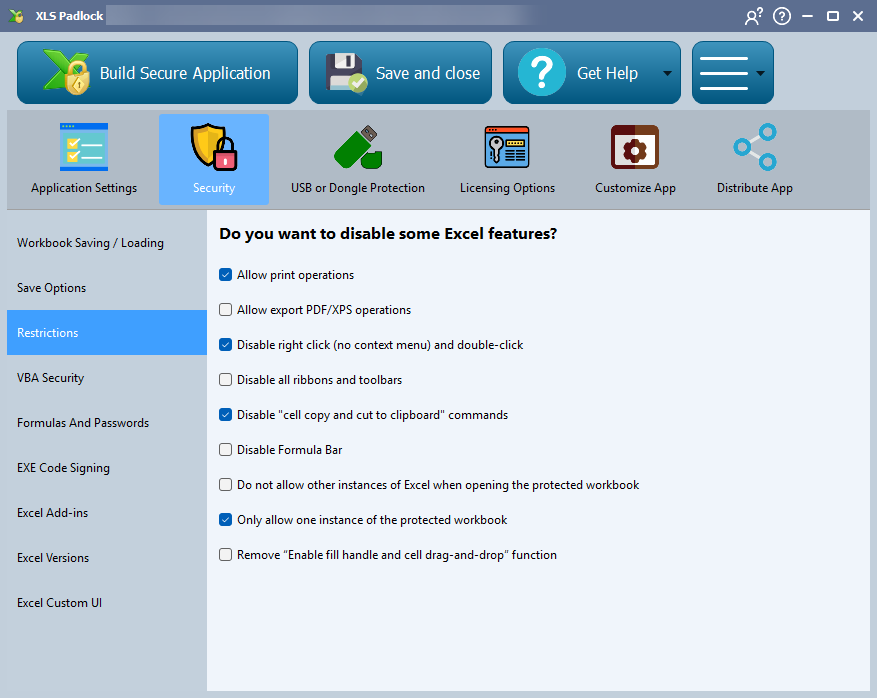
- Excel actions are under your control. Copying to the clipboard, printing, exporting to PDF, the formula bar, the right-click menu and the save options can each be switched off.
- Each copy is licensed. Activation keys locked to one computer, online activation on a server you run, a USB key or a dongle, and expiry by date, days or number of runs.
For the VBA alone, in Excel, Word, Access or PowerPoint, VBA Padlock compiles the macros into a native DLL while the document stays a document.
Checklist
Section titled “Checklist”| You want to stop | Excel alone | XLS Padlock |
|---|---|---|
| accidental edits of locked cells | sheet protection | sheet protection still applies |
| sheets being added or deleted | structure protection | structure protection still applies |
| the file being opened by strangers | password to open | EXE with activation keys |
| formulas being read or copied out | no | protected formulas |
| VBA being read or copied out | no | compiled VBA, editor blocked |
| copy, print, export to PDF | no | each can be disabled |
| use on a second computer, or after a date | no | hardware-locked keys, expiry |