
How to split a large file on Windows?
In This Article
Splitting a file means cutting it into several smaller files, called pieces or volumes, that are joined again on the other side. You need it when a file is bigger than what an e-mail server, a file hosting service, a USB stick or a disc accepts. Windows has no split command of its own, but four tools can do it: 7-Zip, WinRAR, PowerShell and GSplit. This article shows each one and explains when to prefer which.
The short answer
Section titled “The short answer”| Method | What you get | What the recipient needs | Cost |
|---|---|---|---|
| 7-Zip | compressed archive volumes, or raw pieces with Split file | 7-Zip, or a tool that reads 7z volumes | free |
| WinRAR | compressed RAR volumes | WinRAR, or a tool that reads RAR volumes | paid, with a trial |
| PowerShell | raw pieces, no checks | PowerShell or the copy /b command | included in Windows |
| GSplit | pieces with integrity checks, optionally Self-Uniting | nothing: the Self-Uniting program rebuilds the file | free |
If the file must be rebuilt by someone who will not install anything, choose GSplit with a Self-Uniting program. If you want compression at the same time and the other side has 7-Zip or WinRAR, archive volumes are fine. PowerShell is for scripts and servers where no third-party tool is allowed.
Method 1: 7-Zip
Section titled “Method 1: 7-Zip”7-Zip splits in two ways. Both are in the 7-Zip File Manager, the window that opens when you start 7-Zip from the Start menu.
Raw pieces, no compression. Select the file, open the File menu and click Split file.... Enter a piece size and a destination folder. 7-Zip writes pieces named after the file with numbered extensions, such as backup.iso.001, backup.iso.002 and so on. To rebuild the file, select the first piece and click File > Combine files.... Since the pieces are plain slices of the original, the copy /b command shown in the PowerShell section joins them too.
Compressed volumes. Right-click the file, choose 7-Zip > Add to archive..., and fill in the Split to volumes field. The size takes a unit suffix: b for bytes, k for kilobytes, m for megabytes and g for gigabytes, so 700m makes 700 MB volumes. 7-Zip then compresses the file and writes backup.7z.001, backup.7z.002 and so on. The recipient puts every volume in one folder and extracts the first one; 7-Zip reads the others by itself.
Method 2: WinRAR
Section titled “Method 2: WinRAR”In WinRAR, right-click the file and choose Add to archive.... On the General tab of the archive dialog, type a size in the Split to volumes field or pick one from its list. A plain number is read as bytes; the suffixes k and m mean kilobytes and megabytes computed with 1024, while K and M mean thousands and millions of bytes. When you archive straight to a removable disk, the Autodetect entry sizes each volume to the disk.
WinRAR names the volumes name.part001.rar, name.part002.rar and so on, every one the chosen size except the last. To extract, the recipient places all the volumes in the same folder and opens the first one. They need WinRAR or another tool that reads RAR volumes, such as 7-Zip.
Method 3: PowerShell
Section titled “Method 3: PowerShell”Windows ships no split command, but a short PowerShell script does the job with the .NET file classes. It works in Windows PowerShell 5.1 and in PowerShell 7. Set the file path and the piece size on the first two lines, then run it.
$source = 'C:\Transfer\backup.iso'$pieceSize = 100MB
$reader = [System.IO.File]::OpenRead($source)$buffer = New-Object byte[] $pieceSize$number = 0try {  while (($read = $reader.Read($buffer, 0, $buffer.Length)) -gt 0) {    $number++    $piece = '{0}.{1:d3}' -f $source, $number    $writer = [System.IO.File]::Create($piece)    $writer.Write($buffer, 0, $read)    $writer.Close()  }} finally { $reader.Close() }
The pieces are named backup.iso.001, backup.iso.002 and so on, the last one smaller than the others. To rebuild the file, set the same path on the first line and run this; the pieces must sit next to that path, and a file already there with that name is overwritten:
$source = 'C:\Transfer\backup.iso'
$writer = [System.IO.File]::Create($source)try {  Get-ChildItem "$source.[0-9][0-9][0-9]" | Sort-Object Name | ForEach-Object {    $reader = $_.OpenRead(); $reader.CopyTo($writer); $reader.Close()  }} finally { $writer.Close() }
The classic Command Prompt joins the same pieces without PowerShell:
copy /b backup.iso.001 + backup.iso.002 + backup.iso.003 backup.isoMethod 4: GSplit
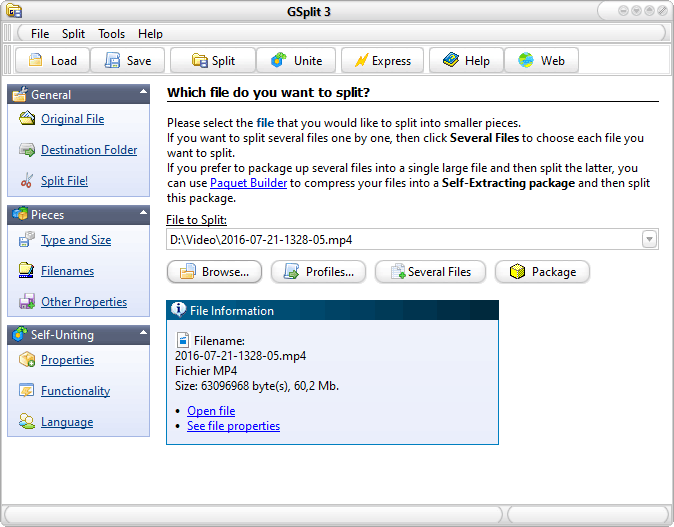
Section titled “Method 4: GSplit”GSplit is a free file splitter for Windows 11, 10, 8 and 7. It splits the file as it is, compressed or not, into pieces of a size you choose, a number of pieces, the free space of each removable disk, or a number of lines for text and log files. Every piece carries size, offset and CRC32 controls, so a damaged piece is named when the file is rebuilt and only that piece has to be sent again. Dates and attributes of the original file are kept.
-
Download and start GSplit from the download page; a portable edition needs no installation.
-
Click Original File and choose the large file, then Destination Folder and choose where the pieces go.
-
Under Pieces, click Type and Size and enter the size of each piece.

-
Keep Add SFU functionality to the piece set enabled, then click Split.
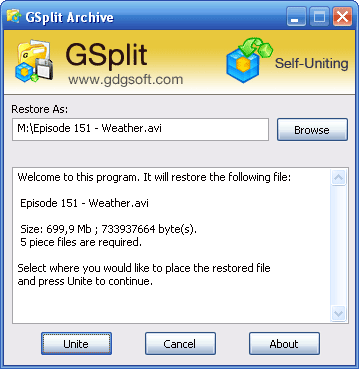
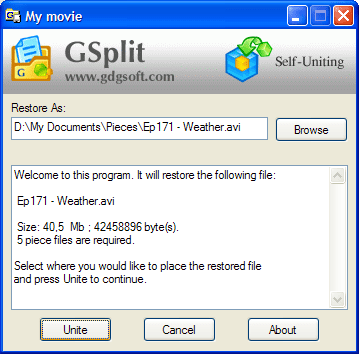
Next to the pieces, GSplit writes a small Windows program, the Self-Uniting program. The recipient runs it, confirms the destination folder and gets the original file back. They install nothing, not even GSplit.
For pieces made without that program, the free GUnite tool does the same.
The step-by-step article How to split a large file into smaller pieces with GSplit covers the piece types, the naming mask and the restoration in detail.
GSplit or archive volumes?
Section titled “GSplit or archive volumes?”Archive volumes from 7-Zip or WinRAR are compressed together with the file, and the recipient needs 7-Zip, WinRAR or another tool that reads that format to extract them; the plain Split file command of 7-Zip writes raw pieces instead, with no check, and nothing travels with them to rejoin them: the recipient needs 7-Zip or the copy /b command. GSplit splits the file as it is and adds a Self-Uniting program, so the recipient restores the original file without installing anything. GSplit also checks every piece, cuts text and log files by lines, keeps the file's dates and attributes, and runs from the command line.
Compression and splitting are not exclusive. When the file is not already compressed, compress it first, with 7-Zip or with Paquet Builder for a self-extracting package, then split the archive with GSplit if it is still too large for one medium.
Which method to pick
Section titled “Which method to pick”- Someone who will not install software must rebuild the file: GSplit with a Self-Uniting program.
- Both sides have 7-Zip or WinRAR and the file compresses well: archive volumes.
- A script on a server, no third-party tools allowed: the PowerShell script, with a hash check.
- Text, CSV or log files that must stay readable piece by piece: GSplit, split by lines.