
 GSplit
The Split view
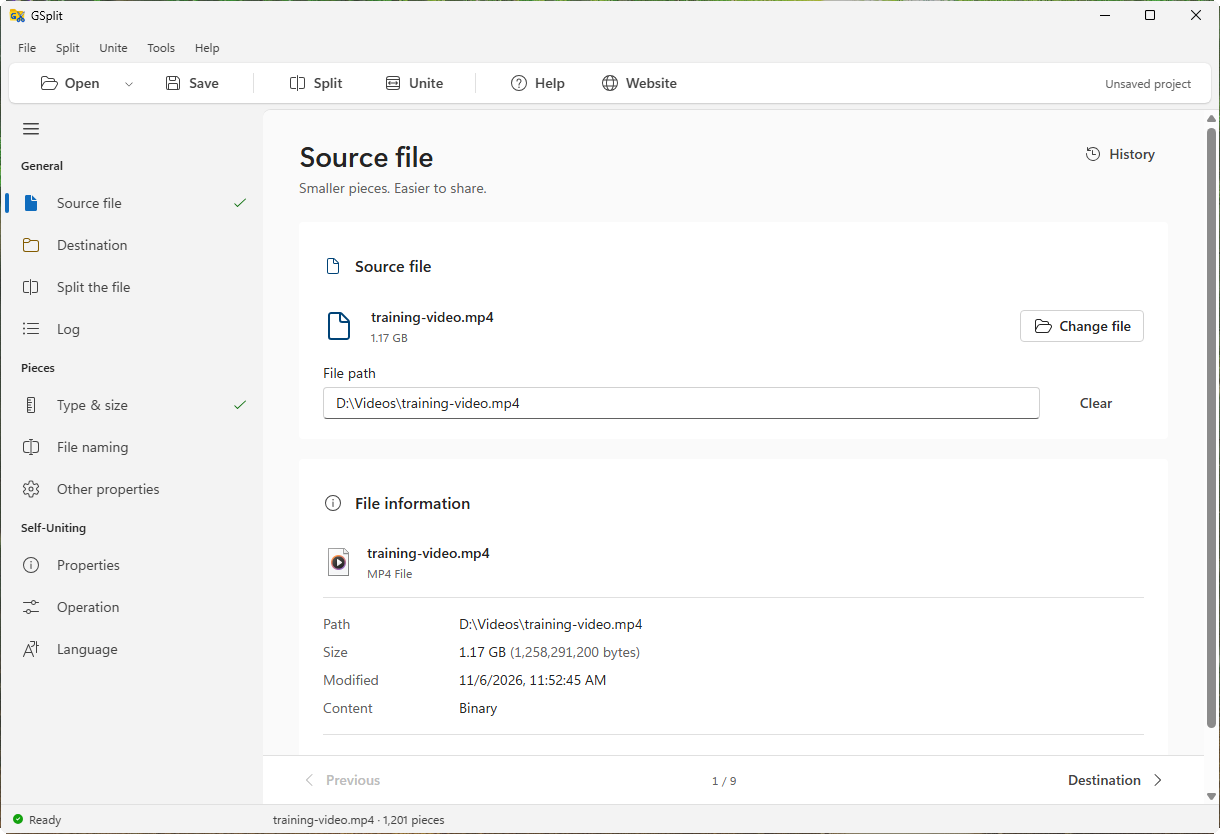
The Split view is where you cut a file into pieces. A navigation pane on the left lists one page per group of settings; the page you pick fills the area on the right. GSplit opens on this view; Unite in the menu bar or toolbar switches to the restore view.
The workflow in four steps
Section titled “The workflow in four steps”- Choose the file on the Source file page.
- Choose the folder for the pieces on the Destination page.
- Set the piece size on the Type & size page. Change the names on File naming and the format on Other properties only if the defaults do not suit you.
- Open Split the file, check the summary and select Start split.
Previous and Next buttons at the bottom of every page walk through the pages in the order of the pane. The Log page is not a step: they skip it. A counter between the buttons shows the position, for example 3 / 9.
Menus and toolbar reference
Navigation pane
Section titled “Navigation pane”The pane has three sections. Pick an item to open its page.
| Section | Item | What you set there |
|---|---|---|
| General | Source file | The file to cut. |
| General | Destination | The folder that receives the pieces. |
| General | Split the file | Summary, options of the run, the Start split button. |
| General | Log | The messages of the last split. |
| Pieces | Type & size | Fixed-size or disk-spanned pieces, size, number of pieces, lines, patterns. |
| Pieces | File naming | The mask that names the pieces. |
| Pieces | Other properties | Piece format, header, footer, reserved space, set identity. |
| Self-Uniting | Properties, Operation, Language | The Self-Uniting app written next to the pieces. |
The History button at the top right of the page opens the list of your finished splits.
Menus and toolbar
Section titled “Menus and toolbar”The menu bar holds five menus.
| Menu | Items |
|---|---|
| File | New project, Open project…, Save project…, the five most recent projects, Split history…, Quit GSplit |
| Split | Split the file, Split multiple files…, Copy as command line, Piece-size presets… |
| Unite | Unite pieces… |
| Tools | Piece inspector…, File checksum…, Options… |
| Help | GSplit help, GSplit website, About GSplit |
The toolbar repeats the frequent commands: Open and Save (a project file, see Project files and batch lists), Split (goes to the Split the file page), Unite, Help and Website. A drop-down next to Open lists recent projects. When the window is narrow, the toolbar folds the last commands into a More commands menu. The name of the current project, or Unsaved project, is shown at the right end.
Copy as command line puts the command that repeats the current settings on the clipboard; see Command line. Split multiple files… is described in Split multiple files; Piece-size presets… in Piece-size presets.
While a split runs, the pages and the project commands are locked.
Keyboard shortcuts
Keyboard shortcuts
Section titled “Keyboard shortcuts”| Keys | Action |
|---|---|
Alt+F, Alt+S, Alt+U, Alt+T, Alt+H | Open the File, Split, Unite, Tools or Help menu. Left and Right move to the neighbour menu. |
Ctrl+N, Ctrl+O, Ctrl+S | New, open and save a project (not while a split runs). |
Ctrl+PgDn, Ctrl+PgUp | Next and previous page. |
PgDn, PgUp | Next and previous page while the focus is in the navigation pane. |
F1 | Open the documentation page for what is on screen, in a dialog too. |
Esc | Close a menu or a dialog. |
No key starts a split: select Start split on the Split the file page.