
 GSplit
Split the file
The Split the file page shows what GSplit is about to do, starts the split, and follows it piece by piece. It also holds the options of the run itself.
Find it in the navigation pane under General, in the Split menu, or with the Split button of the toolbar.
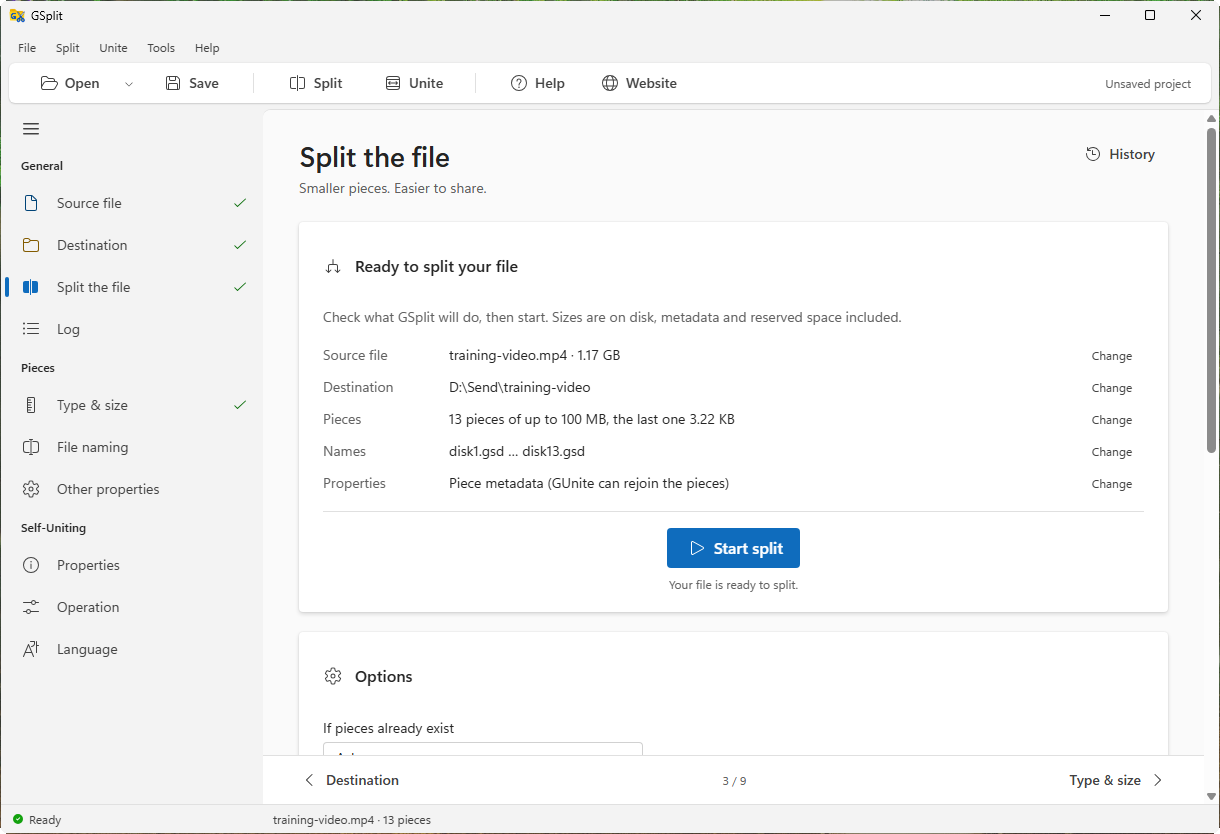
Ready to split your file
Section titled “Ready to split your file”A summary card lists the source file, the destination, the pieces, their names and their properties. Each row has a Change button that opens the page where you set it. A line above the card tells what is still missing, for example Choose a source file to begin.
Start split
Section titled “Start split”Starts the split. The button is enabled once a source file and a destination folder are set and no setting is invalid.
While the split runs
Section titled “While the split runs”A progress bar shows the whole file and the piece being written. Pause split stops writing until you select Resume split; Cancel split stops the run and keeps the pieces already written. If GSplit needs an answer, for example when the destination is full, it asks in a banner above the page.
When the split ends
Section titled “When the split ends”A banner gives the result, the number of pieces and the time, with buttons to Open folder, Copy the list of files to send, Copy as command line and View log. The banner goes away when you choose another source file or open a project. The Recent splits card lists your last splits.
If GSplit is not the window in front when a split ends, it can notify you; see Options.
Options
Section titled “Options”If pieces already exist
Section titled “If pieces already exist”What to do when the destination already holds a file with the name of a piece. Default: Ask me.
| Choice | Effect |
|---|---|
| Ask me | GSplit asks before it splits. |
| Overwrite | Pieces with the same names are replaced. |
| Skip existing pieces | Pieces already there are kept. Use it to finish an interrupted split with the same settings. |
| Rename the new set | The new set gets other names, starting with (2) . |
| Stop with an error | The split does not start. |
If the pieces are too large for the destination drive (a FAT32 drive holds at most 4 GB per file), a warning offers Use pieces of the largest size that fits.
Only create these pieces
Section titled “Only create these pieces”Off by default. Type piece numbers and ranges such as 1, 3-5, 37- (37- means piece 37 to the last). GSplit writes only those pieces, so you can recreate a lost piece without splitting everything again.
Verify each piece after writing
Section titled “Verify each piece after writing”On by default. GSplit reads each piece back and checks it. Turn it off only to save time on slow media.
Open output folder when finished
Section titled “Open output folder when finished”On by default. Opens the destination folder when the split succeeds.
Buffer size (KB)
Section titled “Buffer size (KB)”The memory used to copy the data. The default, 64 KB, suits most disks.
Low impact mode
Section titled “Low impact mode”Off by default. Slows the split so that other programs keep using the disk and the network; the pieces are the same. Set a Maximum rate (MB/s) (0 means no limit) and, if needed, a Pause after each block (ms).