
 GSplit
Split a file and send it
Send a large file in smaller parts, with a restore app for your recipient. In this Windows example, we split training-video.mp4 (1.2 GB) into 100 MB pieces. Use your own file and a piece size that fits your transfer limit.
Before you start
Section titled “Before you start”- Find the size limit of the way you send the file: the attachment limit of your mail server, the upload limit of your chat or file service. Limits change, so check the current one with your provider.
- Choose a size below that limit. Service presets are starting points: check the limit of your own account before using one.
- Choose an empty destination folder. The pieces,
GUnite.exeand its.inifile are written there.
Split the file
Section titled “Split the file”-
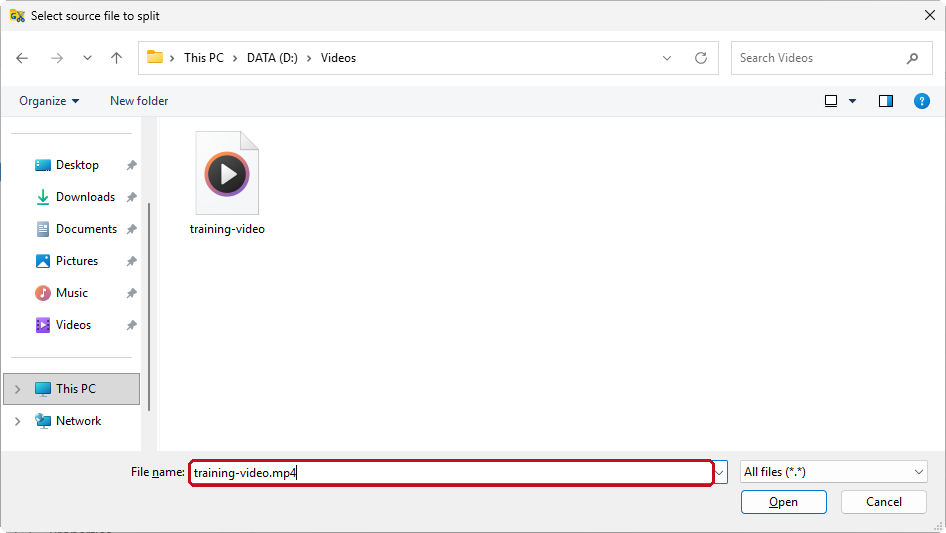
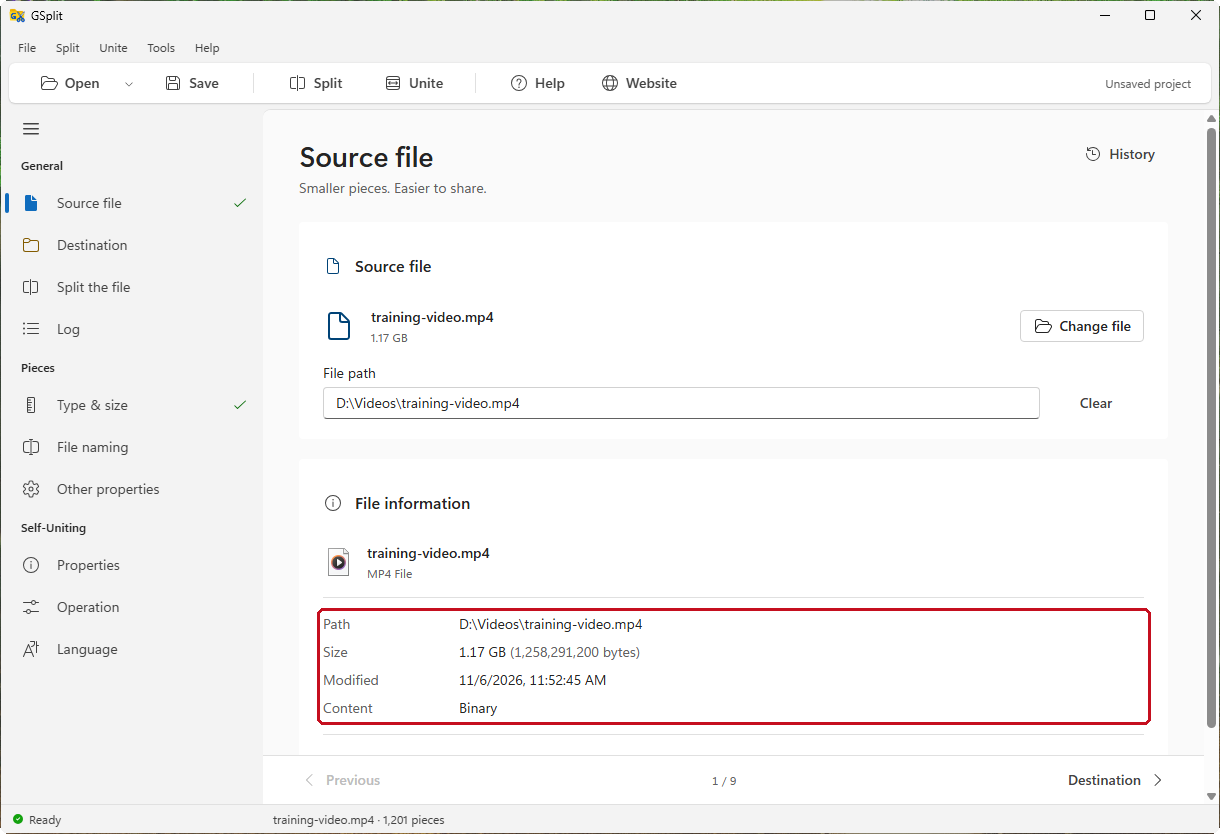
Choose your file. In Source file, click Choose file, select
training-video.mp4and check its size.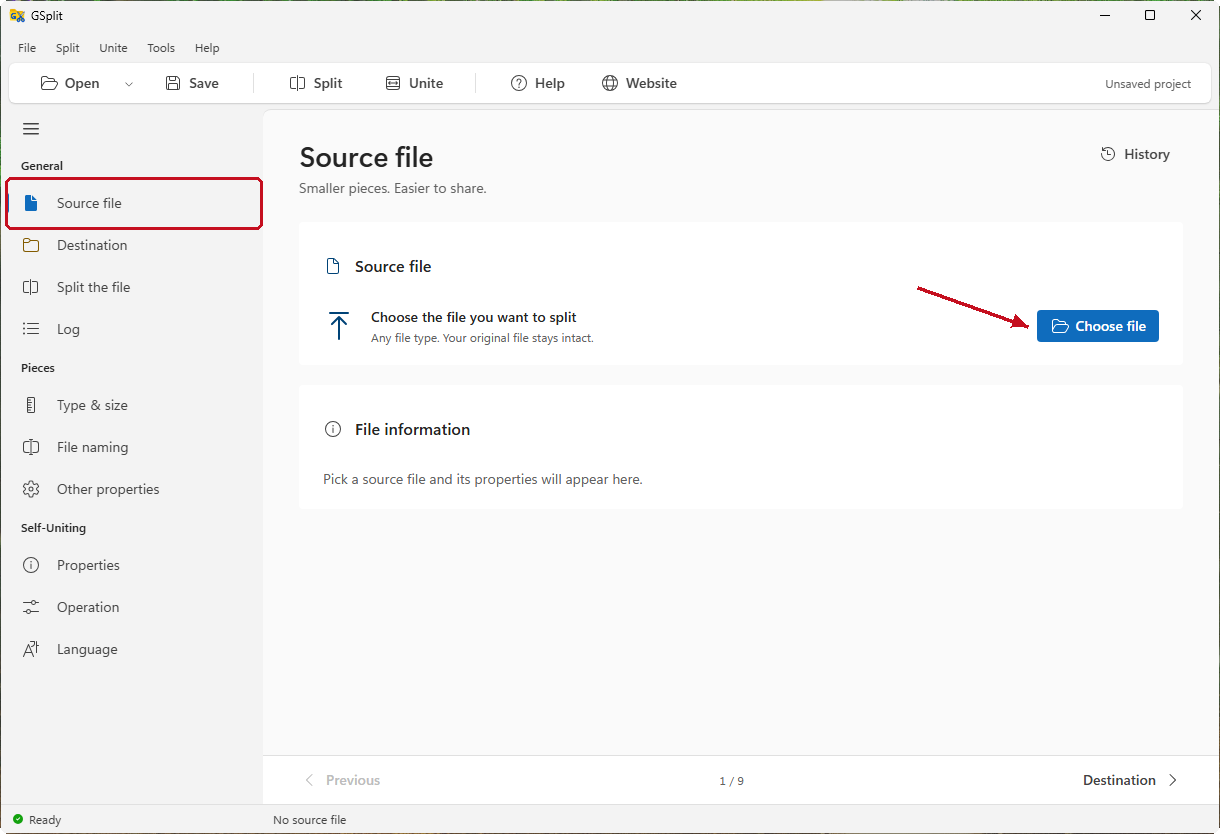
Show the Windows open-file dialog
-
Choose a destination. In Destination, click Browse… and select an empty folder, such as
D:\Send\training-video.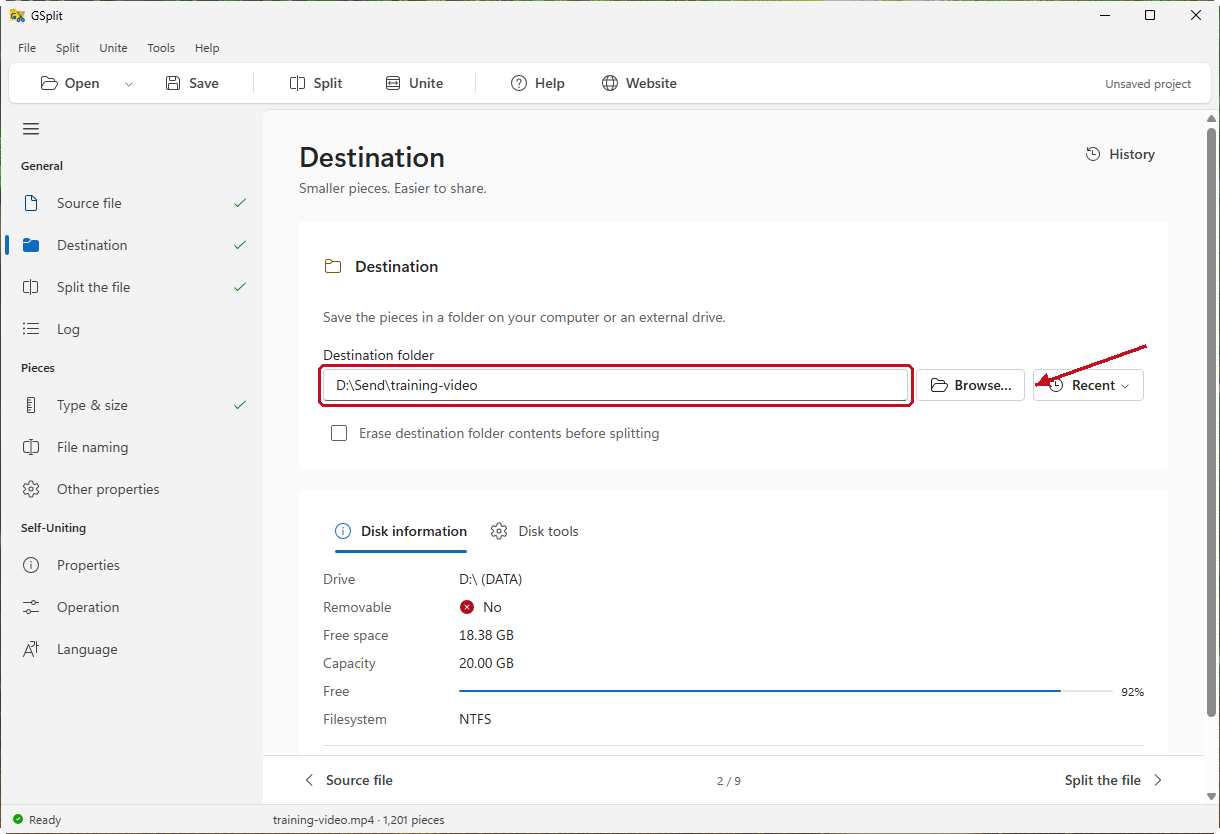
-
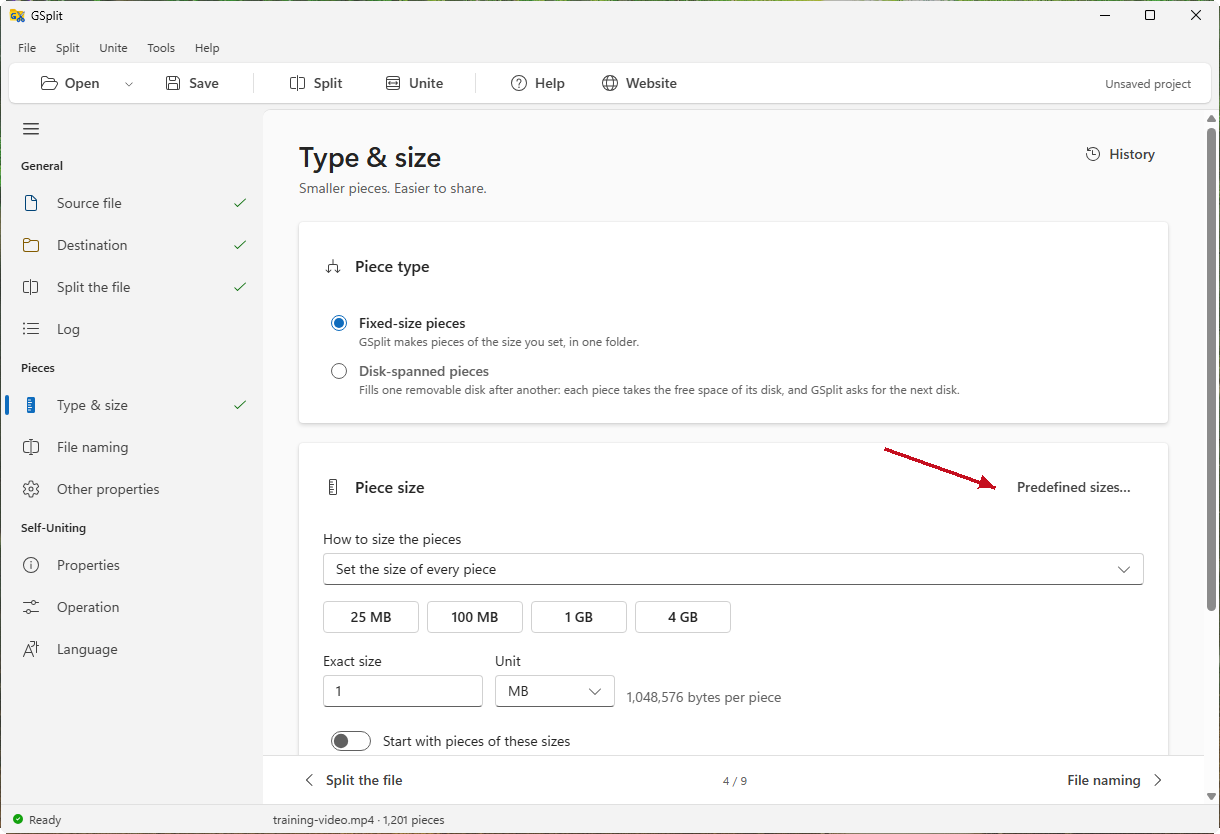
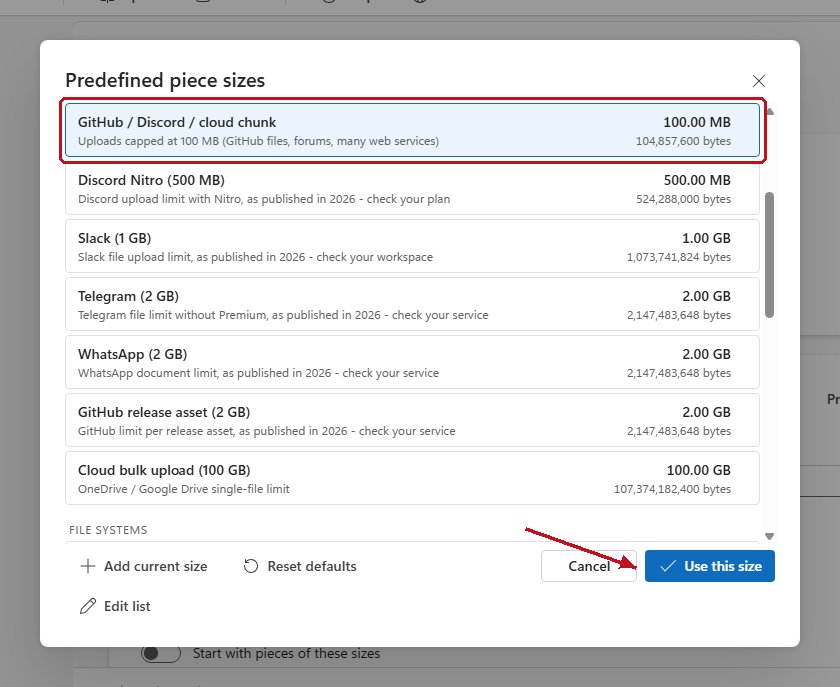
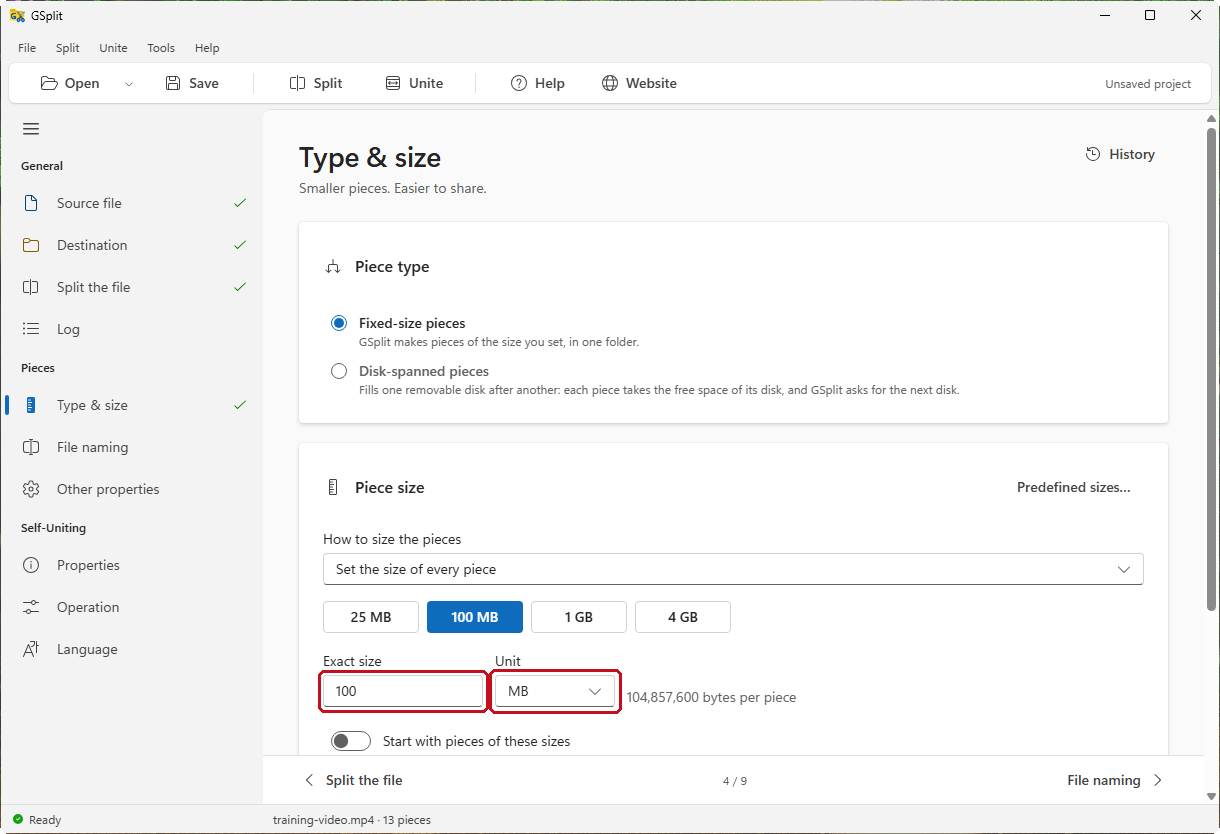
Set the piece size. In Type & size, click Predefined sizes…, choose GitHub / Discord / cloud chunk, then Use this size. This example uses 100 MB; choose a smaller size if your transfer limit requires it. Check the estimate below the size field.
Show where the Predefined sizes button is
-
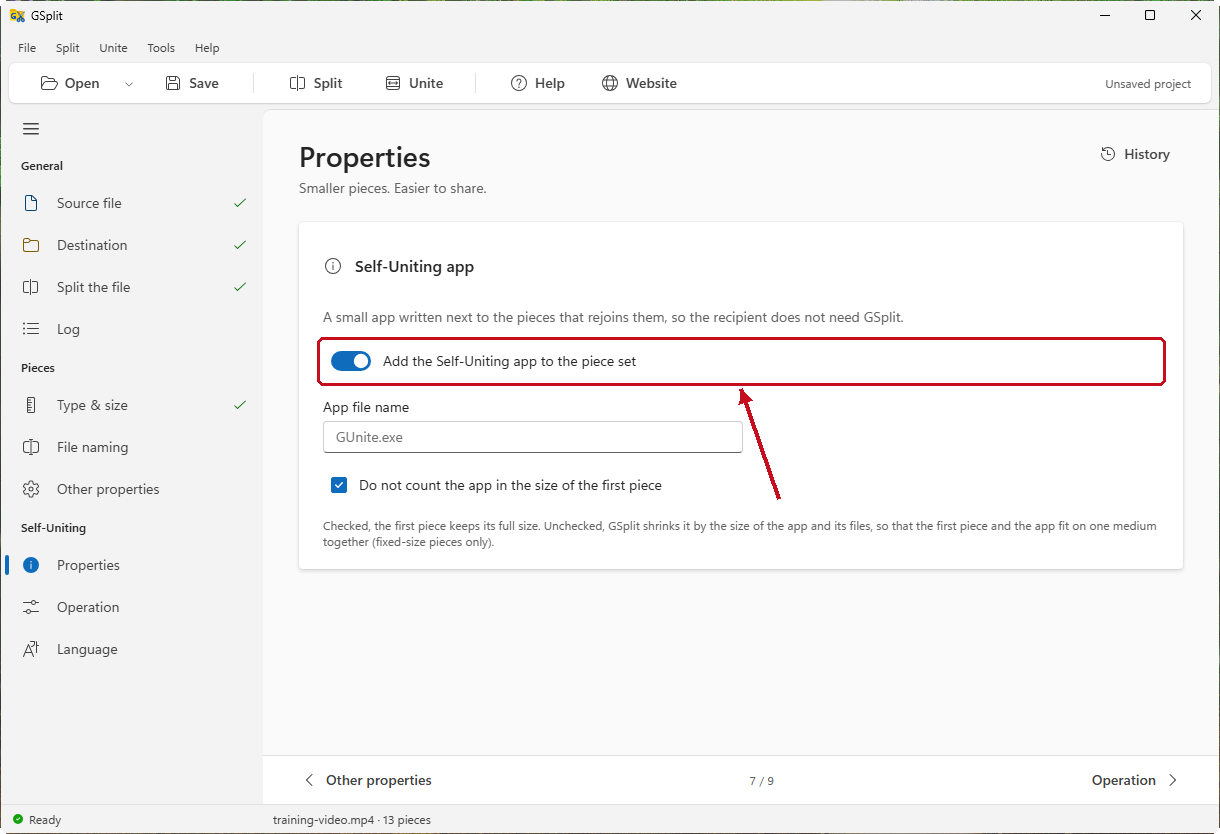
Include the restore app. Under Self-Uniting > Properties, leave Add the Self-Uniting app to the piece set on.
-
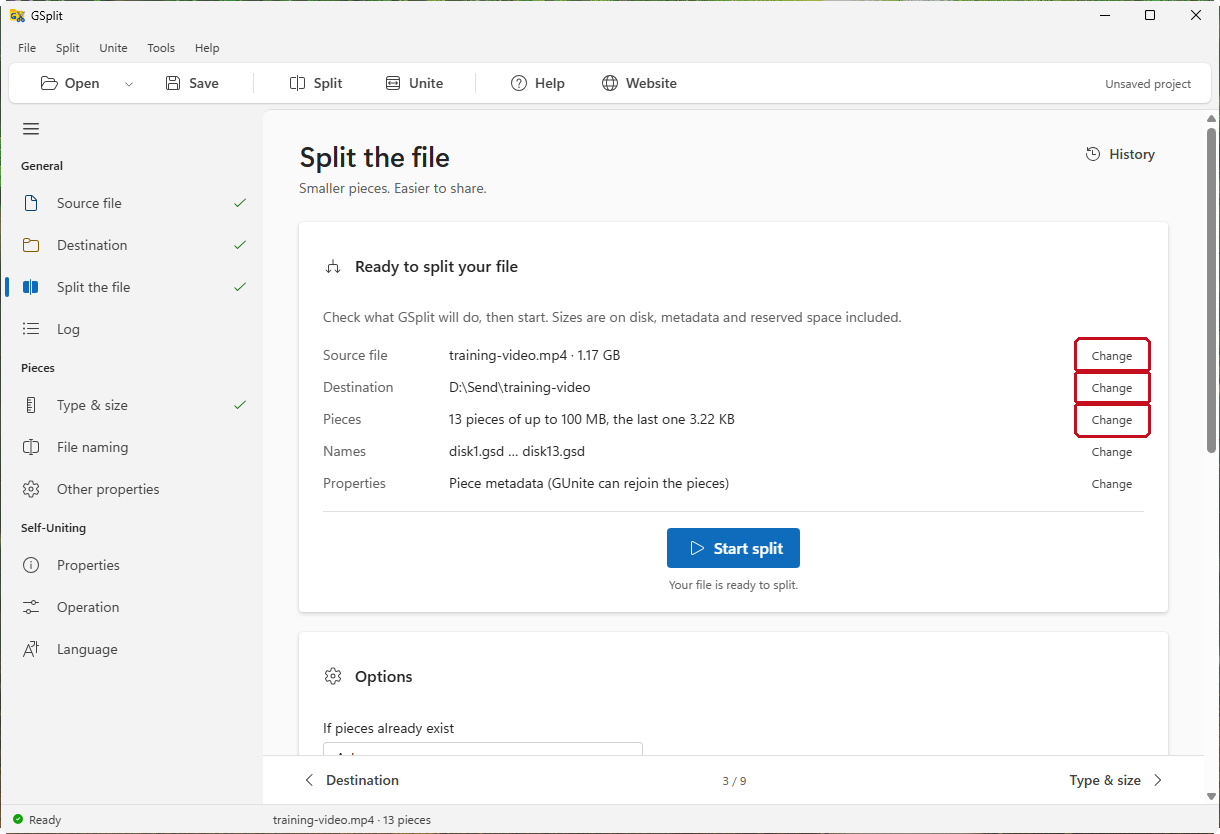
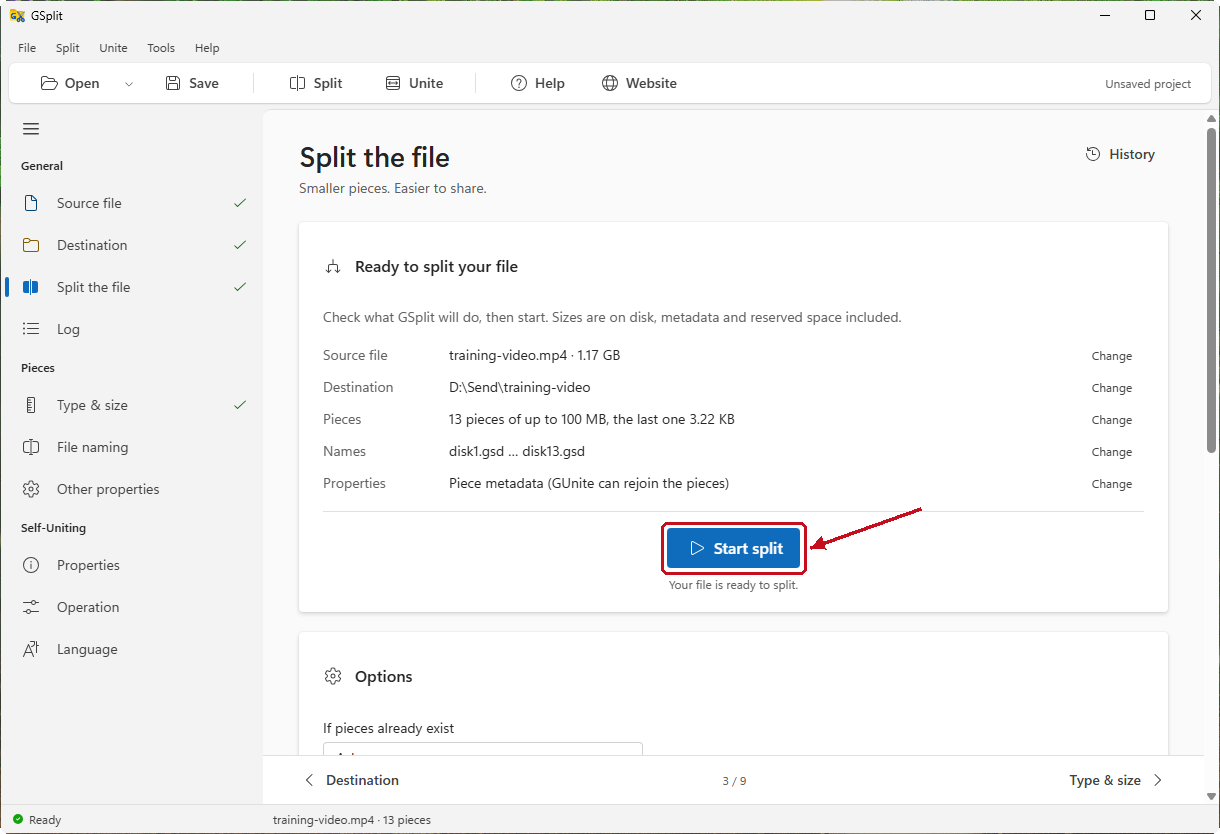
Start the split. Open Split the file, check the summary and click Start split. Wait for Split completed.
Show the whole summary to check
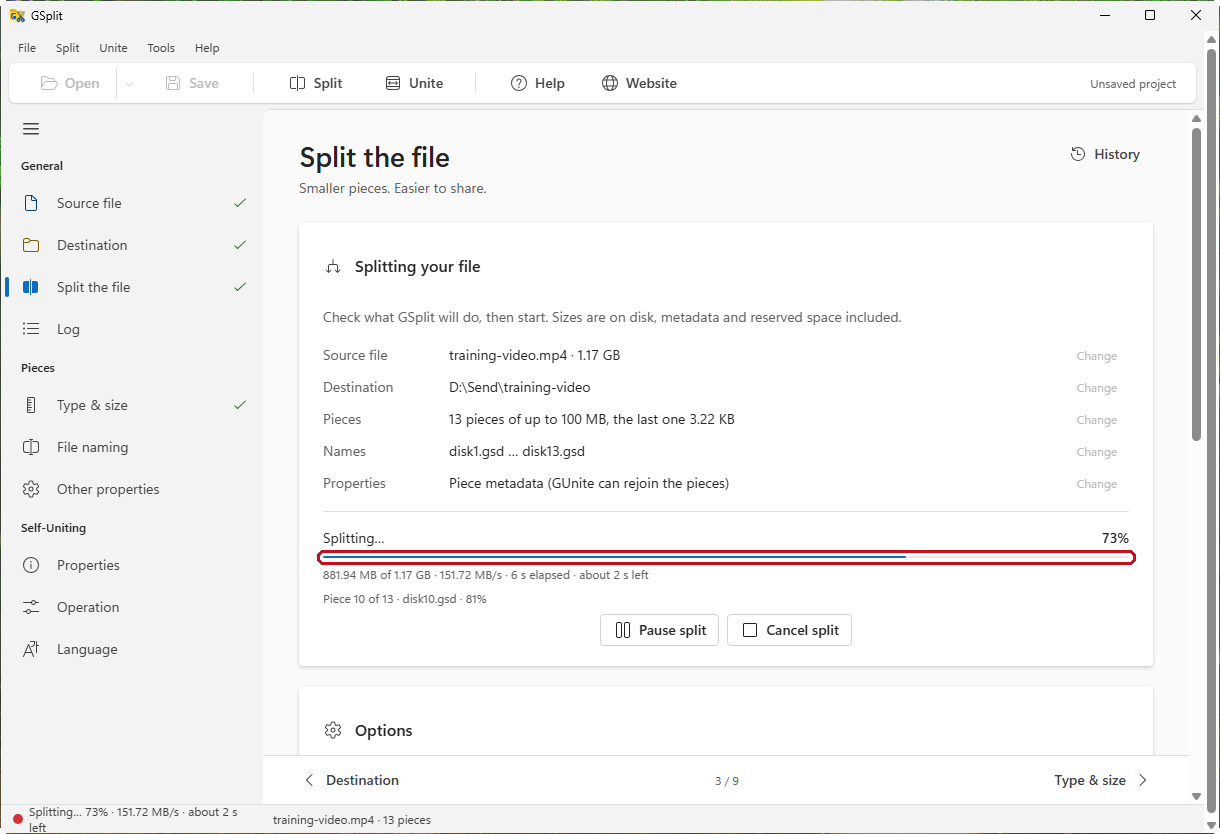
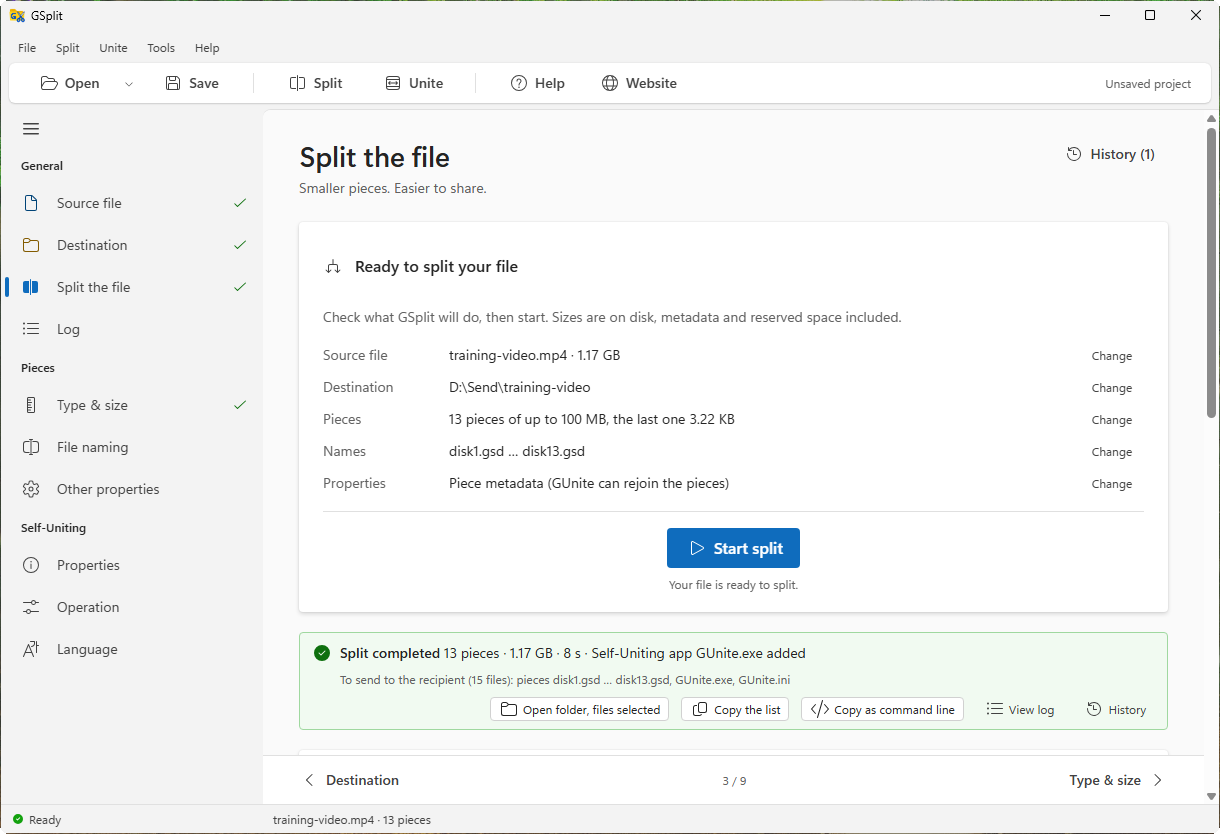
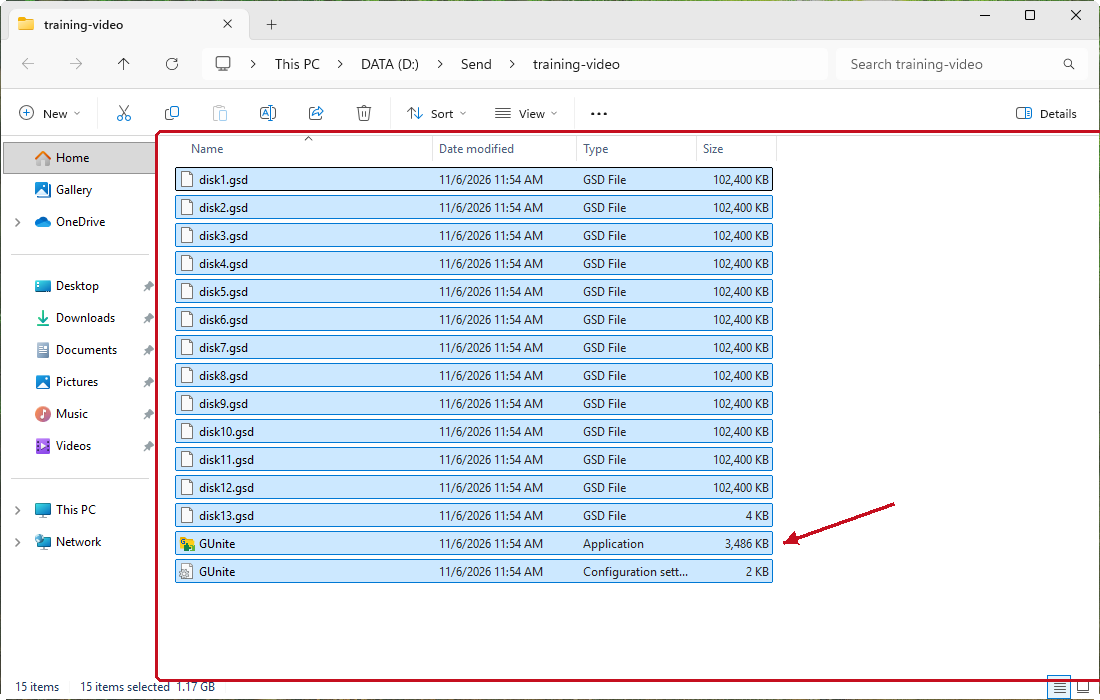
GSplit writes the pieces with the default mask disk{num}.gsd, so the folder holds disk1.gsd, disk2.gsd and so on, plus GUnite.exe and GUnite.ini. With Verify each piece after writing on, which is the default, GSplit reads each piece back after writing it.
Check the result
Section titled “Check the result”-
On the Split completed message, read the line that starts with To send to the recipient.

-
Click Open folder, files selected.
-
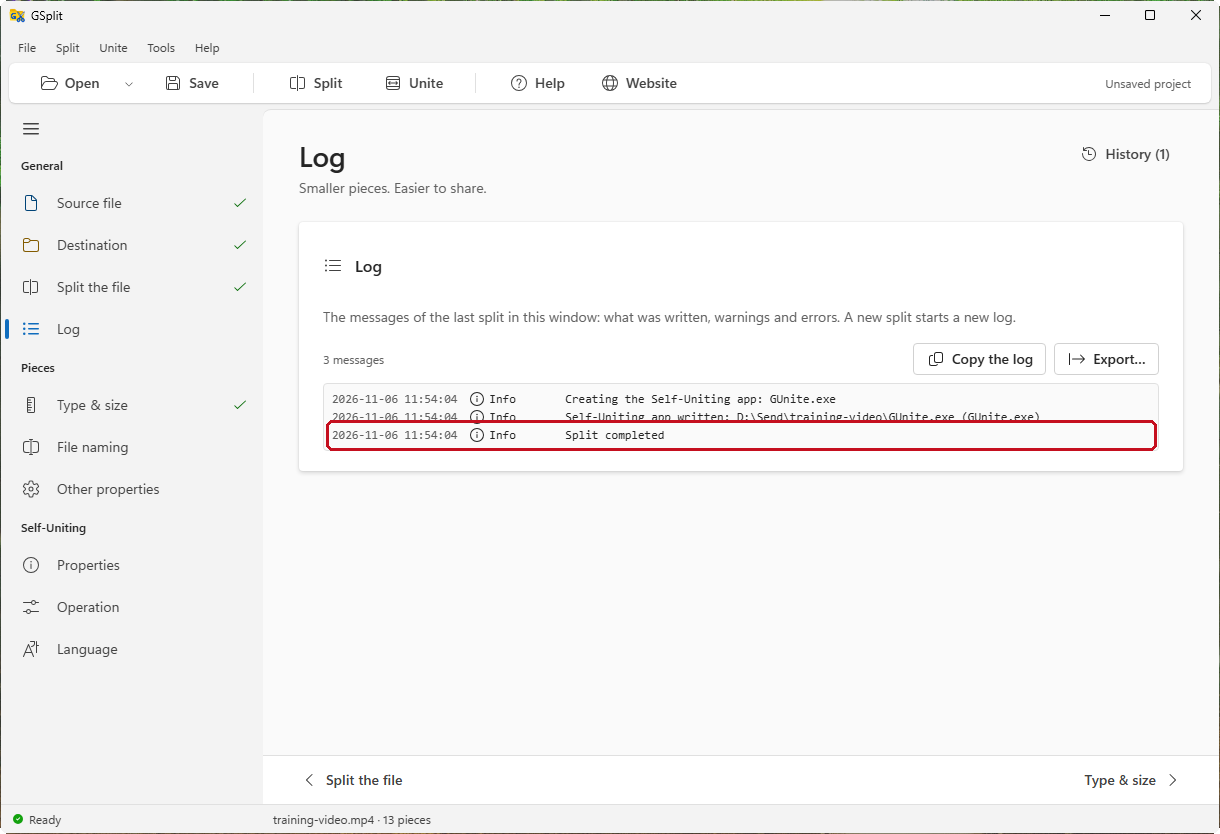
Click View log and look for warnings or errors.
Send the pieces
Section titled “Send the pieces”For this Windows example, send the whole set. The number of pieces depends on your file and settings.
Directorytraining-video/
- disk1.gsd
- disk2.gsd
- …
- GUnite.exe
- GUnite.ini
-
Copy or upload all the files of the destination folder: every piece,
GUnite.exeandGUnite.ini.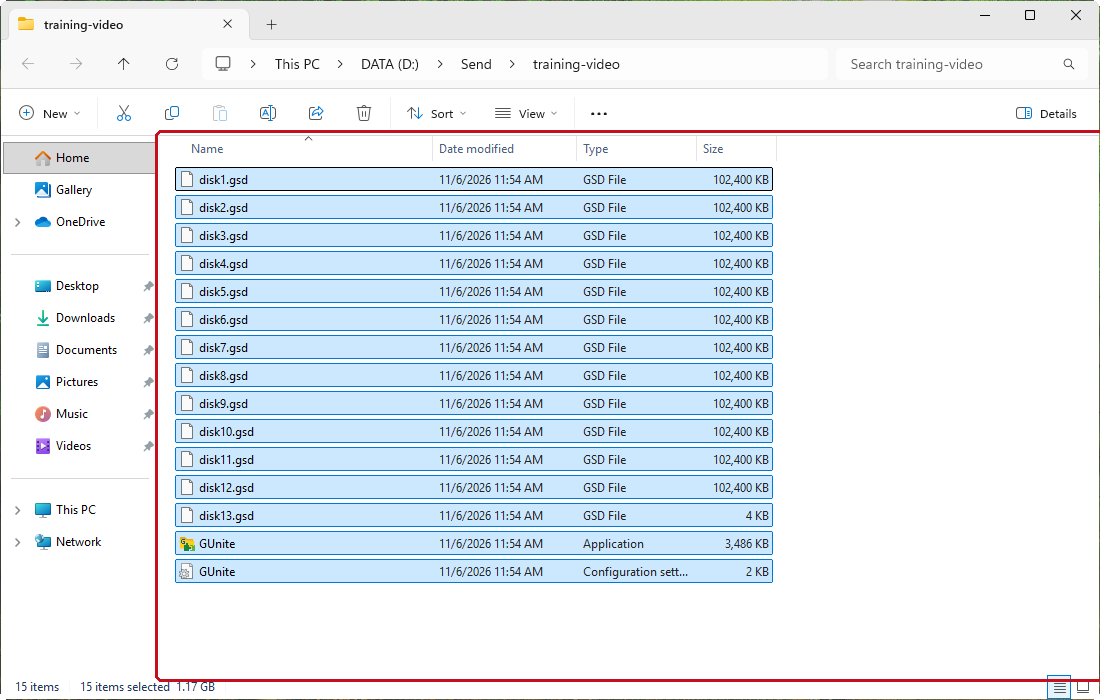
-
Tell the recipient to keep all the files in one folder and to double-click
GUnite.exe.
Other ways to restore or verify the set
A recipient who has GSplit can unite the set from any piece without GUnite.exe. The Write join scripts (.bat / .sh) option of the Other properties page adds .bat and .sh files that start gunitec or GUnite.exe next to them, so they need one of these programs. A SHA-256 manifest (Write a SHA-256 manifest (<name>.sha256)) lets the recipient check the files with sha256sum -c.