
 GSplit
File checksum
A checksum is a fingerprint of a file. Compare it with the value supplied by the sender to check whether your downloaded or restored file matches theirs.
Open it from Tools > File checksum… in the menu bar.
- Click Browse… and choose the file. GSplit starts reading it.
- Wait for the results: CRC-32, MD5 and SHA-256.
- Copy the value for the same algorithm the sender used, then compare the two values.
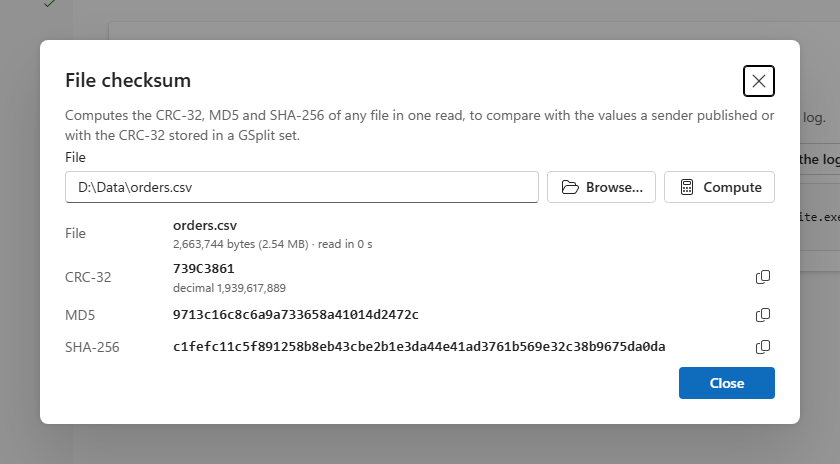
The file
Section titled “The file”The path of the file to read. Type it or paste it. The dialog opens empty each time.
Browse…
Section titled “Browse…”Opens the file picker. Once you choose a file, GSplit starts computing at once.
Compute
Section titled “Compute”Reads the file named in the File box and computes the three checksums. Pressing Enter in the box does the same. The button is disabled while the box is empty.
Replaces Compute while a checksum runs. It stops the read, and the dialog reports how much of the file was read. Closing the dialog also stops it. Only one checksum runs at a time, and it is independent of a split or a unite.
While GSplit reads the file, the dialog shows the file name, a percentage and the bytes read of the total.
The results
Section titled “The results”When the read ends, the dialog shows the file name, its size in bytes, and how long the read took, followed by one row per algorithm.
CRC-32
Section titled “CRC-32”Eight uppercase hexadecimal digits, with the same value in decimal under it. This is the standard CRC-32, the value GSplit stores for each piece.
The MD5 digest of the file, in hexadecimal.
SHA-256
Section titled “SHA-256”The SHA-256 digest of the file, in hexadecimal.
The button at the end of each row copies that value to the clipboard; its tooltip changes to "Copied". The values are also selectable text.