
 GSplit
Split a log file or text file by lines
A large log can be slow to open, and a CSV export may exceed your spreadsheet's row limit. Splitting by lines cuts the file into smaller files that each hold whole lines, so no line or record is cut in two. This tutorial splits the log access.log into pieces of 100,000 lines named access_001.txt, access_002.txt and so on, then does the same for a CSV file whose header line must appear in every piece.

Before you start
Section titled “Before you start”- The file must be text: ASCII, ANSI, UTF-8, UTF-16 or UTF-32. GSplit warns when the file does not look like text.
- In lines mode the pieces are plain text files without GSplit metadata. You open them directly; GUnite does not check them.
- Choose an empty destination folder, for example
D:\Logs\access.
Split a log file
Section titled “Split a log file”-
Click Source file in the navigation pane, click Choose file and select
access.log.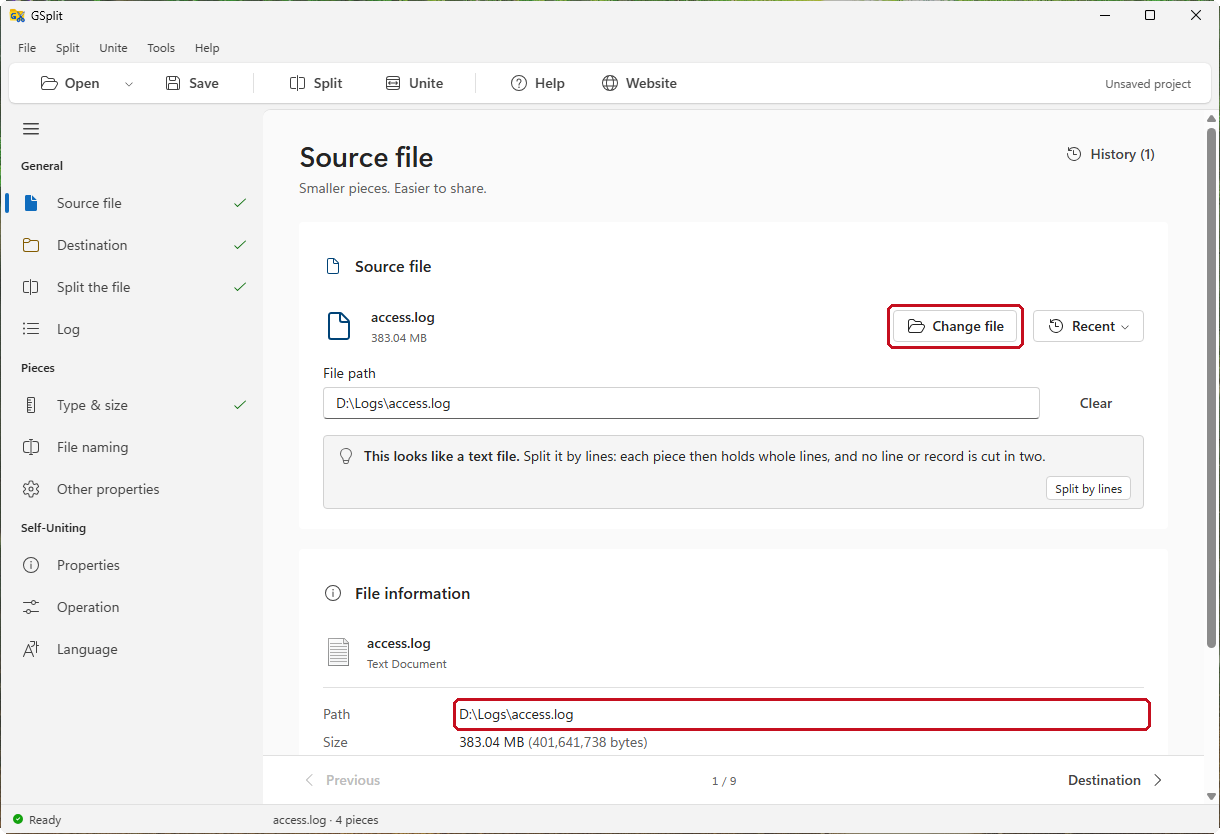
-
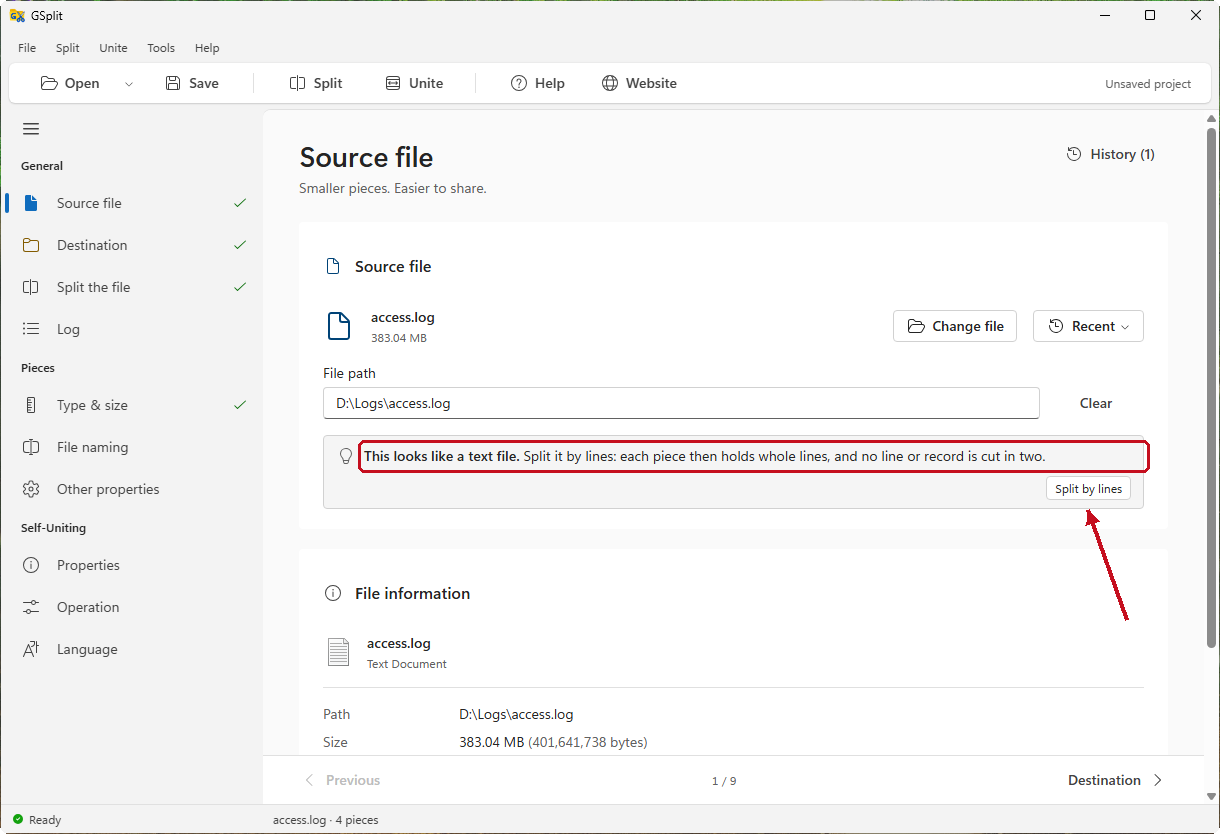
Read the message This looks like a text file. and click Split by lines.
-
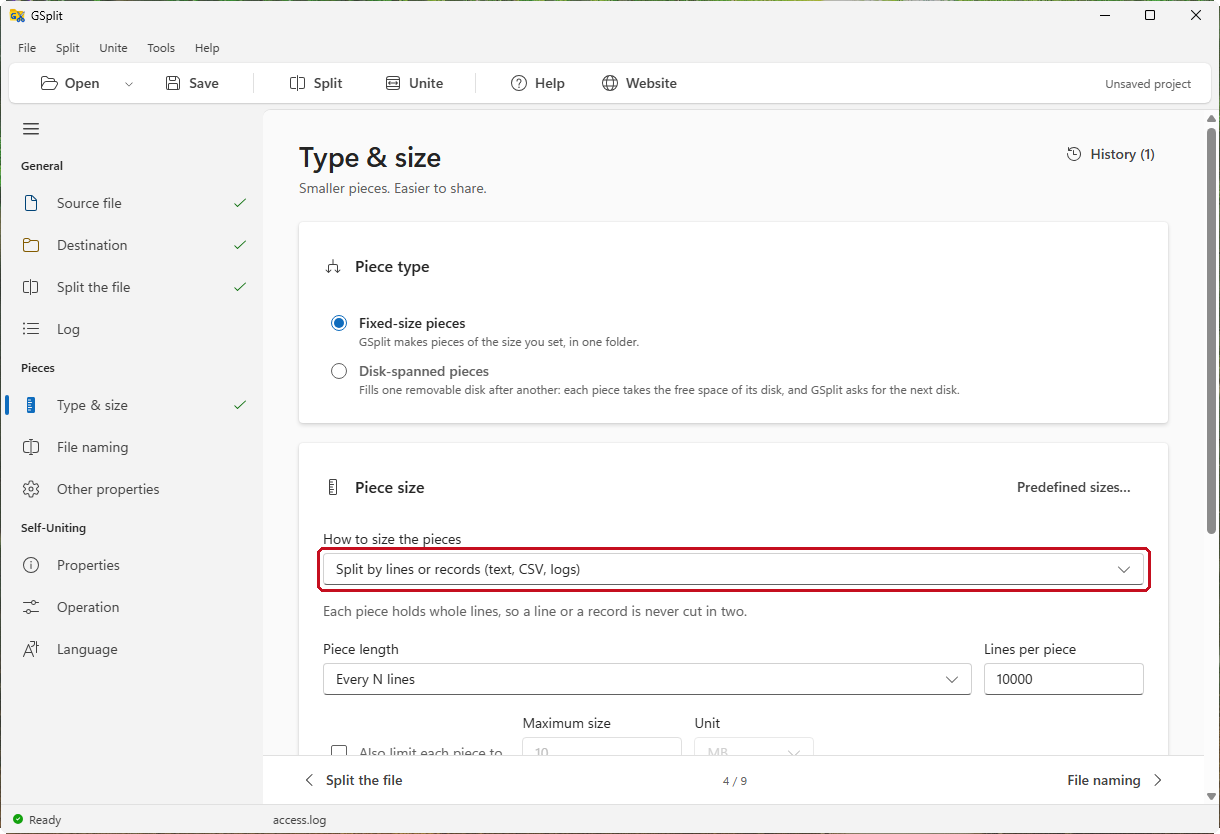
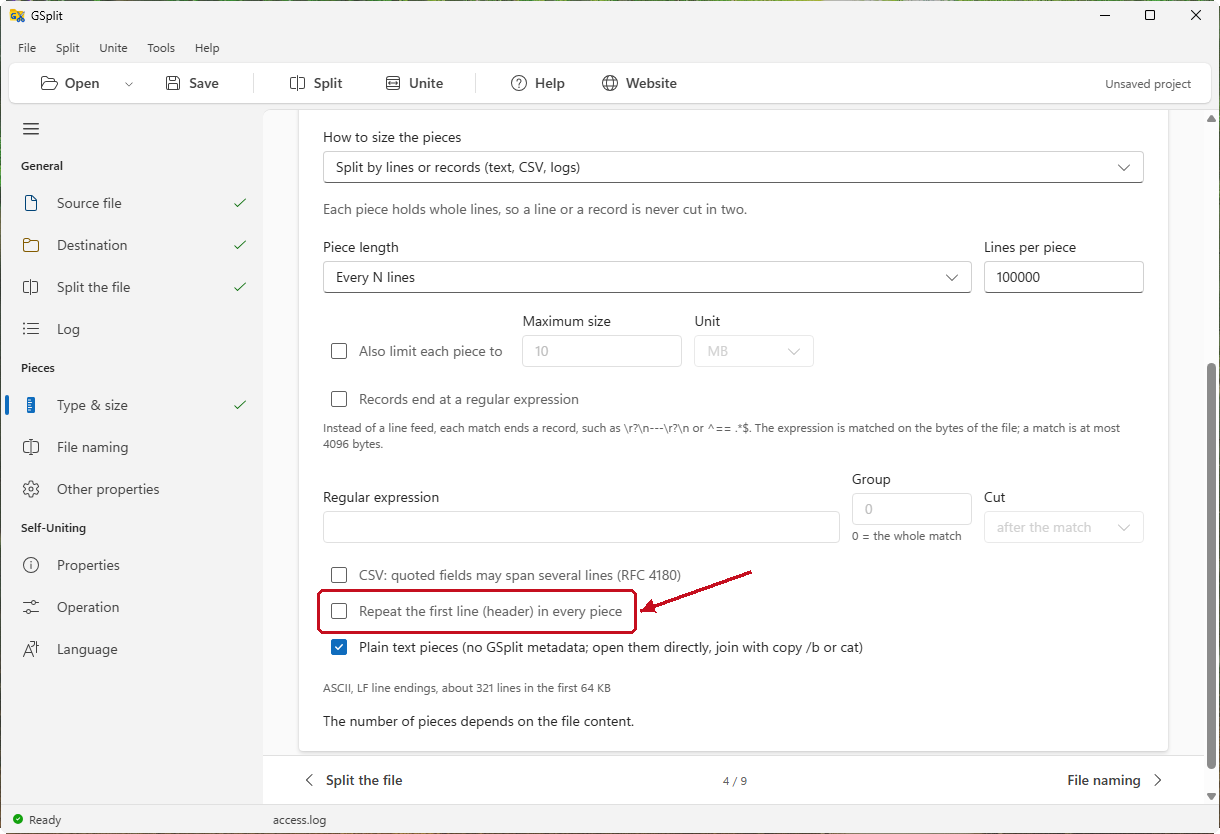
On the Type & size page, check that How to size the pieces reads Split by lines or records (text, CSV, logs).
-
Set Piece length to Every N lines, and type
100000in Lines per piece.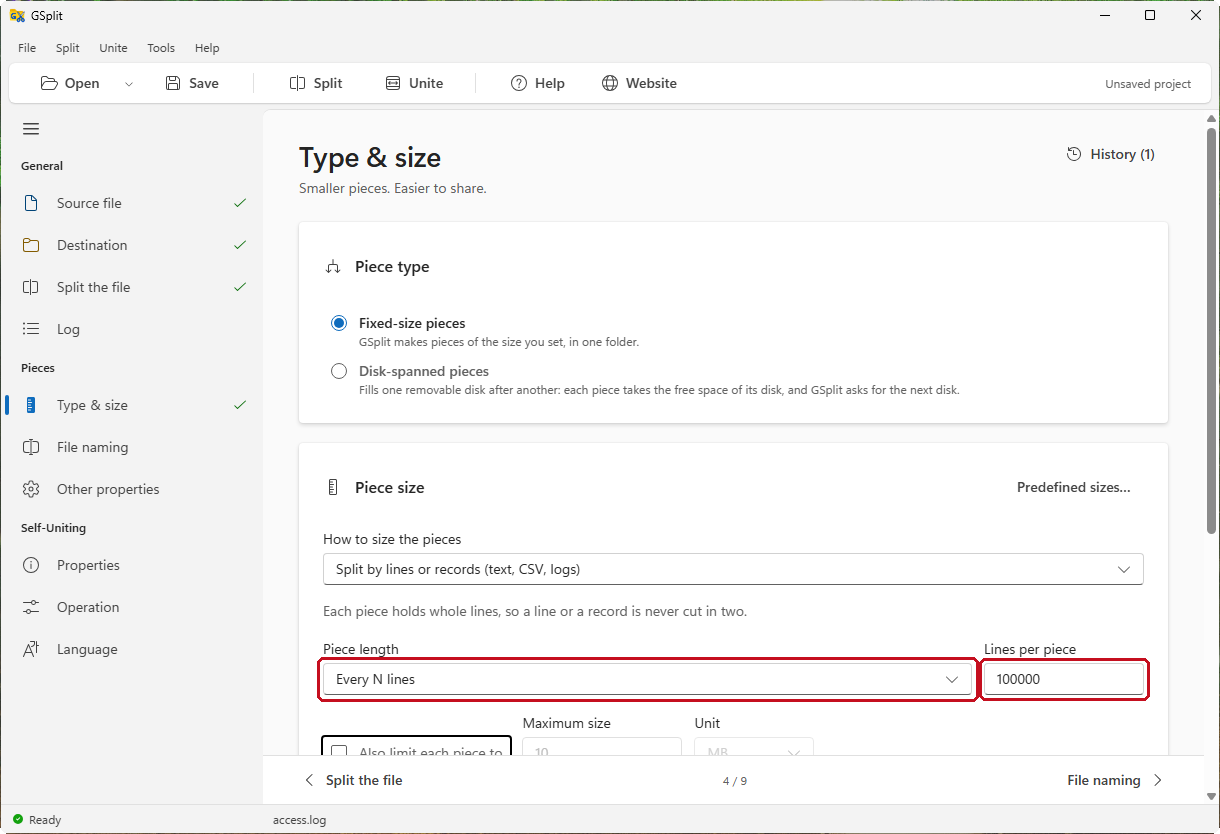
-
Clear Repeat the first line (header) in every piece for this example: its first line is a log entry, not a header.
-
Click File naming in the navigation pane. In Name mask, type
{ofw}_{oru}.txt.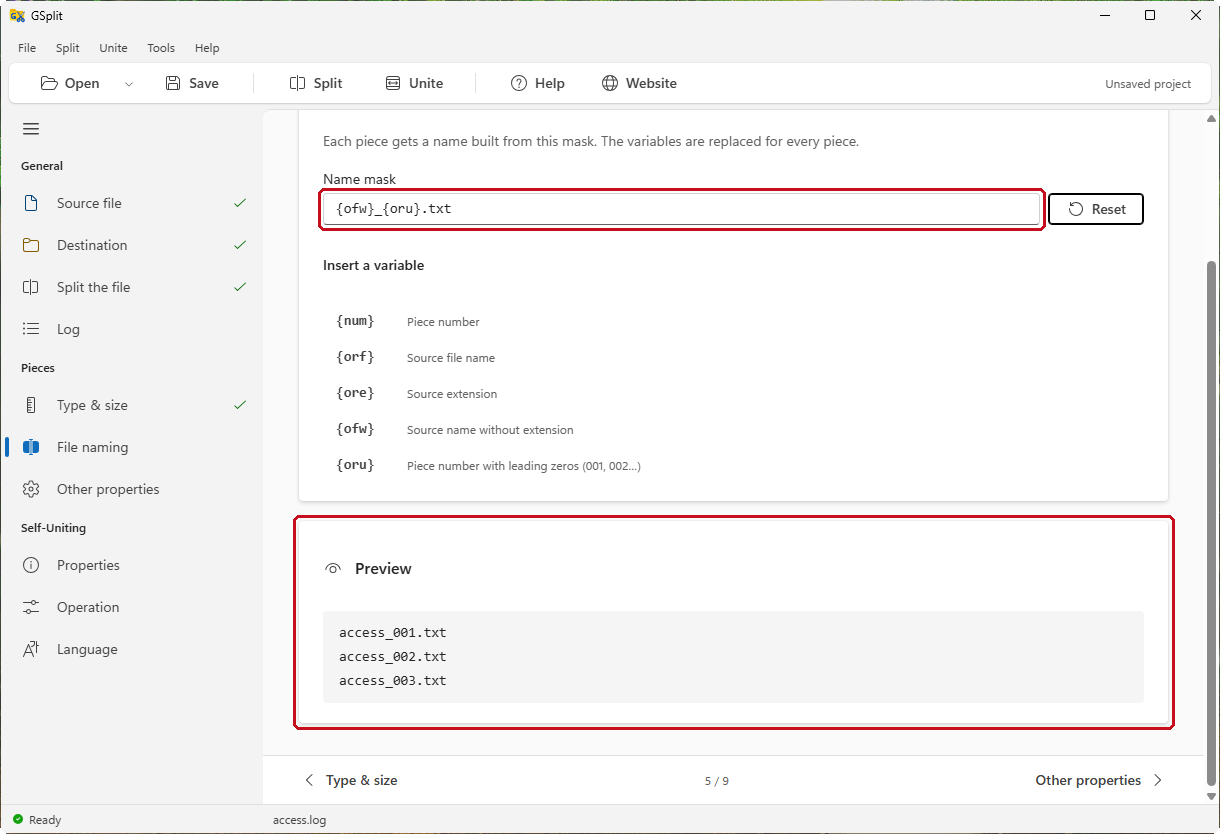
-
Click Destination in the navigation pane, click Browse… and select
D:\Logs\access.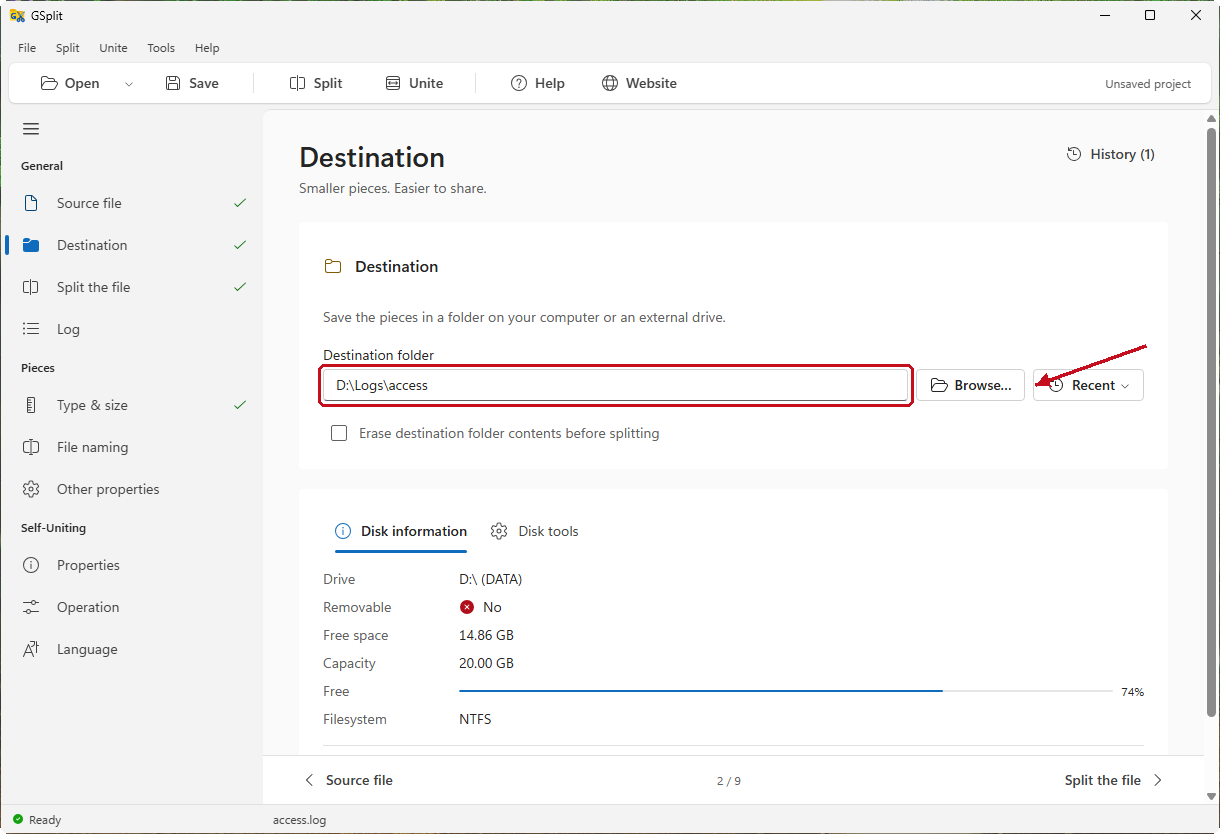
-
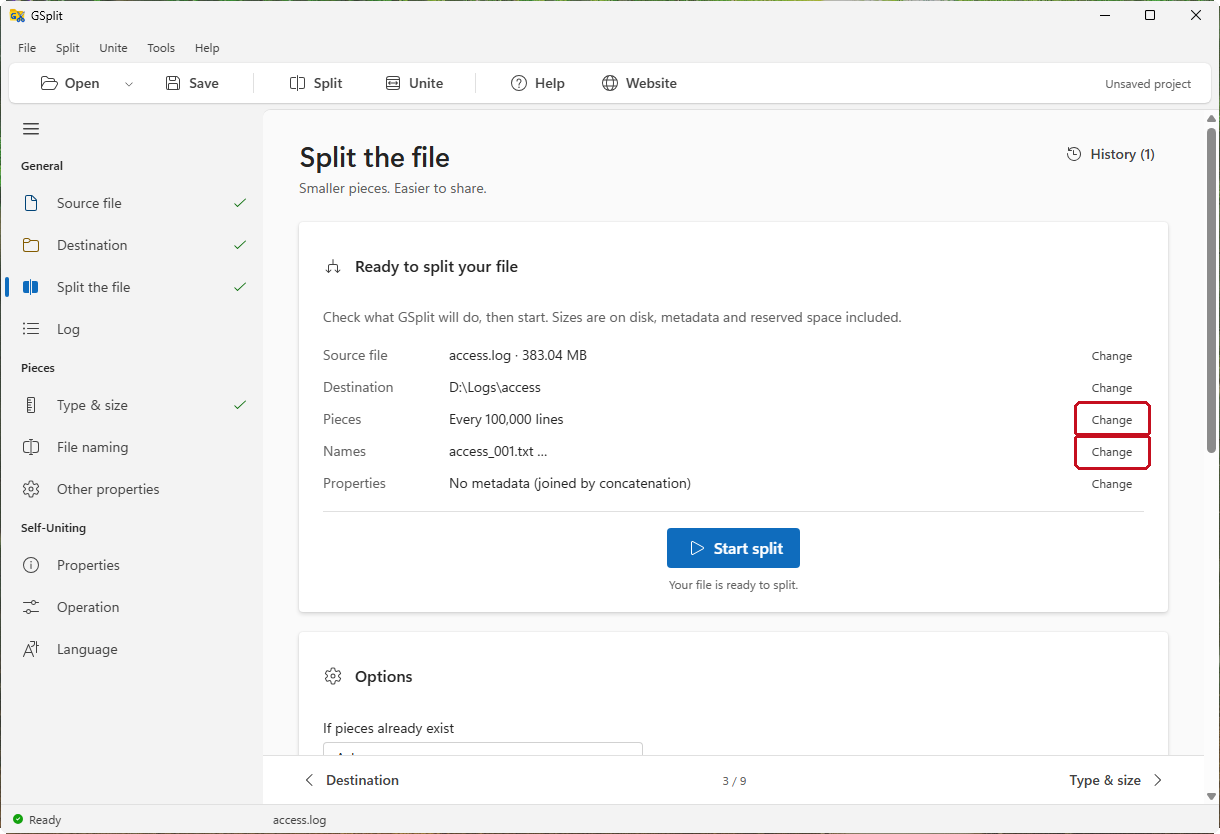
Click Split the file in the navigation pane and read the summary.
-
Click Start split and wait for Split completed.
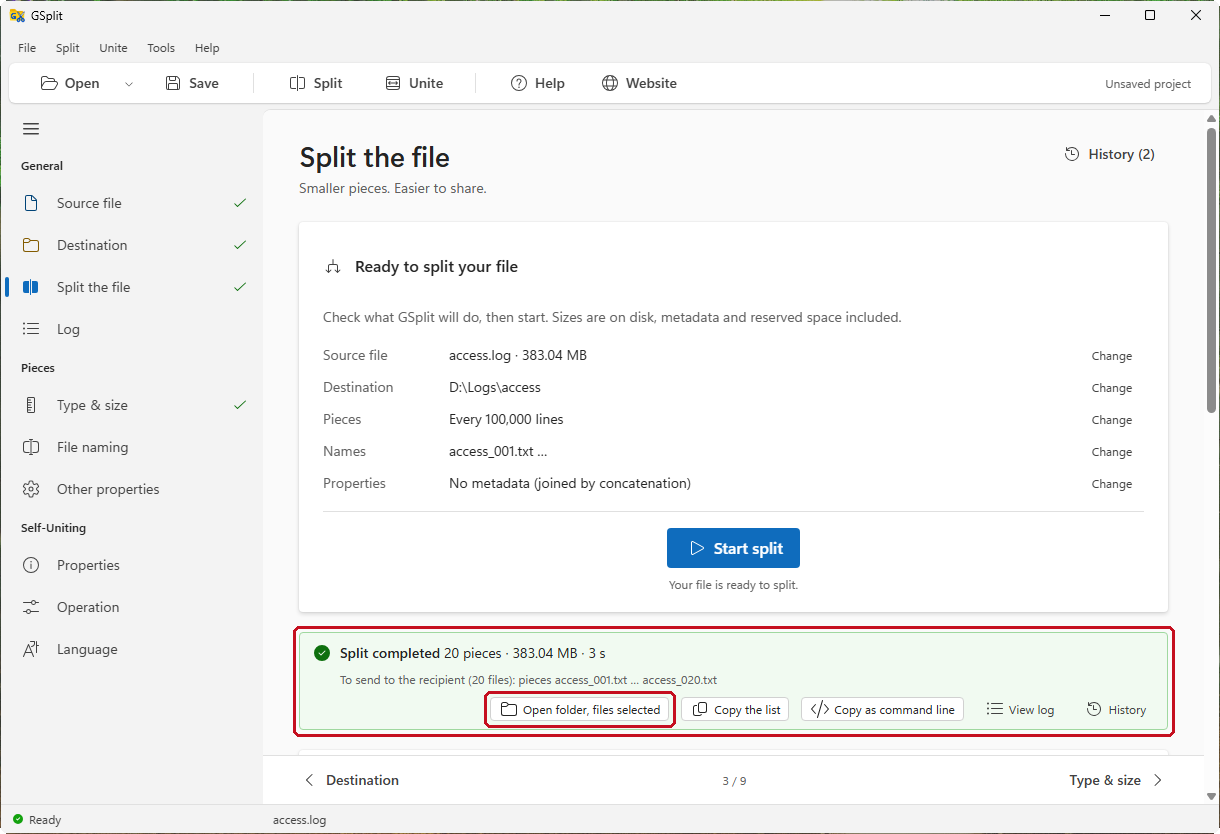
The default mask in lines mode is {ofw}_{oru}{ore}: it keeps the extension of the source, so access.log gives access_001.log. The .txt in the mask above is what makes the pieces open in any editor. The variables are listed on the File naming page.
Open the pieces
Section titled “Open the pieces”-
Click Open folder, files selected on the Split completed message.
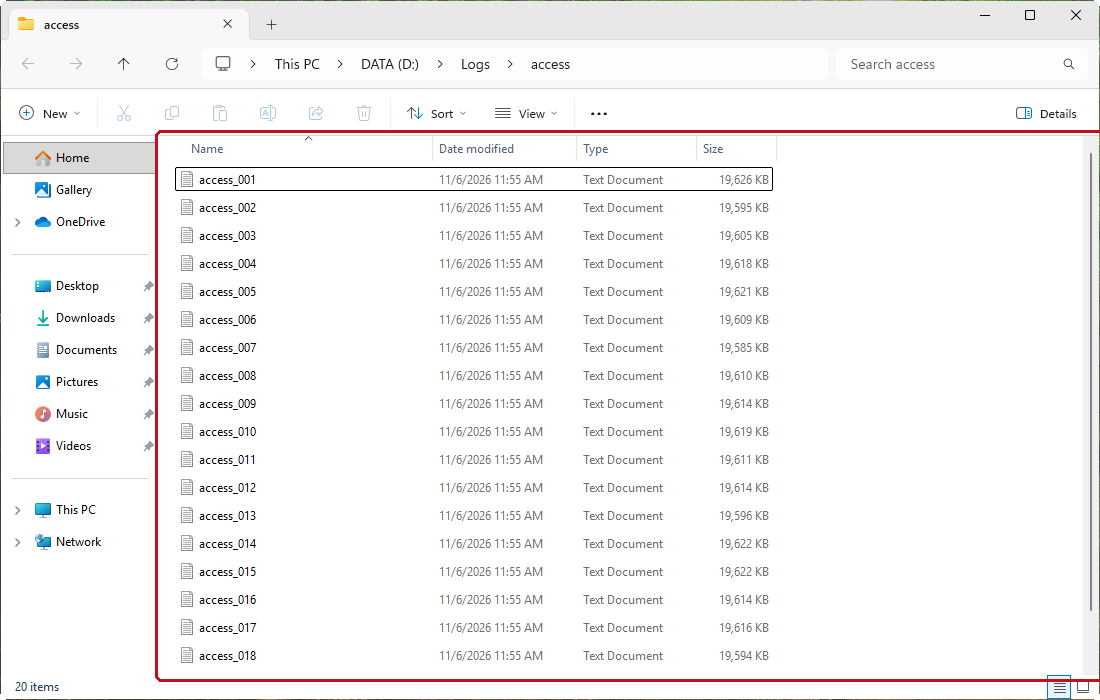
-
Double-click
access_001.txtto open it in your text editor.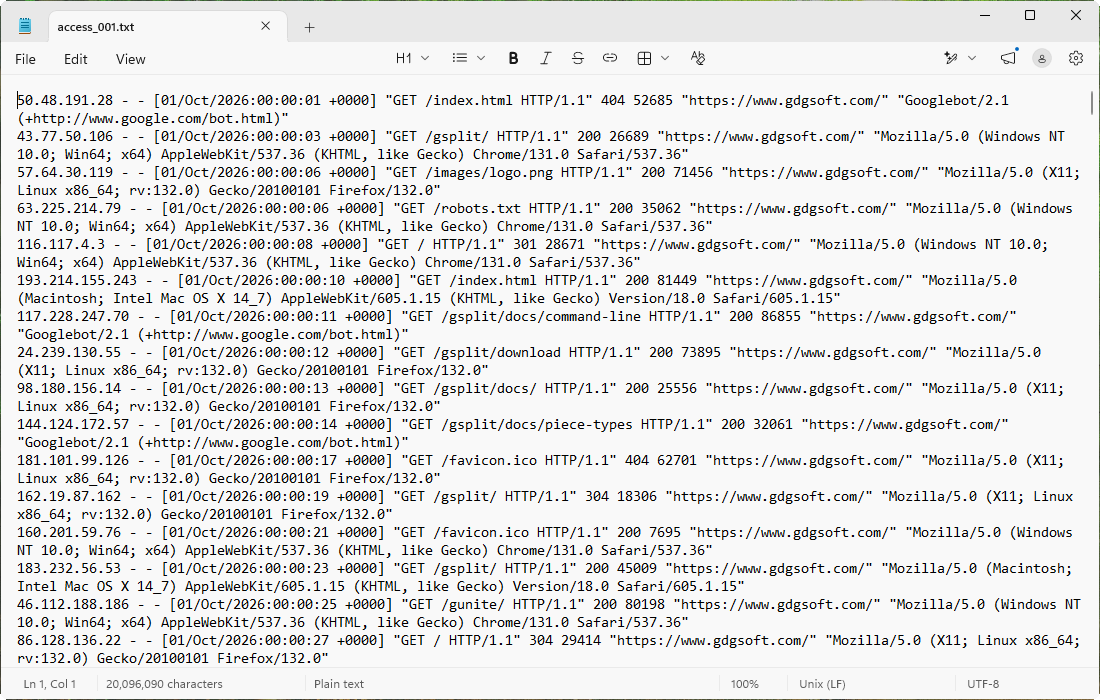
-
Open the last piece and check that its last line is the last line of the log.
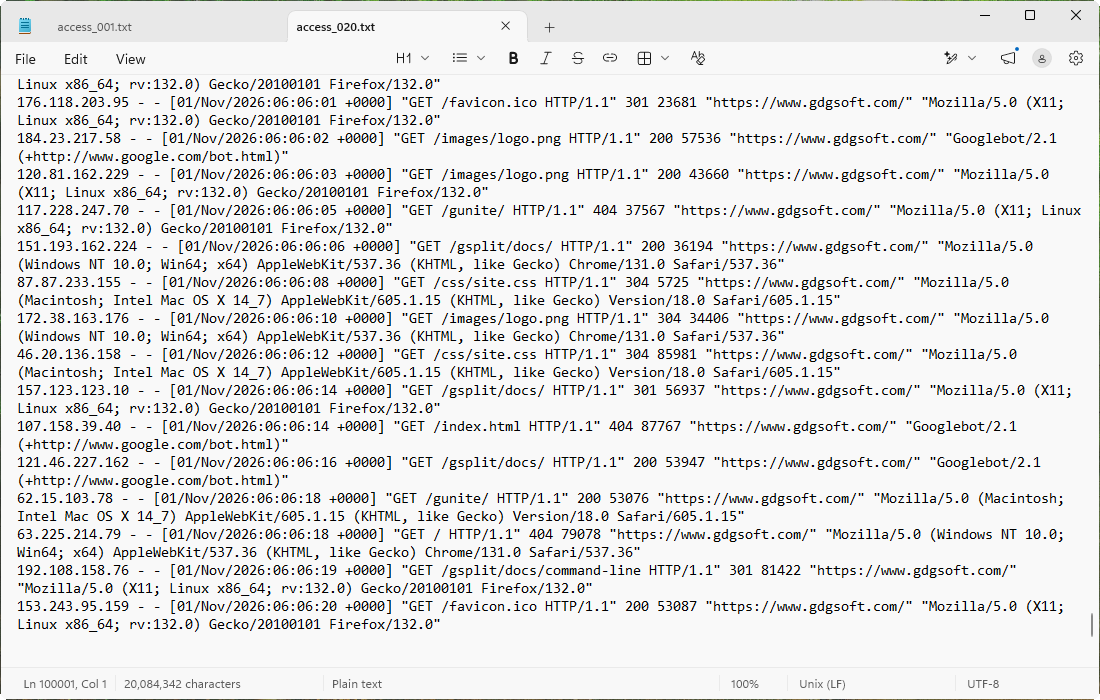
Split a CSV file and keep the header
Section titled “Split a CSV file and keep the header”For a CSV file, every piece must start with the column names. GSplit turns the header option on by itself for .csv, .tsv and .log files.
-
Choose
orders.csvon the Source file page and click Split by lines.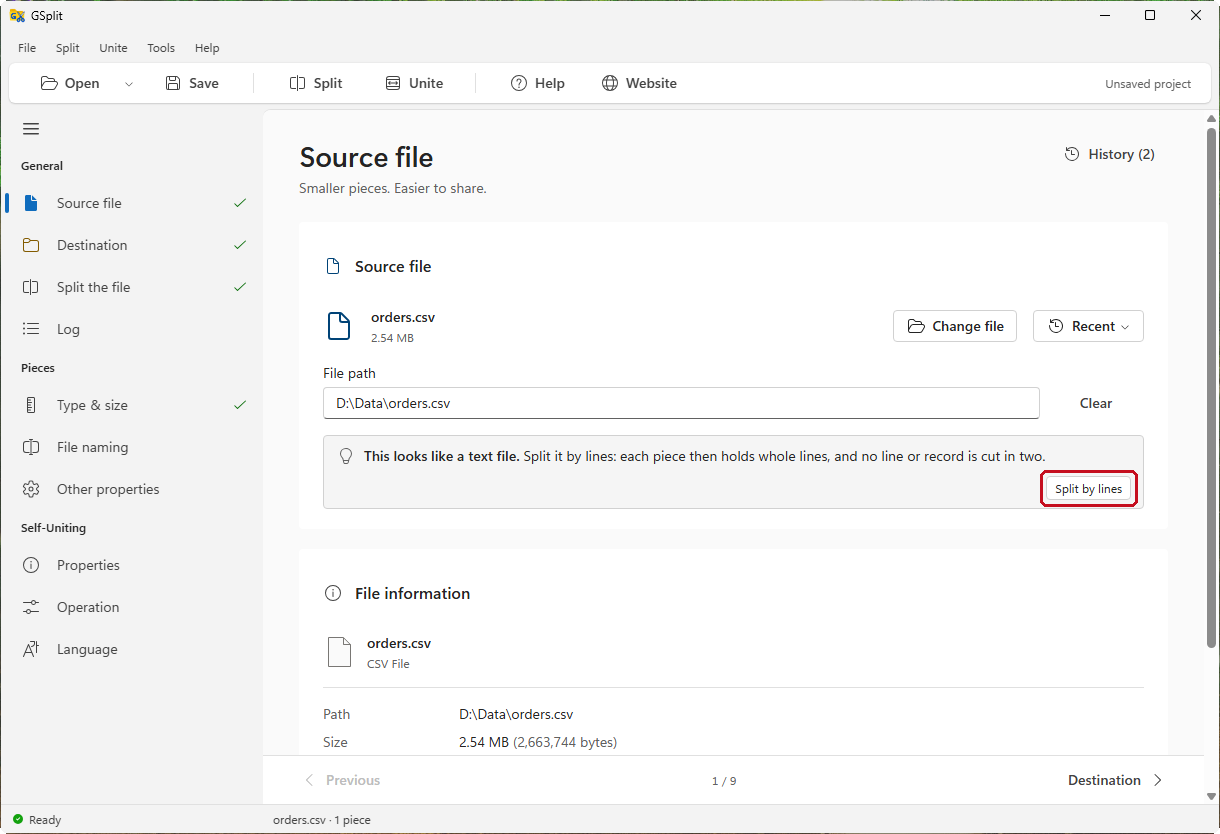
-
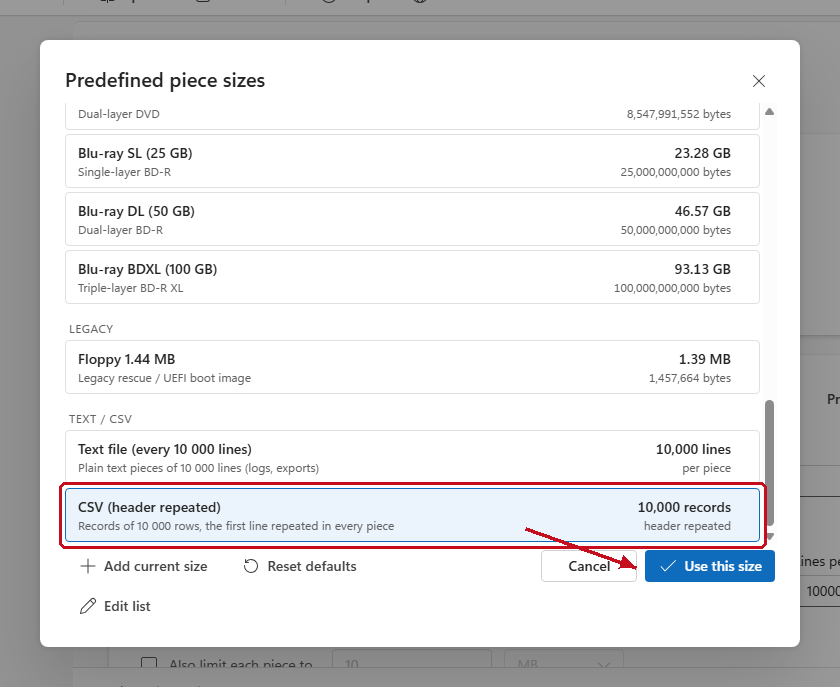
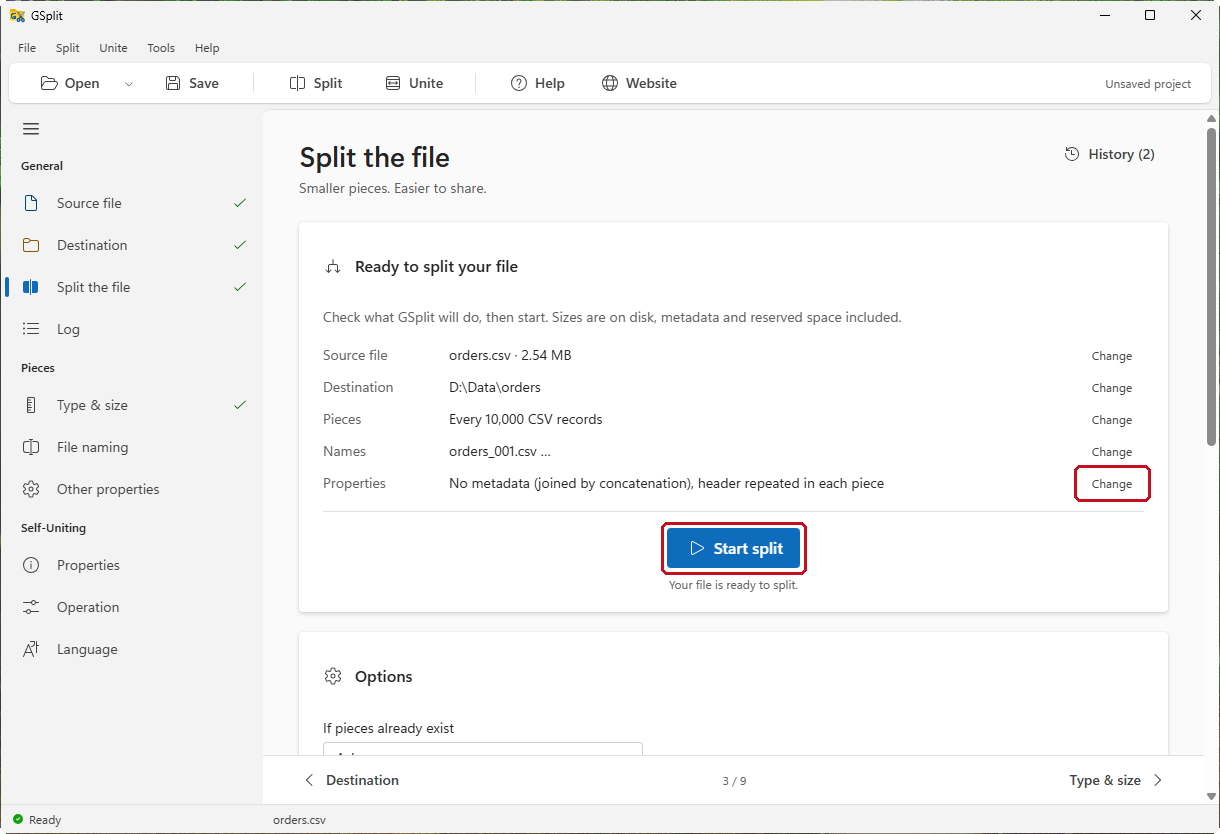
On the Type & size page, click Predefined sizes…, select CSV (header repeated) and click Use this size.
-
Check that CSV: quoted fields may span several lines (RFC 4180) and Repeat the first line (header) in every piece are checked, and that Lines per piece shows
10000.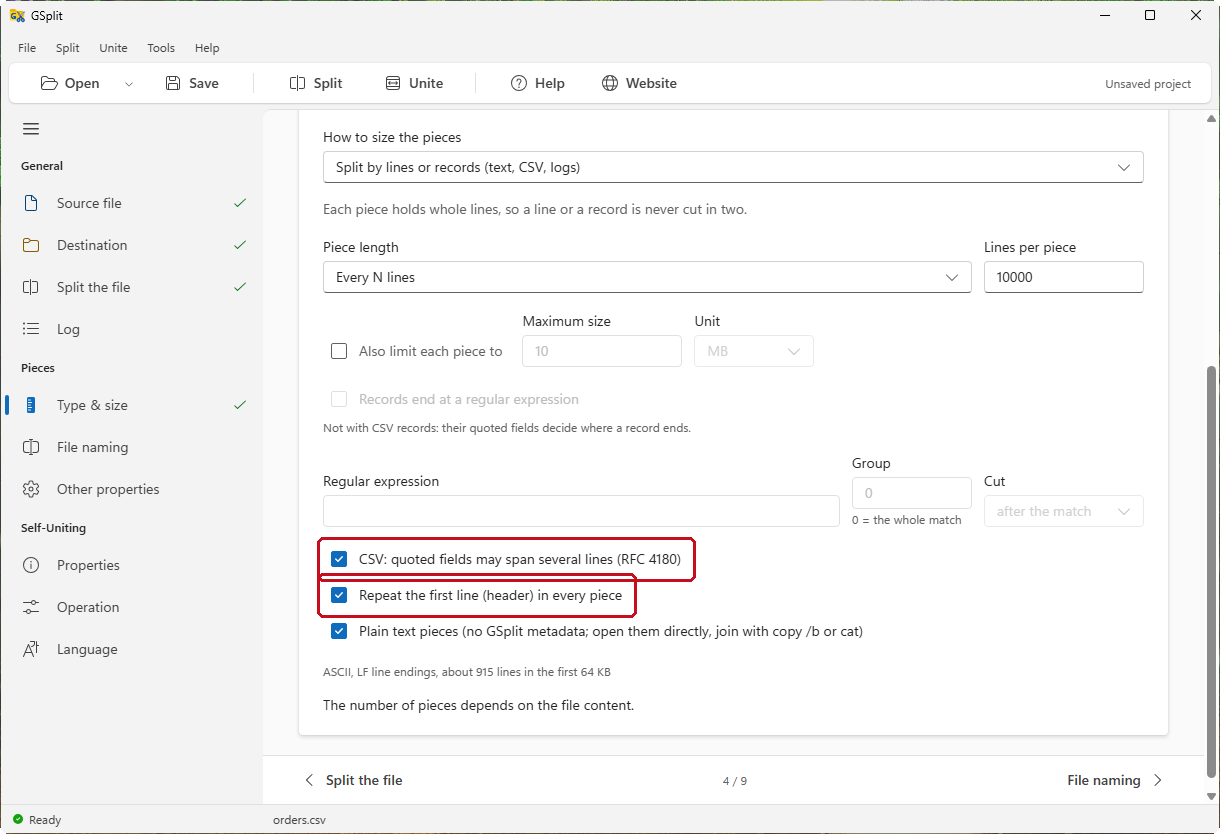
-
Click Split the file, then Start split.
-
Open
orders_001.csvandorders_002.csvin your spreadsheet program.
With CSV: quoted fields may span several lines (RFC 4180) on, a record that contains a line break inside quotes stays in one piece. Without it, the file is cut at line feeds.
For scripts: do the same from the command line
Do the same from the command line
Section titled “Do the same from the command line”gsplitc is the console version of GSplit. The log job of this tutorial is one command:
gsplitc access.log --lines 100000 --mask "{ofw}_{oru}.txt" -o D:\Logs\accessFor the CSV file with its header repeated:
gsplitc orders.csv --csv --lines 10000 --first-line -o D:\Data\orders-pieces--lines sets the number of lines per piece, --csv reads quoted fields that span lines, --first-line repeats the first line at the start of pieces 2 to N, --mask names the pieces and -o names the destination folder. Add --max-size 5MB for a size limit. In lines mode the pieces are plain text, as in the window. The Copy as command line button of the Split the file page gives the exact command for the settings on screen. See Command line: GSplit and gsplitc.