
 GSplit
Split multiple files
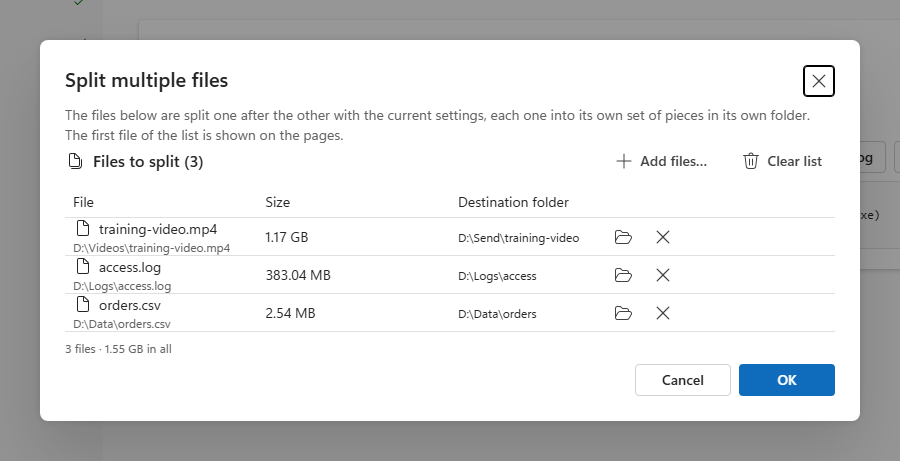
Split multiple files queues several files and splits them one after the other with the settings of the current project. Each file gets its own piece set in its own folder.
Open it from Split > Split multiple files… in the menu bar. Dropping several files on the GSplit window, or opening GSplit with several files, also opens it.
Build the list
Section titled “Build the list”- Add files… picks one or more files. You can also drop files on the window while the dialog is open.
- The cross at the end of a row removes that file; Clear list removes them all.
Destination folder
Section titled “Destination folder”By default each file goes to a folder of its own, named after the file, under My Split Files in the project's destination. For D:\Videos\holiday.mp4 and the destination D:\Out:
D:\Out\My Split Files\holidayUse the folder button at the end of a row to choose another folder for that file.
Two files in one folder
Section titled “Two files in one folder”GSplit refuses a list where two files would overwrite each other's pieces. Two files can share a folder only if their pieces get different names, for example with {orf} in the piece name mask, and only if Erase destination folder contents before splitting is off.
Run the list
Section titled “Run the list”Select OK, then Start split on the Split the file page. GSplit splits the files in list order and shows which file it is on; the progress starts over for each file. If one file fails or you cancel, the files after it are not split. A summary lists every file at the end.
Cancel leaves the project as it was. Choosing a single source file afterwards also ends the multiple-file mode.