
 GSplit
Split a text, log or CSV file by lines
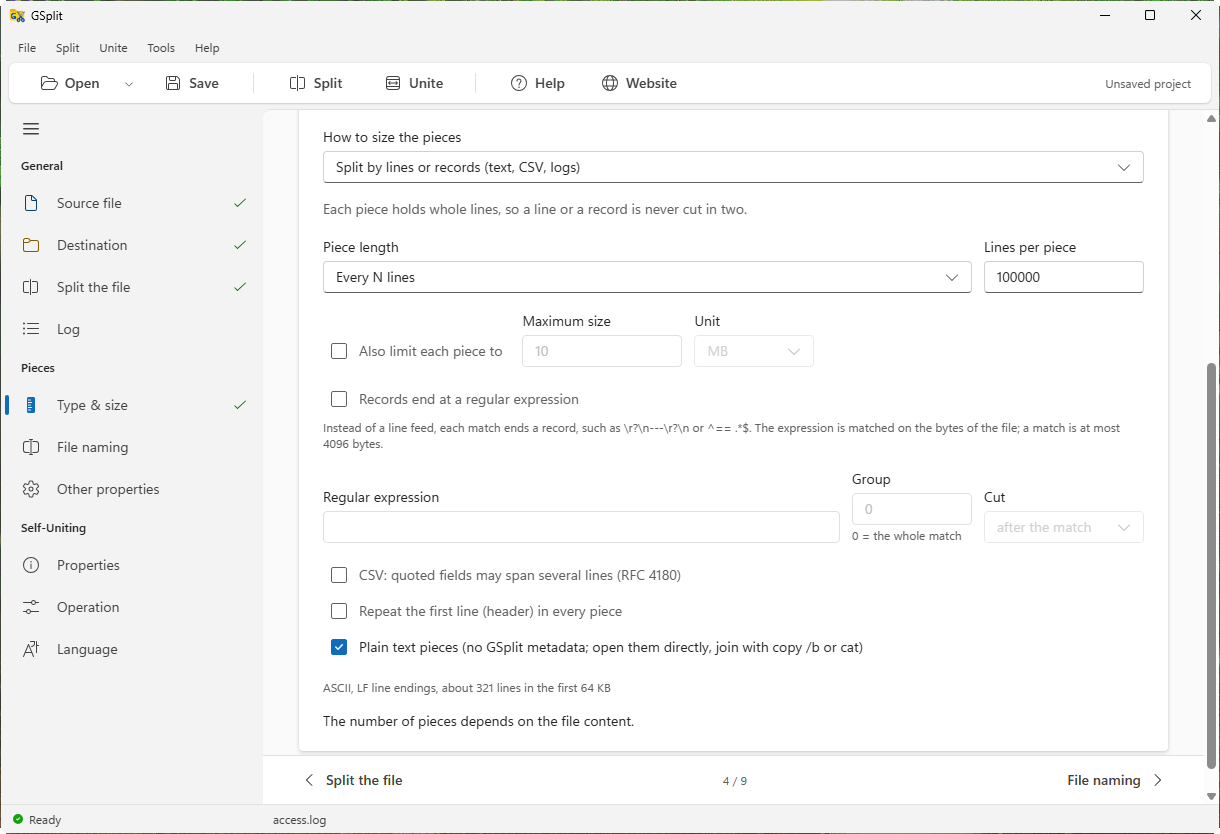
To split a text, log or CSV file without cutting a line or a record in two, use the lines mode of the Type & size page, or the pattern mode when your records end at something other than a line break. Each piece then opens in a text editor or a spreadsheet as a file of its own.
Find the modes on the Type and size page, under Pieces, in the list How to size the pieces. When you choose a text file on the Source file page, a Split by lines button takes you to the lines mode in one click.
Example
Section titled “Example”A 2 GB web server log, access.log, must be sent in parts that a text editor can open:
- Choose
access.logon the Source file page and select Split by lines. - Keep Every N lines and enter
500000in Lines per piece. - Turn on Also limit each piece to and enter
100MB to limit the size too. A single line longer than the limit still makes a piece of its own. - Start the split. The pieces are named
access_001.log,access_002.log, and so on.
For a CSV export, turn on Repeat the first line (header) in every piece, and CSV: quoted fields may span several lines if a field contains line breaks. The built-in preset CSV (header repeated) sets 10000 records with the header in one step; see Piece-size presets.
Encoding, naming and mode details
What changes in these modes
Section titled “What changes in these modes”- The source can be ASCII, ANSI, UTF-8, UTF-16 or UTF-32 text. GSplit recognizes UTF-16 and UTF-32 by their byte order mark, or without one by where their NUL bytes sit. A file with NUL bytes that are not UTF-16 or UTF-32 is still cut at each line feed byte, and GSplit warns about it. In the lines mode, when the file starts with a byte order mark, GSplit repeats that mark at the start of every piece after the first, so that each one opens as text.
- The size of a piece is not fixed; the page tells The number of pieces depends on the file content. A line below the settings shows the encoding, the line endings and the number of lines found in the file, or in its first part for a big file.
- When you switch to the lines mode, Plain text pieces is turned on, and the name mask becomes
{ofw}_{oru}{ore}:data.csvgivesdata_001.csv,data_002.csv. Leaving the mode restores the plain pieces choice and the default mask. - Neither mode works with disk-spanned pieces.
Split by lines or records (text, CSV, logs)
Section titled “Split by lines or records (text, CSV, logs)”Each piece holds whole lines. A line ends at a line feed; a Windows line break (CR LF) counts once.
Piece length
Section titled “Piece length”- Every N lines: each piece holds the number of lines you enter in Lines per piece. The default is 10000. A file with fewer lines gives one piece.
- Into N pieces: you enter the Number of pieces. GSplit first reads the whole file to count its lines, then gives each piece the same number of lines. The set has at most that many pieces.
Also limit each piece to
Section titled “Also limit each piece to”Off by default. A piece also ends before its file would pass the Maximum size you enter, in the Unit bytes, KB, MB or GB (default 10 MB). The limit is the size of the piece file, with the repeated header, the footer and the metadata included. A line longer than the room left makes a piece of its own, and GSplit logs a warning.
Advanced: use a regular expression
Records end at a regular expression
Section titled “Records end at a regular expression”Off by default. Instead of a line feed, each match of the expression ends a record, such as \r?\n---\r?\n or ^== .*$. The expression is matched on the bytes of the file, and a match is at most 4096 bytes. It is not available for a UTF-16 or UTF-32 file. Three fields go with it:
- Regular expression: the expression.
- Group: the capture group whose position gives the cut;
0is the whole match. - Cut: after the match (the separator stays with the record it closes) or before the match (the separator opens the next record, as a heading does).
The option is not available together with the CSV option below.
CSV: quoted fields may span several lines (RFC 4180)
Section titled “CSV: quoted fields may span several lines (RFC 4180)”Off by default. A double quote opens and closes a quoted field, so a line feed inside a quoted field does not end the record. The counts then are CSV records, not lines.
Repeat the first line (header) in every piece
Section titled “Repeat the first line (header) in every piece”Off by default. Every piece starts with the first line of the file, usually the column names. The header does not count toward the lines of a piece, so each piece holds the header plus the number of lines you set. The same option, with a typed header and more choices, is on the Other properties page.
Plain text pieces (no GSplit metadata; open them directly, join with copy /b or cat)
Section titled “Plain text pieces (no GSplit metadata; open them directly, join with copy /b or cat)”On by default in this mode. The pieces carry only your data, so you can open them as they are. Turn it off to keep the GSplit metadata, which lets GUnite check and rejoin the set.
Advanced: split at a byte pattern
Split after a pattern (lines, records)
Section titled “Split after a pattern (lines, records)”Each piece ends after a number of occurrences of a pattern, which can be any byte sequence, such as a line break or a marker line.
Pattern
Section titled “Pattern”The bytes to look for, at most 255 bytes. Write a byte as 0x and two hexadecimal digits; any other character stands for itself. 0x0D0x0A is a Windows line break, 0x0A a Unix line break. The Windows line break and Unix line break buttons fill the field.
Occurrences per piece
Section titled “Occurrences per piece”The number of occurrences in each piece, at least 1. The default is 1.
after the occurrence (default) or before the occurrence. Cutting before makes each piece open with the pattern. With an automatic header, GSplit repeats the data found before the first occurrence in every following piece.