
 GSplit
Destination
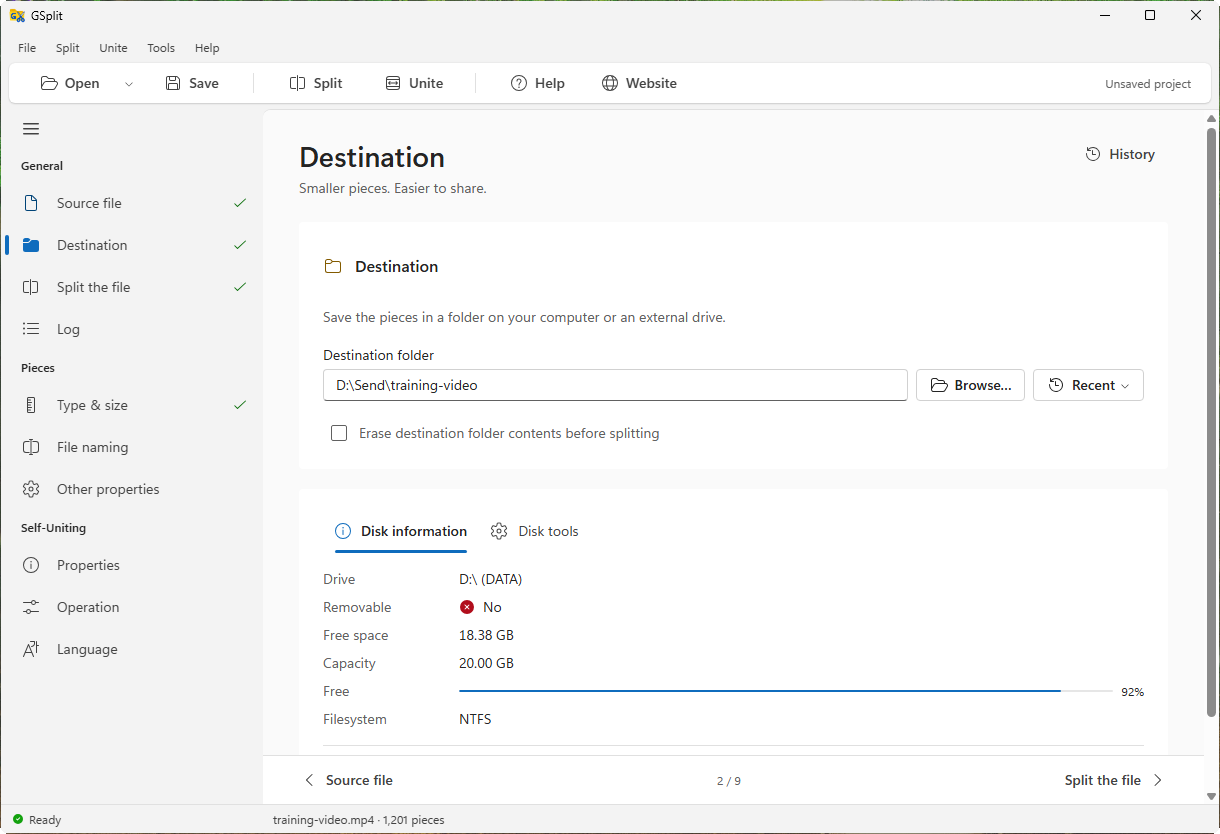
The Destination page sets the folder where GSplit writes the pieces and the files that go with them. Choose it before you start a split.
Find it in the navigation pane under General.
Destination
Section titled “Destination”Destination folder
Section titled “Destination folder”The read-only field shows the current folder, or No folder selected. Browse… opens a folder picker. The button next to it lists:
- Folder of the source file, when the matching option is on in Options;
- Recent folders, with a command to clear the list.
Erase destination folder contents before splitting
Section titled “Erase destination folder contents before splitting”Off by default. When on, GSplit empties the folder before it writes the first piece, so no file of an earlier run stays there. On Windows the content goes to the Recycle Bin when the Options setting Move erased files and folders to the Recycle Bin is on.
Disk information and tools
Disk information
Section titled “Disk information”The card under the folder has two tabs.
| Tab | Content |
|---|---|
| Disk information | Drive, Removable (Yes or No), Free space, Capacity with a free-space bar, and Filesystem. Refresh disk information reads them again. A message appears when the volume is not available (disk ejected, network share offline). |
| Disk tools | Links to Show folder in Explorer, See disk properties, See folder properties and Open format dialog, once a folder is selected. Some of them need Windows. |
The file system matters for the piece size: FAT32 cannot hold a file of 4 GB or more. The Split the file page warns you when the pieces are too big for the destination.