
 GSplit
Type and size
The Type & size page decides where each piece ends: after a size you set, so that there is a given number of pieces, on each removable disk, after a number of lines, or at a pattern. Set it after choosing the source file, because the page shows the number of pieces the file gives.
Find it in the navigation pane under Pieces.
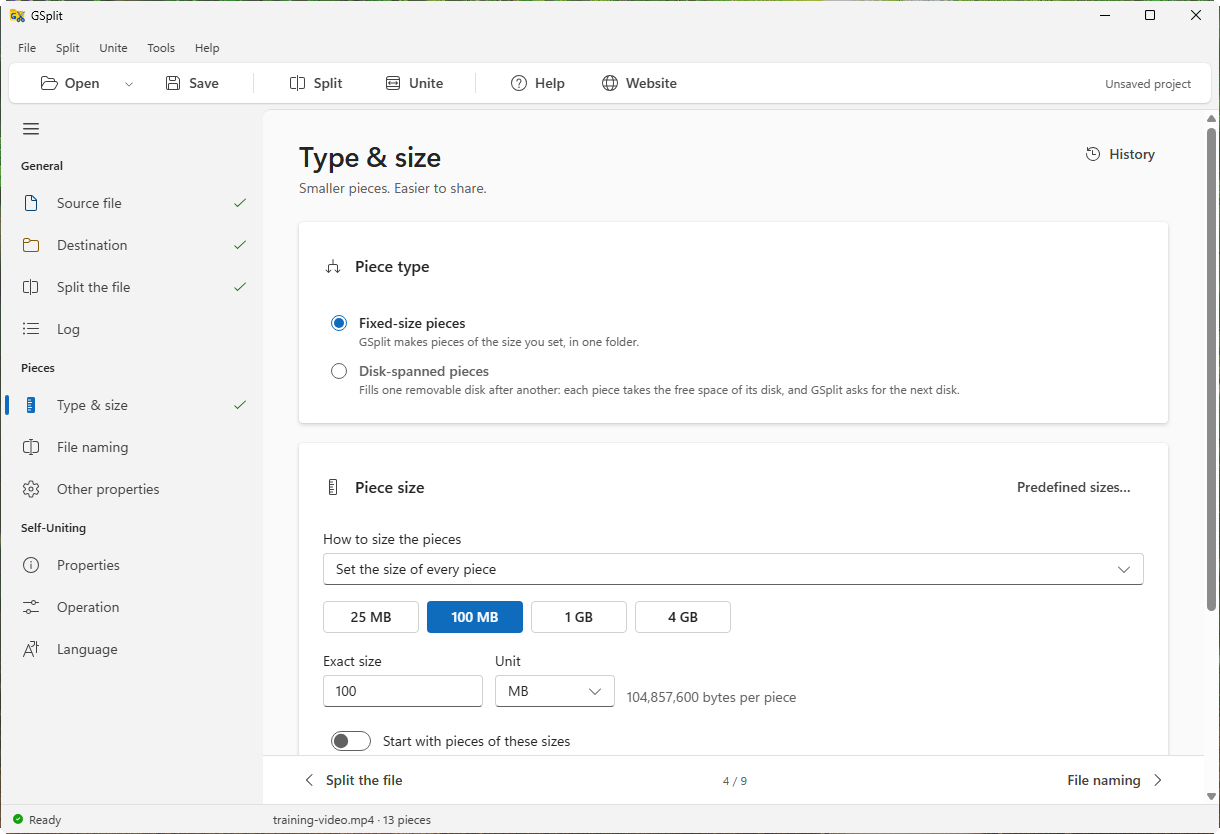
Piece type
Section titled “Piece type”Fixed-size pieces
Section titled “Fixed-size pieces”The default. GSplit makes pieces of the size you set, in one folder. The other cards of the page apply to this type.
Using several removable disks
Disk-spanned pieces
Section titled “Disk-spanned pieces”Fills one removable disk after another: each piece takes the free space of its disk, and GSplit asks for the next disk. Choose a removable drive on the Destination page; GSplit warns you when the destination is not removable. Piece 1 is written last, on the first disk, so keep that disk at hand. The pieces of a stopped run stay on their disks.
With this type, the piece size and the lines or pattern modes are not available, and the SHA-256 manifest and the join scripts are not written.
Piece size
Section titled “Piece size”How to size the pieces
Section titled “How to size the pieces”| Choice | Effect |
|---|---|
| Set the size of every piece | Pieces of the size you enter. The default is 1 MB. |
| Set the number of pieces | The file is cut into the number of pieces you enter, of equal size except the last. |
| Split by lines or records (text, CSV, logs) | Each piece holds whole lines or records. See Split a text, log or CSV file by lines. |
| Split after a pattern (lines, records) | Each piece ends after a number of occurrences of a pattern. See Split a text, log or CSV file by lines. |
The size is the size of the piece file on disk. The metadata, a repeated header, a footer and the reserved space are taken from it, not added to it. Below the settings, a line gives the estimate, for example About 12 pieces of up to 100 MB, with the exact number of bytes.
Predefined sizes…
Section titled “Predefined sizes…”Opens the presets dialog. The button is shown in the size and lines modes.
Common piece sizes
Section titled “Common piece sizes”In the size mode, four buttons set 25 MB, 100 MB, 1 GB and 4 GB minus 1 byte, the largest file FAT32 can hold. The selected one is highlighted.
Exact size
Section titled “Exact size”The amount of one piece. Type a positive number; decimals are accepted. GSplit shows the resulting number of bytes. The field turns red below one byte.
The unit of Exact size: bytes, KB, MB or GB. All units are binary: 1 KB is 1024 bytes, 1 MB is 1024 KB, 1 GB is 1024 MB.
Give the first pieces different sizes
Start with pieces of these sizes
Section titled “Start with pieces of these sizes”Off by default. Lets the first pieces have other sizes than the rest, for example to load a file in steps. Type the sizes in Sizes of the first pieces, separated by commas, such as 10 MB, 50 MB, 250 MB. The following pieces take the size above. Up to 1000 sizes are accepted. Not combined with disk-spanned pieces or the lines and pattern modes.
Number of pieces
Section titled “Number of pieces”In the number mode, the count of pieces to create, at least 1. The size of each piece is calculated from the file. In the lines mode, Into N pieces uses the same field.
Fill pieces from the end
Fill pieces from the end (the last piece is full, piece 1 takes the rest)
Section titled “Fill pieces from the end (the last piece is full, piece 1 takes the rest)”Off by default, in the size and number modes. All pieces but the first are full; piece 1 gets the remainder, and the page shows its size. With Only create these pieces on the Split the file page, this extracts the end of a large file.
Piece-size presets
Section titled “Piece-size presets”The presets dialog, titled Predefined piece sizes, holds ready-made values for the piece size. Open it with the Predefined sizes… button of this page or with Split > Piece-size presets… in the menu bar. Presets that give a size in bytes work in the size mode; text presets switch the page to the lines mode.
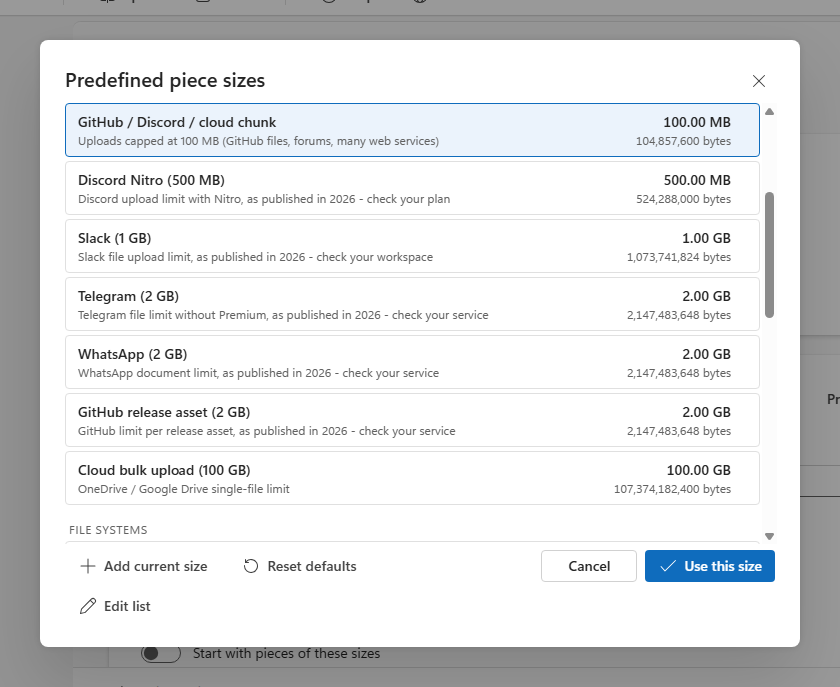
To use a preset, select an entry and select Use this size, press Enter, or double-click the entry. The entry that matches the current settings carries a Current badge. Cancel closes the dialog without a change.
Browse the built-in preset list
Built-in presets
Section titled “Built-in presets”The list is grouped in categories. A size in the 2026 limits of a service can change: check yours.
| Category | Preset | Size |
|---|---|---|
| Text / CSV | Text file (every 10 000 lines) | 10 000 lines per piece, plain text |
| Text / CSV | CSV (header repeated) | 10 000 records per piece, header repeated in each piece |
| Cloud & email | Email (10 MB servers) | 10 MB |
| Cloud & email | Discord (free, 10 MB) | 10 MB |
| Cloud & email | Email (Gmail / Outlook) | 25 MB |
| Cloud & email | GitHub / Discord / cloud chunk | 100 MB |
| Cloud & email | Discord Nitro (500 MB) | 500 MB |
| Cloud & email | Slack (1 GB) | 1 GB |
| Cloud & email | Telegram (2 GB) | 2 GB |
| Cloud & email | WhatsApp (2 GB) | 2 GB |
| Cloud & email | GitHub release asset (2 GB) | 2 GB |
| Cloud & email | Cloud bulk upload (100 GB) | 100 GB |
| File systems | FAT32 safe (2 GB) | 2 GB |
| File systems | FAT32 maximum (4 GB - 1) | 4 294 967 295 bytes |
| Optical media | CD-ROM (700 MB) | 734 003 200 bytes |
| Optical media | DVD+/-R (4.7 GB) | 4 700 000 000 bytes |
| Optical media | DVD+/-R DL (8.5 GB) | 8 547 991 552 bytes |
| Optical media | Blu-ray SL (25 GB) | 25 000 000 000 bytes |
| Optical media | Blu-ray DL (50 GB) | 50 000 000 000 bytes |
| Optical media | Blu-ray BDXL (100 GB) | 100 000 000 000 bytes |
| Legacy | Floppy 1.44 MB | 1 457 664 bytes |
Add current size
Section titled “Add current size”Saves the current setting as a new preset in the Custom category. GSplit asks for a name in the Name this preset box; select Add. In the size mode the preset stores the piece size in bytes. In the lines mode, with Every N lines, it stores the number of lines, the CSV option and the header option. A preset identical to an existing custom one is not added twice.
Edit list
Section titled “Edit list”Turns on the removal of custom presets: a Remove this preset button appears on each entry of the Custom category. The built-in presets cannot be removed one by one. The button then becomes Save, which writes the list to the file.
Reset defaults
Section titled “Reset defaults”After a confirmation, replaces the list with the built-in one. Your custom entries are removed. The same Reset to defaults button appears when the list is empty.
Edit the presets file directly
presets.json
Section titled “presets.json”The list is stored in presets.json, next to the GSplit program. Without this file, GSplit uses the built-in list. The edit it directly link in the dialog opens the file in your text editor, and creates it first if it is missing. The dialog reads the file again each time it opens, so a hand edit is taken into account. GSplit writes the file in one step, so an interruption cannot leave a half-written file.
{ "format": "gsplit-presets", "version": 1, "presets": [ { "id": "email-10mb", "name": "Email (10 MB servers)", "description": "Attachment limit of many company and ISP mail servers", "bytes": 10485760, "category": "cloud" }, { "id": "csv-header", "name": "CSV (header repeated)", "description": "Records of 10 000 rows, header repeated", "mode": "csv", "recordsPerPiece": 10000, "repeatHeader": true, "category": "text" } ]}A size preset has bytes; a text preset has mode (lines or csv), recordsPerPiece and repeatHeader. The category is text, cloud, filesystem, optical, legacy or custom; an unknown value is shown under Custom. If the file is not valid JSON, the dialog shows Couldn't load presets. with the reason and a Retry button.