
 GSplit
GUnite
GUnite restores a split file from its pieces. It is a small program of its own, not the GSplit window: it starts fast, needs no installation, and is the one the recipient of your pieces runs. This page describes the GUnite window. To download GUnite, see the GUnite page.
GUnite opens in one of two modes. In both, About GSplit at the bottom left shows the program and version, the copyright and the web site link.
Self-Uniting mode
Section titled “Self-Uniting mode”This is the Self-Uniting app: a copy of GUnite.exe that GSplit wrote next to the pieces. When the recipient double-clicks it, it reads the .ini beside it and shows the window built from your settings.
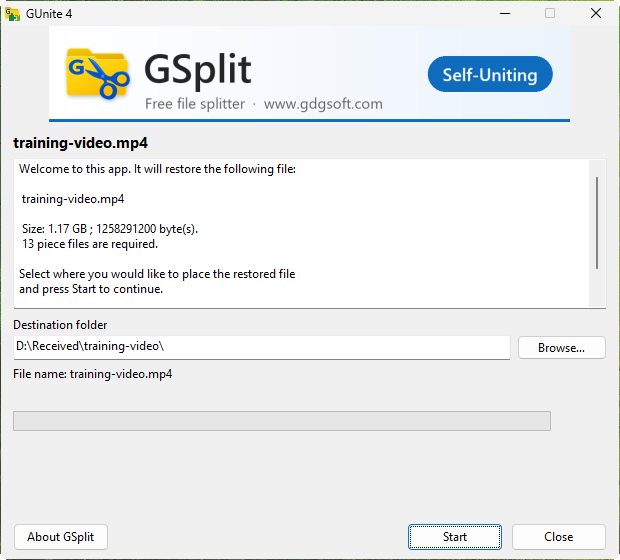
The window shows, from the top:
- the header image (yours, or the default header);
- the title of the set and the welcome, about and start messages you wrote, read-only;
- Destination folder with Browse…, unless you locked the destination or chose to start at once;
- File name, the name of the restored file;
- Start, Close and About GSplit.
One click on Start begins the run. If the output file already exists and you asked for a question, the app asks The output file already exists with Overwrite and Cancel. When the run ends, the window shows your end message and:
- Restored and checked against the original: file, when the result could be checked;
- Restored: file, when it could not (a set without any checksum).
After an error the window stays open, even if you chose to close it when done. The settings that change this behaviour are described in Self-Uniting: Operation.
Stand-alone mode
Section titled “Stand-alone mode”Start GUnite.exe with a piece (GUnite piece.001), drop a piece on the window, or click Browse… next to Piece file. The window is not Self-Uniting: its header reads GUnite.
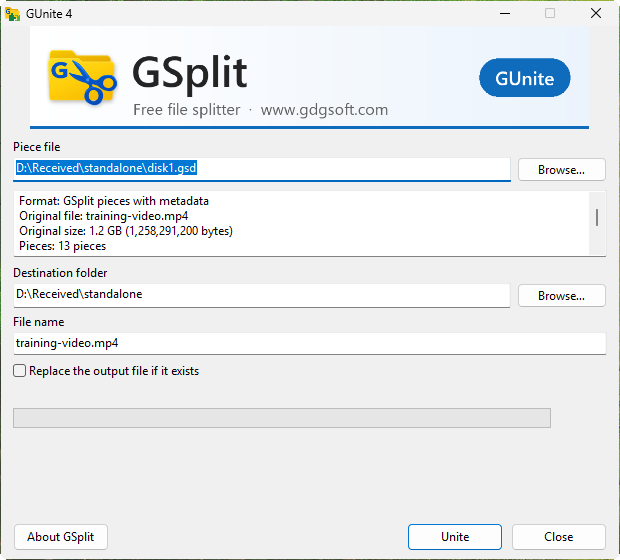
It shows:
- Piece file with Browse…;
- the set as GSplit reads it: Format, Original file, Original size, Pieces (found and missing), Title, Author, Description, Split on and Checksum;
- Destination folder with Browse…, set to the folder of the set, and File name, set to the original name;
- Replace the output file if it exists;
- Unite, Close and About GSplit.
It reads the same formats as the Unite view of GSplit: V4, GSplit 2 and 3, GSplit 1.x and raw sets.
During the run
Section titled “During the run”Under the progress bar, two lines give the current piece (Piece 2 of 6) and the detail of the run: the amount done, the rate, the time elapsed and the time left. For example:
12.30 MB of 50.00 MB · 20.00 MB/s · 2 s elapsed · about 3 s leftThe estimate appears once the run has a rate to work from.
When a piece is missing or damaged, GUnite asks in a dialog with the same choices as GSplit: Retry, Locate…, Skip this piece and Stop for a missing piece; Continue anyway and Stop for a short or damaged one. See Damaged or missing pieces.
Cancel with confirmation
Section titled “Cancel with confirmation”During a run the Close button reads Cancel. Clicking it, or closing the window with the close button of the title bar, asks first:
Cancel the unite? The file is not restored and what was written so far is deleted.
Stop ends the run and deletes the partial file; the window stays with Unite cancelled until you click Close. Continue, the default, resumes. At the end of a run the button reads Close again and asks nothing.
Taskbar progress
Section titled “Taskbar progress”On Windows the taskbar button of GUnite shows the progress of the run. It turns to paused when GUnite waits for your answer to a question, red after an error, and clears after a cancellation or once you have seen the end of the run. There is no option for it.
Launch GUnite from the command line
Command line
Section titled “Command line”GUnite takes a few switches: --ini <file>, -y, -n, -q and --lang <code>. With -n it never asks, stops on a problem, starts at once and closes at the end; with -q as well it shows no window. The exit codes are 0 success, 1 usage, 2 set unreadable, 3 stopped on a piece, 4 output problem, 5 result differs from the original (the output is kept), 6 cancelled, 7 other error. The full list is in Command line: gunitec.