
 GSplit
Self-Uniting: Operation
The Operation page decides how the Self-Uniting app behaves on the recipient's computer. Its settings are saved in the .ini file written next to the app.
Find it under Self-Uniting > Operation in the navigation pane of the Split view. The page is split into six categories. Choose one in the Category list, or step through them with the Previous category and Next category buttons. The categories stay available when the app is off, but their settings are greyed out; see Add the Self-Uniting app to the piece set.
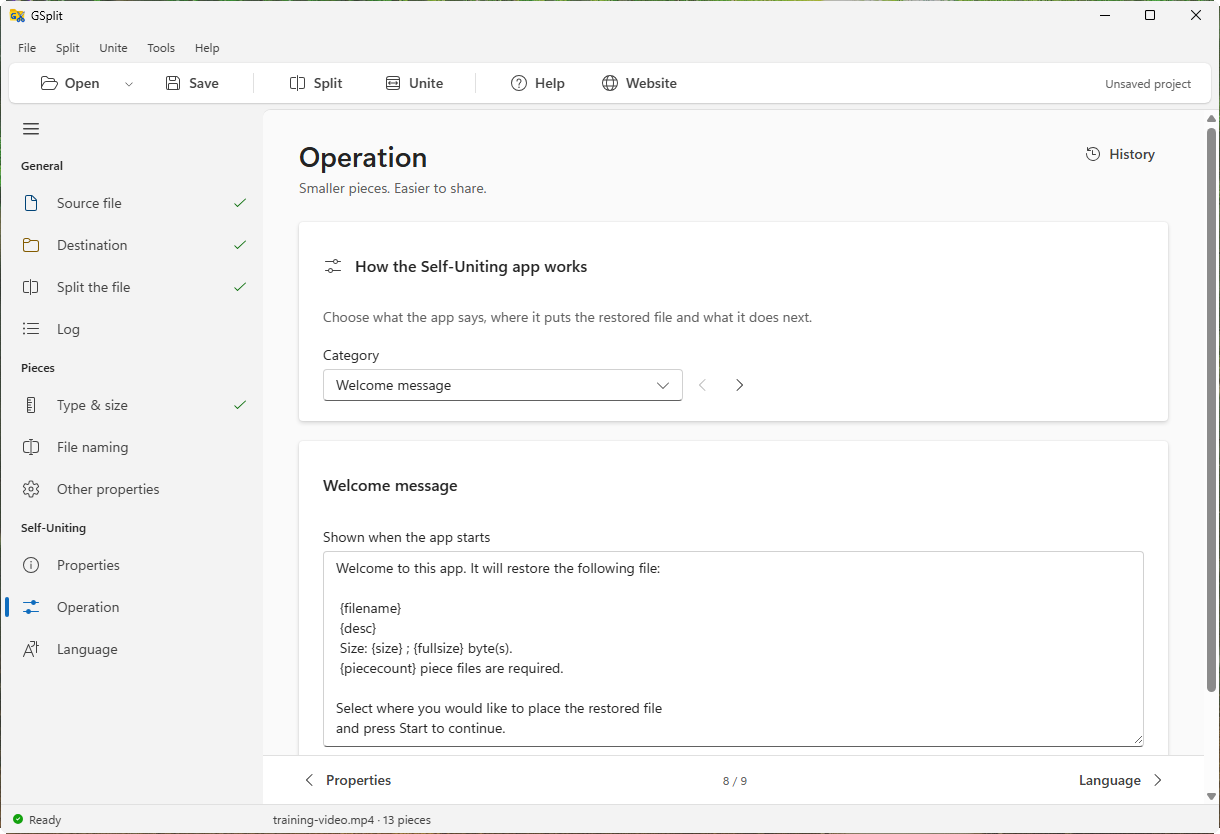
Welcome message
Section titled “Welcome message”Shown when the app starts
Section titled “Shown when the app starts”The text the app shows in its window before the recipient starts. The default text reads:
Welcome to this app. It will restore the following file:
 {filename} {desc} Size: {size} ; {fullsize} byte(s). {piececount} piece files are required.
Select where you would like to place the restored fileand press Start to continue.
A new project takes this text in the language of GSplit.
The buttons under the box insert a placeholder at the cursor. GSplit replaces each one with its value when it writes the .ini:
| Placeholder | Replaced with |
|---|---|
{filename} | The name of the original file. |
{desc} | The description of the set. |
{size} | The size of the original, in KB, MB or GB. |
{fullsize} | The size in bytes. |
{piececount} | The number of pieces. |
{author} is accepted in the text as well, and gives the author of the set.
Custom confirmation and error messages
Custom message boxes
Section titled “Custom message boxes”At the start
Section titled “At the start”A message shown when the app starts. Empty means no message.
At the end
Section titled “At the end”A message shown when the file has been restored. Empty means no message.
About message
Section titled “About message”A line of text shown with the welcome message. The default is This file was split with GSplit freely available at www.gdgsoft.com.
Destination folder
Section titled “Destination folder”Place the restored file in the
Section titled “Place the restored file in the”The folder that the app proposes for the restored file:
- Windows folder
- System folder
- Temp folder
- Current folder (default)
- Self-Uniting app folder
- Custom folder
On Linux the Windows folder and System folder mean nothing: the app uses the current folder instead.
Custom folder
Section titled “Custom folder”The full path of the folder, for example C:\Users\Public\Documents. It is available only with Custom folder, and required then: the page shows Enter the folder, or choose another place. when it is empty. Browse… opens a folder picker.
Do not let the user change the destination folder
Section titled “Do not let the user change the destination folder”Off by default. When it is on, the app does not offer to change the folder. It also stays fixed when Start uniting the pieces as soon as the app opens is on.
Actions after restoration
After uniting
Section titled “After uniting”Ask before overwriting an existing file
Section titled “Ask before overwriting an existing file”On by default. When the output file already exists, the app asks before it replaces it. When the option is off, the file is replaced without a question. In silent mode the app cannot ask: with this option on, it stops and leaves the file alone.
Open the restored file
Section titled “Open the restored file”Off by default. When it is on, the app opens the restored file with the program that Windows associates with it. Opening a file is Windows-only; on Linux the setting is ignored.
Wait until the app it opens ends
Section titled “Wait until the app it opens ends”Available when Open the restored file is on. The app stays hidden while the opened program runs.
Then delete the restored file
Section titled “Then delete the restored file”Available when Wait until the app it opens ends is on. The app deletes the restored file when the opened program ends. If the opening gave no program to wait for (the file went to a program already running), the file is kept and the app says so.
Parameters passed to the file
Section titled “Parameters passed to the file”Available when Open the restored file is on. Text passed to the program that opens the file.
Window and progress options
Miscellaneous options
Section titled “Miscellaneous options”Close the app when it is done
Section titled “Close the app when it is done”Off by default. The window closes after a successful restoration. After an error it stays open.
Start uniting the pieces as soon as the app opens
Section titled “Start uniting the pieces as soon as the app opens”Off by default. The app begins without waiting for the recipient to press Start, and without offering another folder.
Silent mode: no window, works in the background
Section titled “Silent mode: no window, works in the background”Off by default. The app shows no window at all and answers no questions: it stops at the first problem, and reports the result only through its exit code.
Add a header image
Header image
Section titled “Header image”Image file (.bmp, .png, .jpg)
Section titled “Image file (.bmp, .png, .jpg)”A picture shown at the top of the app window: a bmp, png or jpg image, 353 × 65 pixels or any wider shape, fitted to the window width. Leave the field empty for the default header. Browse… opens a file picker.
GSplit copies the image next to the app under its own file name. If the file cannot be found, the split log shows a warning and the app uses the default header. The Linux console version shows no image.