
 GSplit
Source file
The Source file page is where you choose the file to split. Your original file is never changed. A split cannot start without a source file, so this is the first page to fill in.
Find it in the navigation pane under General. Any file type is accepted.
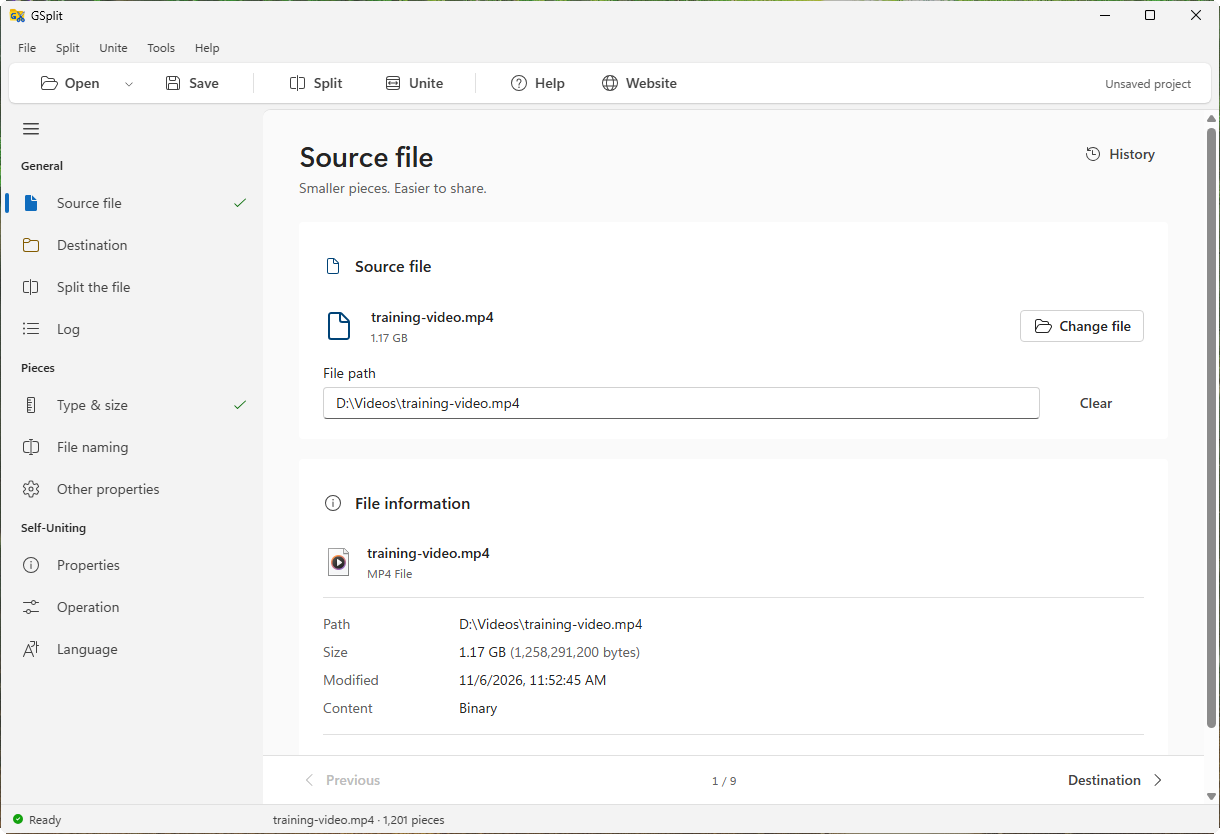
Source file
Section titled “Source file”Choose file
Section titled “Choose file”Opens the system file picker. Once a file is chosen, the button reads Change file. The page then shows the file name, its size and, in the File path field, the full path. Clear removes the file.
Choose a recent file
Recent source files
Section titled “Recent source files”The button next to Choose file opens the list of Recent files. Pick one to use it again, or clear the list.
Split a list of files
Multiple files
Section titled “Multiple files”When you built a list with Split multiple files…, a banner states how many files are queued. Each file is split into its own set of pieces, one after the other, with the settings of the other pages. The page shows the first file. Change list… reopens the list, Clear list turns it off. See Split multiple files.
Reuse an earlier split
You split this file before
Section titled “You split this file before”If an earlier split of this file (or of a file with the same name) is in the history, a banner shows its date, number of pieces, size and folder. Use those settings applies that split's settings to every page; Dismiss hides the banner.
This looks like a text file
Section titled “This looks like a text file”For a text file, a banner offers Split by lines. It switches Type & size to the lines mode, where each piece holds whole lines. The banner does not appear with disk-spanned pieces.
Read the file information
File information
Section titled “File information”The card under the file lists:
- Path, Size (also in bytes) and Modified;
- for a text file, Encoding and Line endings; for any other file, Content: Binary.
Open file opens the file with its default program. Where the system supports it, View file properties opens the properties dialog of the system.