
 GSplit
Options
Options are choices for the whole application, not for one project. They are not saved in a .gsc project file. A change applies as soon as you make it and is saved at once; the dialog has only a Close button.
Open it from Tools > Options… in the menu bar. The settings are in five tabs: General, Splitting, Notifications, Recent lists and History.
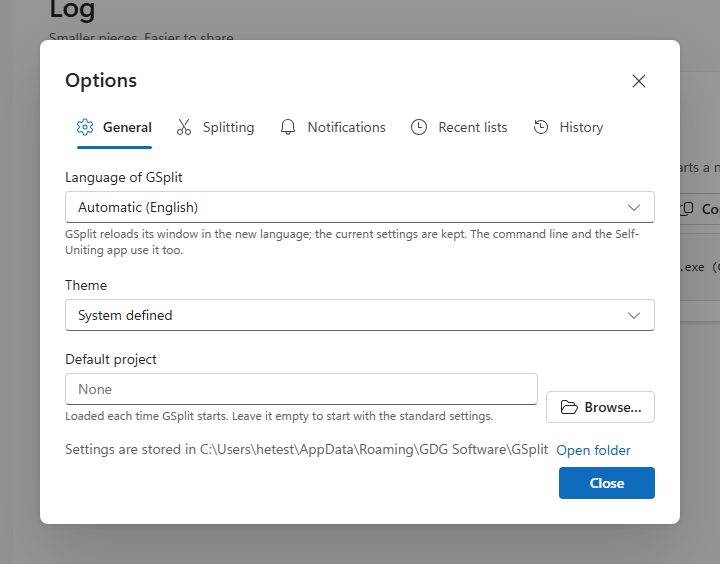
General
Section titled “General”Language of GSplit
Section titled “Language of GSplit”The language of the interface. The default, Automatic, follows the language of the system and names it, for example "Automatic (English)". A language whose translation is incomplete shows its percentage. See Languages.
GSplit reloads its window in the new language and keeps the current settings. The command line and the Self-Uniting app use the same language. The list is disabled while a split, a unite or a checksum is running.
| Choice | Effect |
|---|---|
| System defined | Follows the light or dark scheme of the system, and changes with it. This is the default. |
| Light | Always light. |
| Dark | Always dark. |
Default project
Section titled “Default project”A project file (.gsc) that GSplit loads each time it starts. Empty by default, which starts GSplit with the standard settings. Browse… opens a picker for .gsc files and Clear removes the choice.
Settings are stored in
Section titled “Settings are stored in”The line at the bottom of the tab gives the folder that holds the settings, with an Open folder link. See Where the settings are stored.
Splitting
Section titled “Splitting”Multiple files: ask before splitting the next file to a removable disk
Section titled “Multiple files: ask before splitting the next file to a removable disk”On by default. When Split multiple files is about to split a file after the first one to a removable drive, GSplit stops and waits, so you can insert the right disk. Answering no ends the run.
Move erased files and folders to the Recycle Bin
Section titled “Move erased files and folders to the Recycle Bin”On by default. Windows only. When Erase destination folder contents before splitting is on, the deleted files go to the Recycle Bin instead of being deleted for good.
Notifications
Section titled “Notifications”These settings apply when a split or a unite ends.
Show a system notification when a split or a unite ends
Section titled “Show a system notification when a split or a unite ends”On by default. Shown only while GSplit is not the window in front.
Play a sound when a split or a unite ends
Section titled “Play a sound when a split or a unite ends”Off by default.
Flash the taskbar button when a split or a unite ends or waits for an answer
Section titled “Flash the taskbar button when a split or a unite ends or waits for an answer”On by default. Windows only. The button flashes only while GSplit is not the window in front.
Show the progress on the taskbar button
Section titled “Show the progress on the taskbar button”On by default. Windows only.
Recent lists
Section titled “Recent lists”Add the source file and the destination folder to the recent lists after a split
Section titled “Add the source file and the destination folder to the recent lists after a split”On by default. The Source file and Destination pages offer these lists.
Always offer the folder of the source file as a destination
Section titled “Always offer the folder of the source file as a destination”On by default. The folder of the source file appears in the list of destinations.
Clear recent lists
Section titled “Clear recent lists”Empties the lists of recent source files and recent destination folders. The tab shows how many of each there are, and the button is disabled when both are empty.
History
Section titled “History”Each split is kept in the history with all its settings. The Source page offers them again for the same file, and the History pane restores any of them.
Clear history…
Section titled “Clear history…”Removes every entry of the history after a confirmation ("Remove N entries from the history?" with Clear history and Cancel). The tab shows the number of entries; the button is disabled when there are none.
Where settings are stored
Where the settings are stored
Section titled “Where the settings are stored”GSplit keeps its options, history, recent lists and window position in one file, gsplit-pref.json.
| Mode | Folder |
|---|---|
| Installed, Windows | %APPDATA%\GDG Software\GSplit\ |
| Installed, Linux | $XDG_CONFIG_HOME/GDG Software/GSplit/, or ~/.config/GDG Software/GSplit/ when the variable is not set |
| Portable | The folder of GSplit |
The Settings are stored in line of the General tab shows the folder in use.
Portable mode
Section titled “Portable mode”GSplit is portable when a file named gsplit-pref.json sits in the same folder as GSplit.exe. It then reads and writes its settings there instead of in your user profile, and the General tab shows a Portable badge. An empty gsplit-pref.json is enough to turn portable mode on; GSplit fills it at the first save. The portable zip of the release already contains it.