
 GSplit
Project files and batch lists
Open format, for people who write or generate project files.
A project file stores the settings of a split so you can run it again: the source file, the destination, the piece size, the file naming, the Self-Uniting app and the other options. GSplit 4 writes it with the extension .gsc. It is a plain JSON text file. You can save it from the window, open it in the window or on the command line, and edit or generate it with any text tool.
A batch list is a different file: a text file in the GSplit 3 format that lists several files to split. GSplit 4 reads it on the command line.
Save and open a project in the window
Section titled “Save and open a project in the window”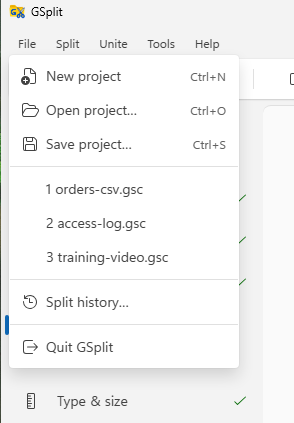
| Action | Menu | Shortcut |
|---|---|---|
| New project | File > New project | Ctrl+N |
| Open a project | File > Open project... | Ctrl+O |
| Save the project | File > Save project... | Ctrl+S |
The toolbar has Open and Save buttons that do the same. The File menu lists your last five projects; click one to open it. Save project... suggests the source file name followed by .gsc, or gsplit-project.gsc when no source is chosen. Open and Save are disabled while a split is running.
Opening a project replaces the settings of the window, and drops the list of Split multiple files, because a project describes one source file. If the source file no longer exists, the log says so. A file that is not a GSplit project is refused with the message "Not a GSplit configuration file".
In Options, the Default project is a .gsc file that GSplit loads at start. The command line reads it too.
You can also open a project from outside the window: use the Explorer item Open project with GSplit, or run GSplit.exe --open project.gsc. GSplit also opens a .gsc file given as its only argument, so a double-click works once you associate .gsc files with GSplit.exe in Windows (the installer does not register that association).
Use a project on the command line
Section titled “Use a project on the command line”The console gsplitc reads a project with -c (or --project). See Command line: GSplit and gsplitc for all the options.
gsplitc -c "D:\projects\backup.gsc"gsplitc "D:\data\other.bin" -c "D:\projects\backup.gsc" --size 650MBgsplitc -c "D:\projects\backup.gsc" --checkgsplitc -c ~/projects/backup.gscgsplitc /data/other.bin -c ~/projects/backup.gsc --size 650MBgsplitc -c ~/projects/backup.gsc --check- With only
-c, the source and the destination come from the project (sourceFile,destFolder). - A source named on the command line wins over
sourceFile. - Options on the command line win over the project. A key missing from the file keeps its default.
--checkvalidates everything and writes nothing.- A GSplit 3 project (XML) is refused with exit code 3: open and save it in GSplit 4 first (see below).
Inside a project file
File format
Section titled “File format”A project file is a JSON document. This is a short example:
{ "format": "gsplit-config", "version": 5, "savedAt": "2026-04-19T12:34:56.000Z", "project": { "sourceFile": "D:\\video\\film.mkv", "destFolder": "E:\\pieces", "pieceSize": 734003200, "sizeMode": "size", "pieceNameMask": "disk{num}.gsd", "verifyEachPiece": true, "createGUnite": true }}| Key | Type | Meaning |
|---|---|---|
format | string | Always gsplit-config. A file with another value is not a GSplit project. |
version | number | The format version. GSplit 4 writes 5. |
savedAt | string | Date and time of the save, ISO 8601 in UTC. |
project | object | The settings, described below. |
Only the keys listed below are saved. What is running or shown (progress, pieces, log) is not saved. A key that is missing keeps its default, and unknown keys are ignored. File paths are stored as text, not the file itself: the project does not hold the source file's size.
Source and destination
Section titled “Source and destination”| Key | Type | Default | Meaning |
|---|---|---|---|
sourceFile | string | empty | Path of the file to split. |
destFolder | string | empty | Destination folder. |
clearDestFolder | boolean | false | Empty the destination folder first. |
overwritePolicy | string | "ask" | What to do when a piece name exists: ask, overwrite, skip, rename or refuse. An older file with overwritePieces set to true and no overwritePolicy reads as overwrite. Without it, the window reads ask and the console reads refuse. |
openFolderWhenDone | boolean | true | Open the destination folder when the split ends. Window only. |
verifyEachPiece | boolean | true | Read each piece back after writing it. |
createGUnite | boolean | true | Copy the Self-Uniting app next to the pieces. |
bufferSize | number | 65536 | I/O buffer in bytes. |
lowImpact | boolean | false | Low impact mode. |
throttleMBps | number or null | null | Rate cap in MB per second, decimals allowed, 0 for no limit. null is an empty field: the run is refused until a value is typed. |
throttlePauseMs | number | 0 | Pause after each block, 0 to 60000 milliseconds. |
Type and size
Section titled “Type and size”| Key | Type | Default | Meaning |
|---|---|---|---|
sizeMode | string | "size" | size, count, pattern or lines. |
pieceSize | number | 1048576 | Piece size in bytes (1 MB). |
pieceCountTarget | number | 2 | Number of pieces, in count mode and in lines mode with recordsByPieceCount. |
spanned | boolean | false | One piece per removable disk. |
progressiveEnabled | boolean | false | The first pieces take the sizes of progressiveSizes (size mode only). |
progressiveSizes | string | empty | The sizes as typed, for example 10 MB, 50 MB, 250 MB. |
fillFromEnd | boolean | false | Fill the pieces from the end of the file. |
piecesEnabled | boolean | false | Create only the pieces listed in pieces. |
pieces | string | empty | The pieces to create, as typed: 1, 3-5, 37-. |
reserveFirstPiece | number | 0 | Bytes left free in piece 1. |
reserveOtherPieces | number | 0 | Bytes left free in the other pieces. |
Lines and patterns
Section titled “Lines and patterns”| Key | Type | Default | Meaning |
|---|---|---|---|
occurrencePattern | string | empty | Pattern for the pattern mode. 0xHH is one byte. |
occurrenceNumber | number | 1 | Occurrences per piece. |
occurrenceSplitBefore | boolean | false | Cut before the pattern. |
recordsPerPiece | number | 10000 | Lines (records) per piece in lines mode. |
recordsByPieceCount | boolean | false | In lines mode, make pieceCountTarget pieces instead of recordsPerPiece lines. |
csvQuoted | boolean | false | CSV records: a quoted field may span lines. |
recordMaxEnabled | boolean | false | A piece also ends before its file exceeds recordMaxSize. |
recordMaxSize | number or null | 10 | The maximum piece size. null is an empty field: the run, and the console, refuse the project (exit code 3). |
recordMaxUnit | string | "MB" | B, KB, MB or GB. |
recordRegexEnabled | boolean | false | A record ends at each match of recordRegex. |
recordRegex | string | empty | The regular expression. |
recordRegexGroup | number | 0 | The capture group that gives the cut; 0 is the whole match. |
recordRegexBefore | boolean | false | Cut before the group. |
File naming and metadata
Section titled “File naming and metadata”| Key | Type | Default | Meaning |
|---|---|---|---|
pieceNameMask | string | "disk{num}.gsd" | Piece names. |
noPieceHeaders | boolean | false | Raw pieces without metadata. |
insertCustomHeader | boolean | false | Repeat a header at the start of pieces 2 to n. |
customHeader | string | empty | The header text. Empty is the automatic header. |
headerLines | number | 1 | Lines taken by the automatic header. A value below 1 falls back to 1. |
headerOnFirstPiece | boolean | false | The typed header opens piece 1 too. |
insertFooter | boolean | false | Write a footer at the end of every piece. |
footer | string | empty | The footer text. |
insertBOM | boolean | false | Repeat the source's byte order mark. |
pieceSetTitle | string | empty | Title of the piece set. |
pieceSetAuthor | string | empty | Author of the piece set. |
pieceSetDesc | string | empty | Description of the piece set. |
pieceSetID | string | empty | Set id; generated at the first split when empty. |
writeCrcFile | boolean | false | Write a Total Commander .crc file (raw pieces only). |
writeManifest | boolean | false | Write a .sha256 manifest. |
writeJoinScript | boolean | false | Write .join.bat and .join.sh. |
Self-Uniting app
Section titled “Self-Uniting app”| Key | Type | Default | Meaning |
|---|---|---|---|
sfuProgramName | string | empty | Name of the app; empty means GUnite.exe. No path characters. |
sfuIgnoreSize | boolean | true | Do not count the app in the first piece. |
sfuWelcome | string | the standard text | Welcome message, with {filename}, {desc}, {size}, {fullsize} and {piececount}. |
sfuMessageAtStart | string | empty | Message shown before uniting. |
sfuMessageAtEnd | string | empty | Message shown after uniting. |
sfuAboutMessage | string | the standard text | Text of the About box. |
sfuDestination | number | 3 | Where the restored file goes: 0 Windows folder, 1 System folder, 2 Temp folder, 3 Current folder, 4 Self-Uniting app folder, 5 Custom folder. |
sfuCustomFolder | string | empty | The folder for destination 5. |
sfuLockDestination | boolean | false | The recipient cannot change the destination. |
sfuAskOverwrite | boolean | true | Ask before overwriting. |
sfuOpenAfter | boolean | false | Open the restored file afterwards. |
sfuWaitForEnd | boolean | false | Wait for the opened program to end. |
sfuDeleteAfterRun | boolean | false | Delete the restored file after the run. |
sfuOpenParams | string | empty | Parameters passed when the file is opened. |
sfuAutoClose | boolean | false | Close when done. |
sfuAutoStart | boolean | false | Start uniting without waiting. |
sfuSilent | boolean | false | No window. |
sfuHeaderImage | string | empty | Header image. |
sfuLanguageFile | string | empty | Language file; empty is the language GSplit uses. |
These keys are described on the pages Self-Uniting app, Self-Uniting: Operation and Self-Uniting: Language.
Import an older GSplit 3 project
Import a GSplit 3 project
Section titled “Import a GSplit 3 project”GSplit 3 saved its project files as XML. The window imports them when you open one: File > Open project... detects the XML and converts it. The log lists the number of fields imported, then each key that was recognised but not applied, and each warning. Save the project to write it as a GSplit 4 file.
GSplit 3 files are ANSI text; GSplit 4 converts the accented characters of paths and titles.
Not imported:
- The size-per-piece mode (GSplit 3 mode 2) has no GSplit 4 equivalent. It is reported as a warning.
- The option that merged the first piece with the program, and the program icon. Both rewrote the GSplit 3 program, and GUnite.exe is shipped signed and never modified. A warning is logged when they are used.
The command line does not convert a GSplit 3 project. gsplitc -c refuses it with exit code 3.
Batch lists
Section titled “Batch lists”To split several files in the window, use Split multiple files. To split several files from a script, write a GSplit 3 batch file and give it to gsplitc with -b. The window does not write batch files.
; GSplit Batch File - GSplit.exe "no" -b-i-t "[path to this file]"[Main]ConfigFile=MulFiles=1Source=DestFolder=d:\distribution\moviesTypePieSpanned=0SplitMethod=0PieSize=100PieSizeUnit=MBTitle=My new movieAuthor=Description=PieMask=disk{num}.gsdNoPieHeader=0CustomHeader=0CustomHeaderText=LogFile=
[FileList]0=c:\my work\my programs\program1.exe1=c:\my work\my files\help1.chm| Key | Meaning |
|---|---|
ConfigFile | Optional GSplit 4 .gsc file, loaded first. |
MulFiles | 1 splits the files of [FileList]; 0 splits Source. |
Source | The file to split when MulFiles is 0. |
DestFolder | Destination folder. |
TypePieSpanned | 1 for disk-spanned pieces. |
SplitMethod | 0 by size (PieSize and PieSizeUnit), 1 by number of pieces (PieNumber), 2 by pattern (Pattern, NumberOccurrences, SplitBeforePattern). PieSizes and PieSizesUnit are accepted as spelled in the GSplit 3 technote. |
PieSizeUnit | Bytes, KB, MB or GB. |
Title, Author, Description | Piece set metadata. |
PieMask | Piece names. |
NoPieHeader | 1 for raw pieces. |
CustomHeader | 0 none, 1 the data before the first occurrence, 2 the text of CustomHeaderText. |
LogFile | The log is written there, as -l. |
[FileList] | One numbered line per file. [FilesList] is accepted too. |
Run it:
gsplitc no -b "D:\batches\movies.txt"gsplitc no -b-i "D:\batches\movies.txt"gsplitc no -b ~/batches/movies.txtgsplitc no -b-i ~/batches/movies.txtWithout -i, the batch is only checked: every file is prepared and nothing is written. With -i, it is executed. The first word (no) is a placeholder kept from GSplit 3. It is taken as a source only when it is an existing file.
- A batch file that is valid UTF-8 is read as UTF-8. Otherwise it is read in the Windows code page on Windows, and in Windows-1252 on Linux, so accented paths and titles survive.
- With several files, each set goes to
DestFolder\<file name without extension>\, unless the piece mask contains{orf}or{ofw}. - The files are split one after the other. A valid file that fails to split stops the run with exit code 4. An invalid file (exit code 1 to 3) is reported and the next one is tried. The exit code is the first non-zero one.
-cand-bcannot be used together.
To split a plain list of files with the same settings, you can also write a loop in your shell and call gsplitc once per file with -c project.gsc.
Create a file list by hand
List of files for the window
Section titled “List of files for the window”GSplit.exe --file-list list.txt opens the window on the files named in a text file: UTF-8, one path per line, empty lines skipped. This is the list that the Explorer extension writes when a selection is too long for a command line. It is not a batch file: it holds paths only, no settings. See Command line: GSplit and gsplitc.