
 GSplit
I received pieces
Someone sent you a large file in several parts, called pieces. You do not need GSplit to put them back together. Keep all the pieces in the same folder, then choose the method that matches what you received.
Restore the file
Section titled “Restore the file”Run GUnite.exe next to the pieces
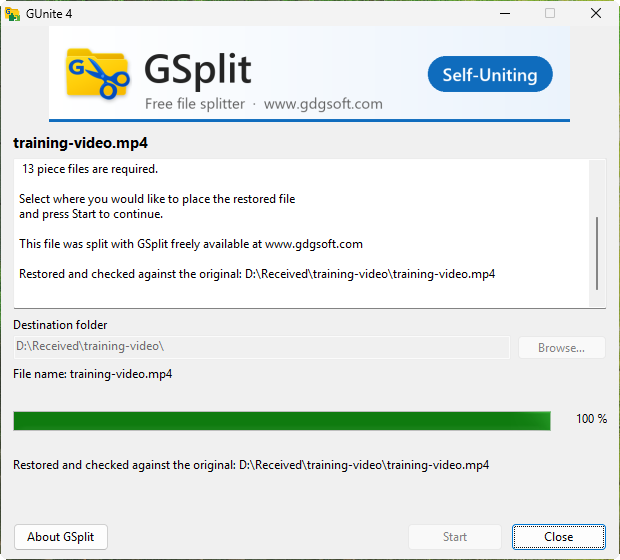
Section titled “Run GUnite.exe next to the pieces”If the folder holds a GUnite.exe (or another program with a .ini of the same name), double-click it. Choose the folder for the restored file if the window offers it, then click Start. The program checks the pieces and writes the original file. See GUnite.
- Double-click
GUnite.exe. - Check the destination folder, then click Start.
- When the window says the file is restored, click Close.
Download GUnite
Section titled “Download GUnite”If there is no GUnite.exe, download GUnite from the GUnite page. It is free and needs no installation. Start it, click Browse… next to Piece file and choose any piece of the set (or drop a piece on its window), check the destination, and click Unite. See Restore pieces with GUnite.
Run the join script
Section titled “Run the join script”If the folder holds .join.bat or .join.sh files:
- On Windows, double-click the
.join.batfile. - On Linux or macOS, run the
.join.shfile in a terminal:sh name.join.sh.
For pieces without metadata (such as report.pdf.001), the script joins them by itself. It stops if the output file already exists: delete or move that file first. For pieces with metadata (such as disk1.gsd), the script runs gunitec or GUnite found next to it or on the PATH. If neither is found, it says so and stops; use one of the two ways above.
Recognise the files in your folder
Recognise a piece set
Section titled “Recognise a piece set”Look in the folder for files like these:
| File | What it is |
|---|---|
disk1.gsd, disk2.gsd… | Pieces made by GSplit. .gsd is the default extension. |
report.pdf.001, report.pdf.002… | Pieces without metadata, also made by GSplit or by HJSplit, 7-Zip or Total Commander. |
xaa, xab… | Pieces made by the Unix split command. |
GUnite.exe and GUnite.ini | The Self-Uniting app that restores the file, and its settings. The names can differ; the .ini always carries the name of the program. |
report.pdf.join.bat, report.pdf.join.sh | Join scripts that rebuild the file, for Windows and for Linux or macOS. |
report.pdf.sha256 | The checksums of the pieces and of the original file. |
report.pdf.crc | A Total Commander checksum file: file name, size and CRC-32. |
Not every set has all of them. The pieces are always there; the others depend on what the sender chose.
Check a checksum by hand
Verify the result
Section titled “Verify the result”A .sha256 file lets you check that nothing was damaged in transit. GUnite and the join scripts use it, but you can check by hand.
- On Linux, in the folder:
sha256sum -c report.pdf.sha256. Add--ignore-missingto check the pieces before the original has been rebuilt. - On Windows, in a command prompt:
certutil -hashfile report.pdf SHA256, then compare the result with the line forreport.pdfin the.sha256file.
If the numbers differ, a piece was damaged or truncated. Ask the sender to send it again.