
 GSplit
Unite pieces in GSplit
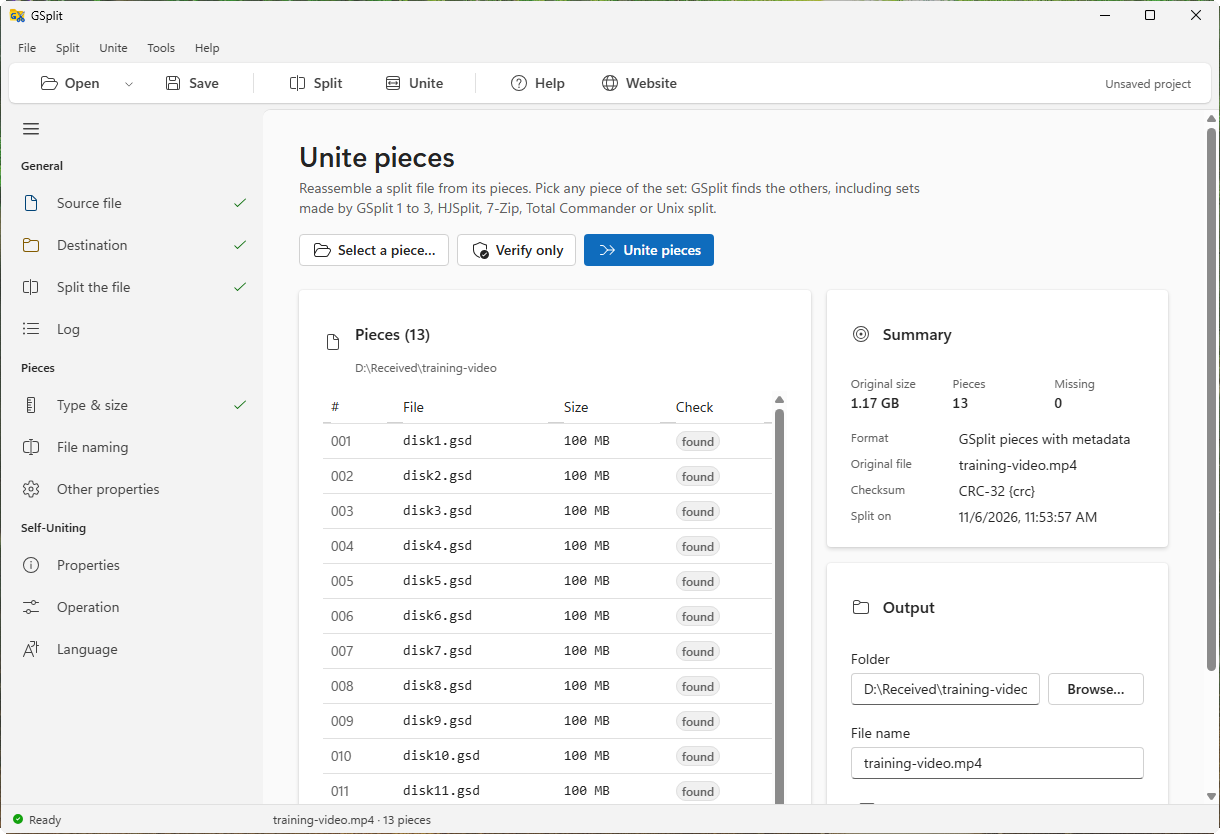
The Unite view reassembles a split file from its pieces. Pick any piece of the set: GSplit finds the others, lists them, and writes the original file under its final name once every piece is in.
Open it with Unite > Unite pieces… in the menu bar, or with the Unite button of the toolbar.
Unite a set
Section titled “Unite a set”- Click Select a piece… and choose any piece of the set.
- Read the Summary and the list of pieces. Missing pieces are marked.
- In Output, check the folder and the file name.
- Click Unite pieces.
By default the file is restored in the folder of the pieces, under its original name. The output is first written as <name>.gspart and moved onto its final name only once every piece is in. A cancelled or failed run leaves at most the .gspart file, never a half-written file under the final name.
Supported formats and older piece sets
Formats GSplit reads
Section titled “Formats GSplit reads”| Format | Shown as | Notes |
|---|---|---|
| GSplit 4 (V4) | GSplit pieces with metadata | Read from any piece of the set. |
| GSplit 2.0 and 3.x | GSplit pieces with metadata | Read-only. Start from any piece; for pieces 2 and up GSplit looks for piece 1. |
| GSplit 1.x | GSplit 1.x pieces | Read-only. |
| Raw sets | Pieces without metadata, joined end to end | HJSplit (.001), 7-Zip (name.7z.001), GNU split (xaa, xab…), Total Commander, and GSplit sets made without metadata. |
A raw set has no metadata, so GSplit matches its pieces by name and shows the notice Matched by name: check the list before uniting. A raw set needs at least two consecutive pieces. See Legacy piece formats and Piece format V4.
Understand the summary and checksums
Summary
Section titled “Summary”The Summary card shows what GSplit read: Original size, Pieces, Missing, Format, Original file, Checksum, and, when the set has them, Split on, Title, Author and Description.
Checksum tells you how the result can be verified:
- CRC-32 …: the set carries checks in its metadata.
- Total Commander .crc file: a raw set with a
.crcfile next to the pieces. - SHA-256 manifest: a
.sha256file next to the pieces. For a GSplit set it comes on top of the CRC checks. - None: the content cannot be verified.
Output
Section titled “Output”Folder
Section titled “Folder”The folder that receives the restored file. Browse… chooses another.
File name
Section titled “File name”The name of the restored file. It is filled with the original name of the set. A problem with the name shows under the field.
Replace the output file if it exists
Section titled “Replace the output file if it exists”Off by default. Off, a file with the same name stops the run; the field tells you to turn this option on or choose another name.
Skip damaged pieces without asking
Section titled “Skip damaged pieces without asking”Off by default. On, a piece that fails a check (wrong set, wrong number, short, wrong CRC) is logged and the run goes on without a question. The run then ends with File united with errors, and the file is kept.
Restore the original date and attributes
Section titled “Restore the original date and attributes”On by default; not shown for raw sets. The restored file gets the original modification date and, on Windows, the creation date and the file attributes. On Linux it also gets the Unix permissions.
Verify only
Section titled “Verify only”Verify only reads every piece and checks it, and writes nothing. When the set has a checksum, a successful check means the united file would match the original. The button is unavailable for a set with no checksum. If a set has none, Unite pieces still joins the pieces and says that nothing could be compared.
Damaged or missing pieces
Section titled “Damaged or missing pieces”When a piece has a problem, the run stops and asks:
| Problem | Buttons |
|---|---|
| Piece N is missing: the file was not found | Retry, Locate…, Skip this piece, Stop |
| Is not piece N of this set: another set, or the wrong piece | Retry, Locate…, Skip this piece, Stop |
| Piece N is shorter than announced | Continue anyway, Stop |
| Piece N is damaged: its checksum differs from the set's | Continue anyway, Stop |
| Not enough space for the united file | Retry, Stop |
Retry reads the piece again, for example after you insert the right disk. Locate… lets you point to the file. Skip this piece leaves it out: the united file is then incomplete. Continue anyway keeps what was read, and the united file does not match the original.
During and after the run
Section titled “During and after the run”A progress bar shows the total and the current piece, with the amount done, the rate and the time left. Pause unite pauses the run and Resume unite continues it. Cancel unite (Cancel verification) stops it; the partial output file is deleted.
When the run ends, a message gives the result: File united and verified, File united, File united with errors, Set verified, Unite cancelled or Unite not completed, with the number of pieces, the size and the time. Open folder shows the restored file. The messages of the run are in the Log card under the view.