
 GSplit
Restore pieces with GUnite
You received a folder with pieces (disk1.gsd, disk2.gsd and so on), GUnite.exe and GUnite.ini. You do not need GSplit or any other software: GUnite.exe joins the pieces into the original file and checks the result. The sender's side is in Split a file and send it.

Before you start
Section titled “Before you start”- Download or copy all the files into one folder on your computer, for example
D:\Received\training-video.GUnite.exeandGUnite.inimust stay together, next to the pieces. - Keep about as much free space as the size of the original file.
Restore the file with GUnite
Section titled “Restore the file with GUnite”-
Open the folder in File Explorer and check that every file is there.
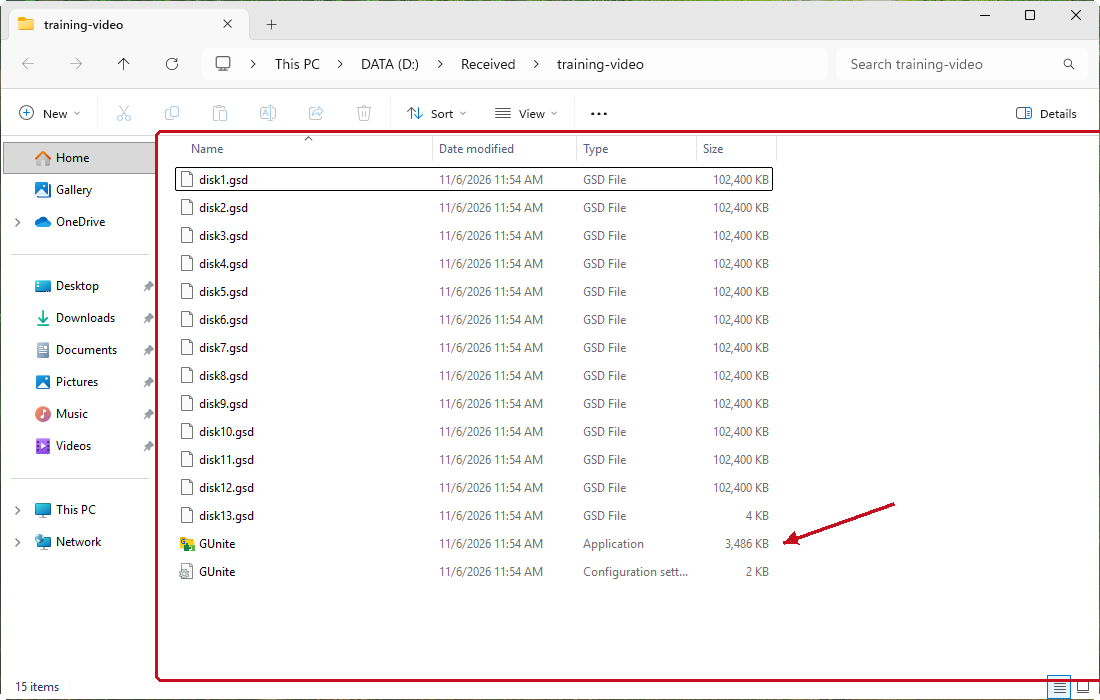
-
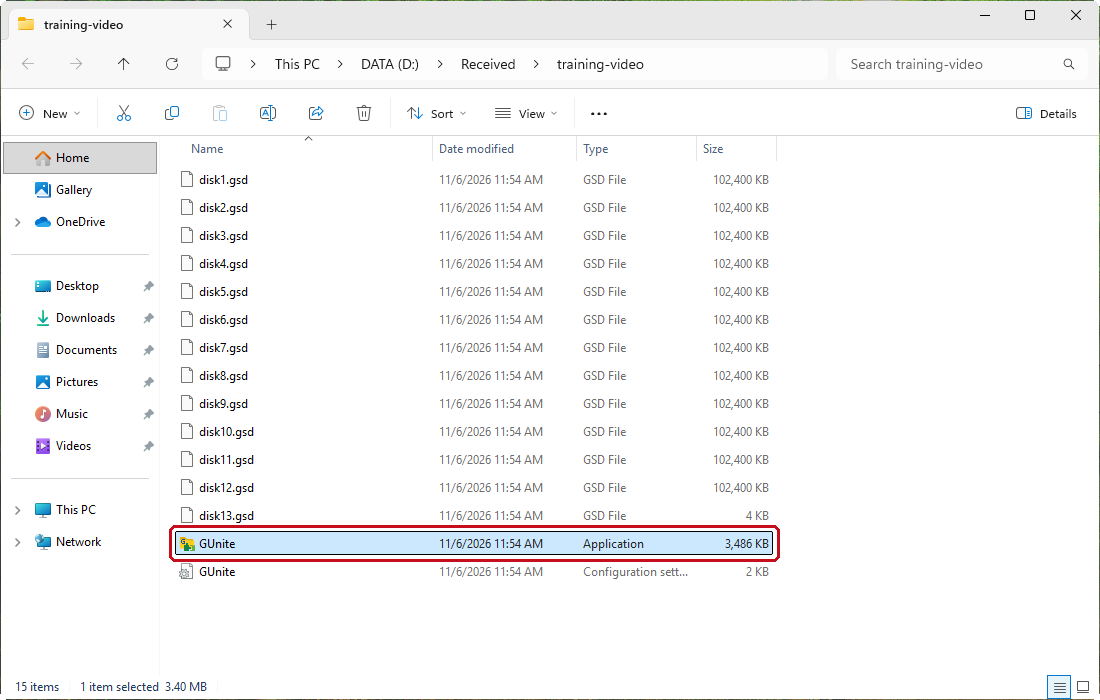
Double-click
GUnite.exe.Show GUnite.exe selected in File Explorer
-
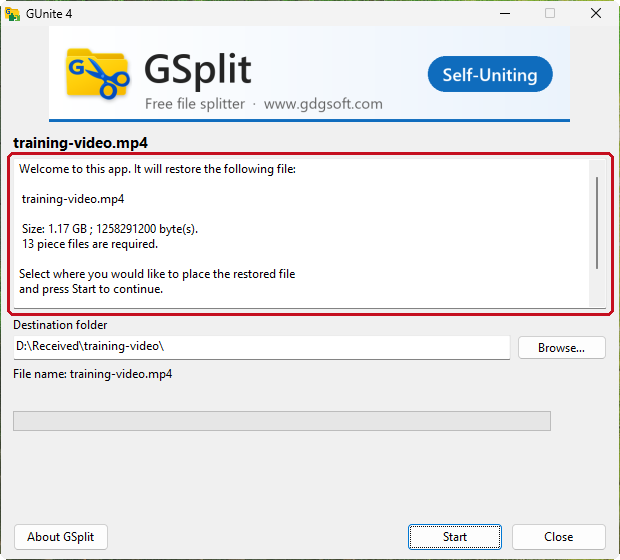
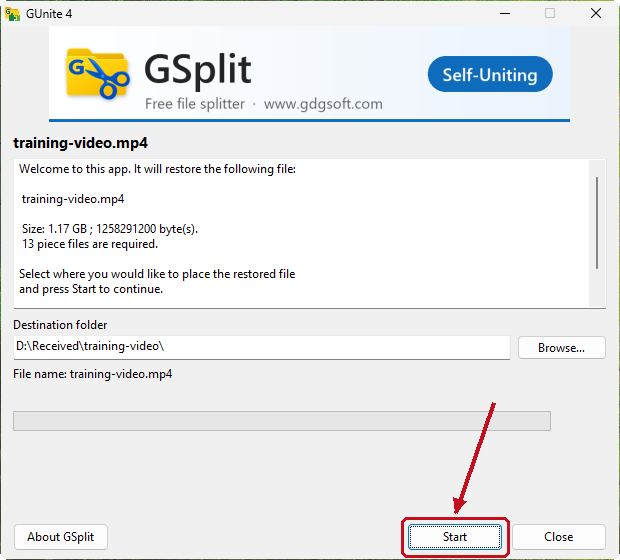
Read the welcome text in the GUnite window.
-
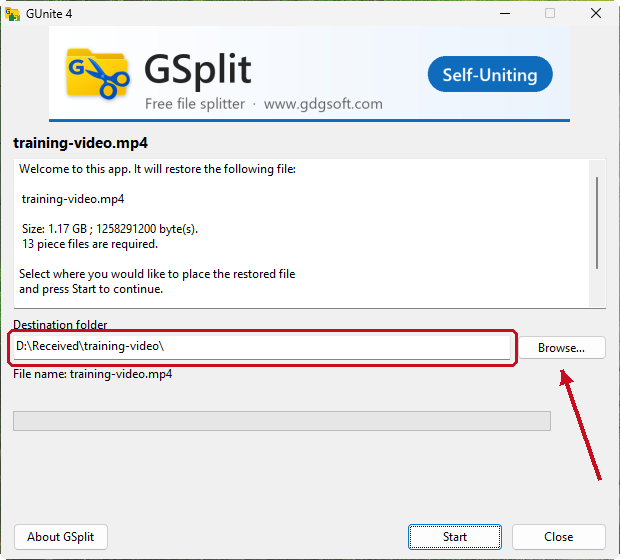
Check the Destination folder. To use another folder, click Browse… and select it.
-
Click Start.
-
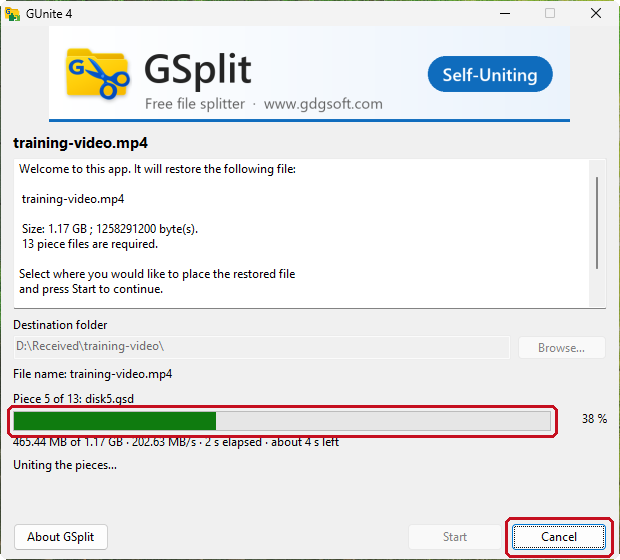
Wait while GUnite works. The button Close reads Cancel during the run.
-
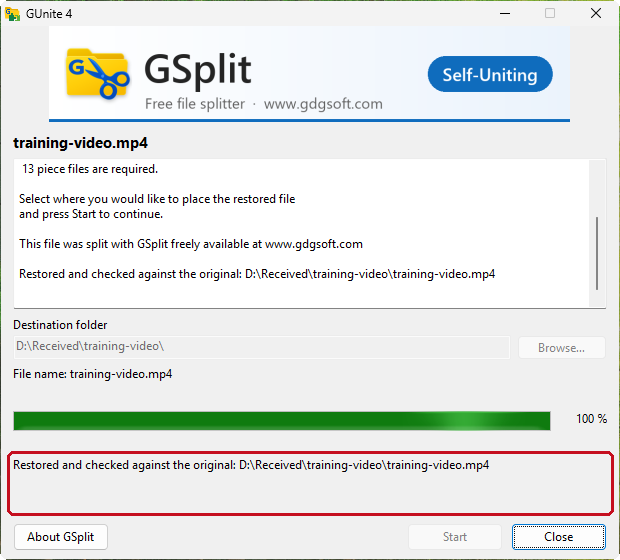
Read the final message: Restored and checked against the original, followed by the file name.
-
Click Close, then open
training-video.mp4from the destination folder.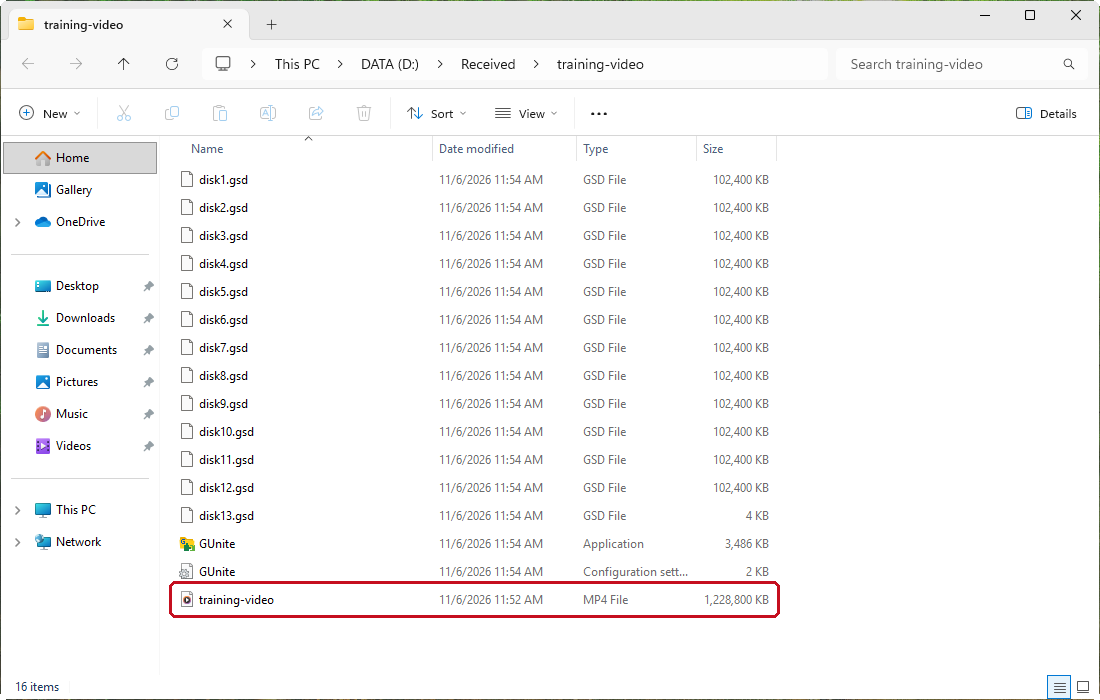
GUnite checks each piece against the CRC-32 stored in its metadata and, for a set made by GSplit 4, the whole result against the SHA-256 of the original. The message Restored and checked against the original means the file is identical to the one the sender split. A set without a checksum, such as raw pieces, ends with Restored only: nothing was available to compare with.
If a piece is missing or damaged
Section titled “If a piece is missing or damaged”GUnite stops and asks when a piece is not usable. The questions are the same in the GUnite window and in GSplit.
-
Read the title of the question. Piece 4 is missing means the file is not in the folder. Piece 4 is damaged means its checksum differs from the one in the set. Piece 4 is shorter than announced means the file is incomplete, usually a download that stopped early.
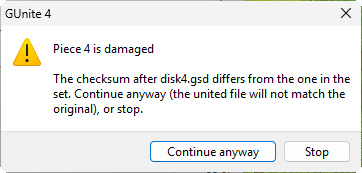
-
Click Stop. Continuing with a damaged piece gives a file that does not match the original.
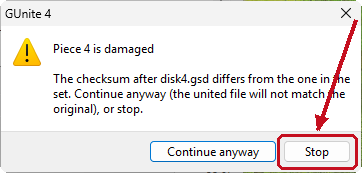
-
Ask the sender for that piece again, or download it again. Replace the damaged file in your folder with the new one.
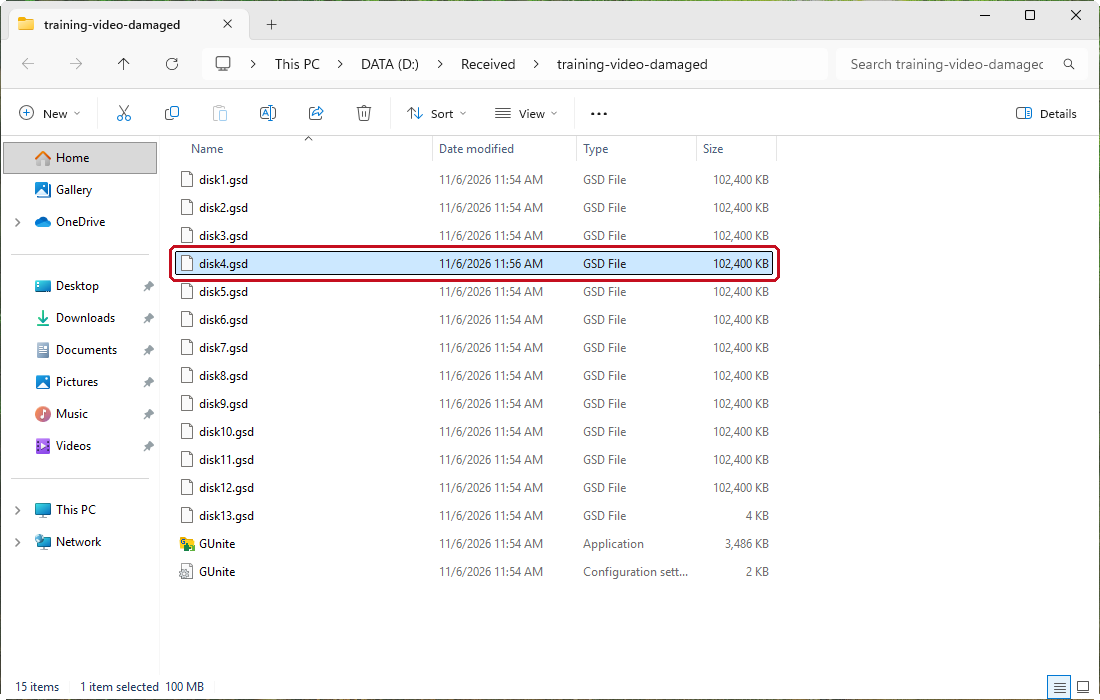
-
Double-click
GUnite.exeagain and click Start.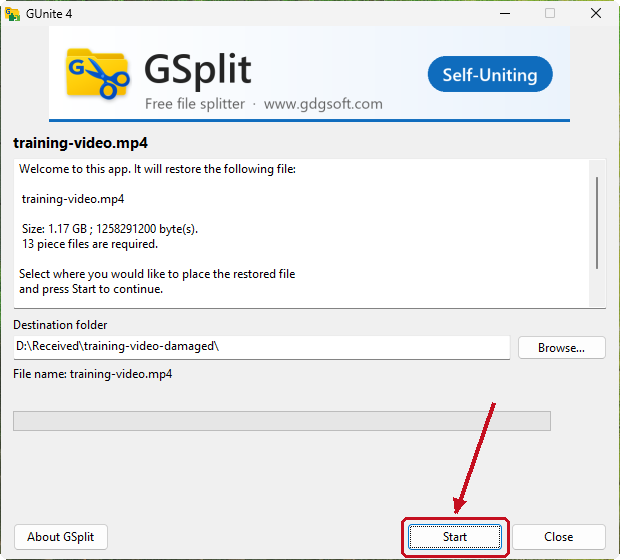
For a missing piece, the question offers Retry (after you copied the file into the folder), Locate… (to point at the file elsewhere) and Skip this piece. Skipping gives an incomplete file. A file that belongs to another set is reported as not being piece N of this set, with the same buttons.
Already have GSplit? Restore from its Unite view
Restore with the Unite view of GSplit
Section titled “Restore with the Unite view of GSplit”If GSplit is installed, you do not need GUnite.exe.
-
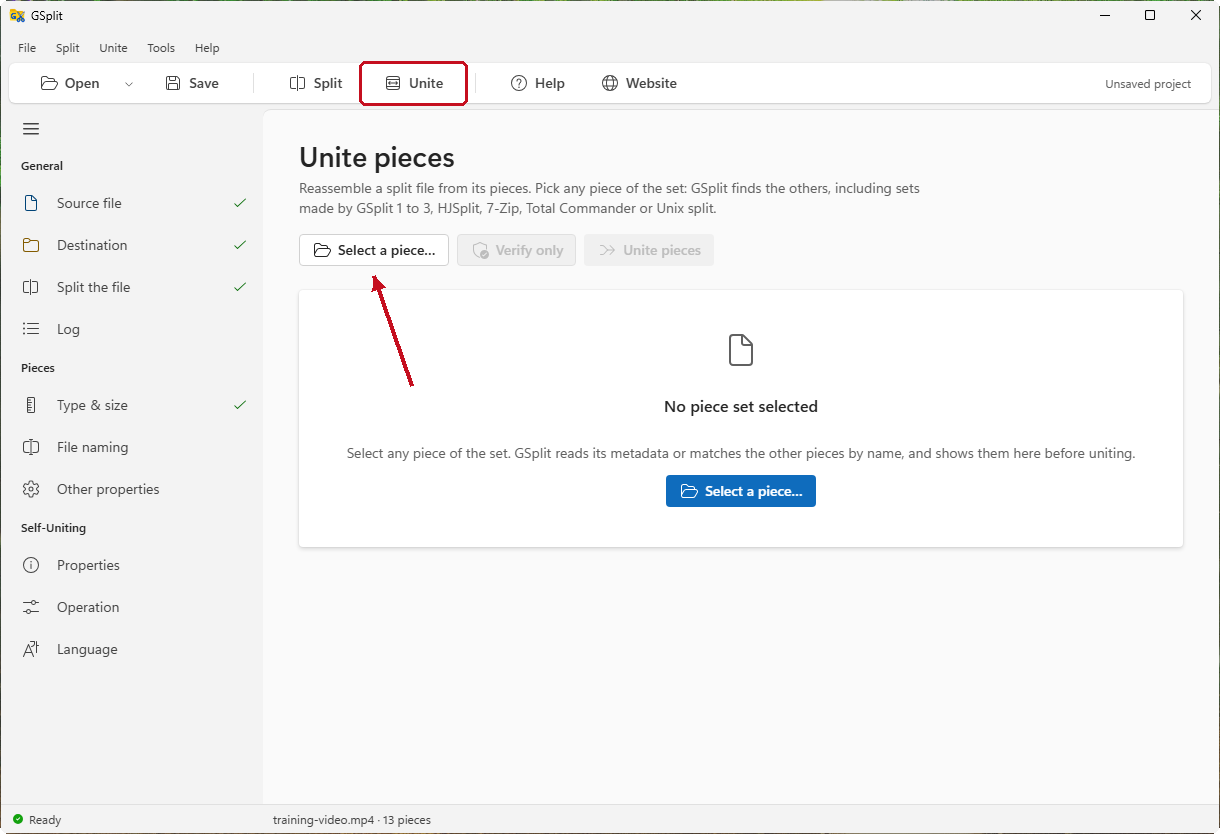
Open GSplit and click Unite in the view switch.
-
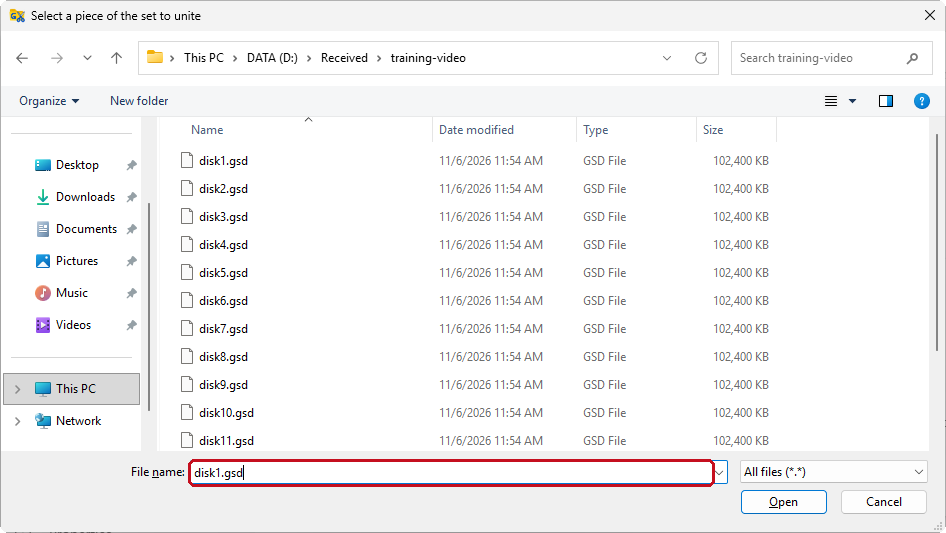
Click Select a piece… and choose any piece, for example
disk1.gsd.Show the Windows open-file dialog
-
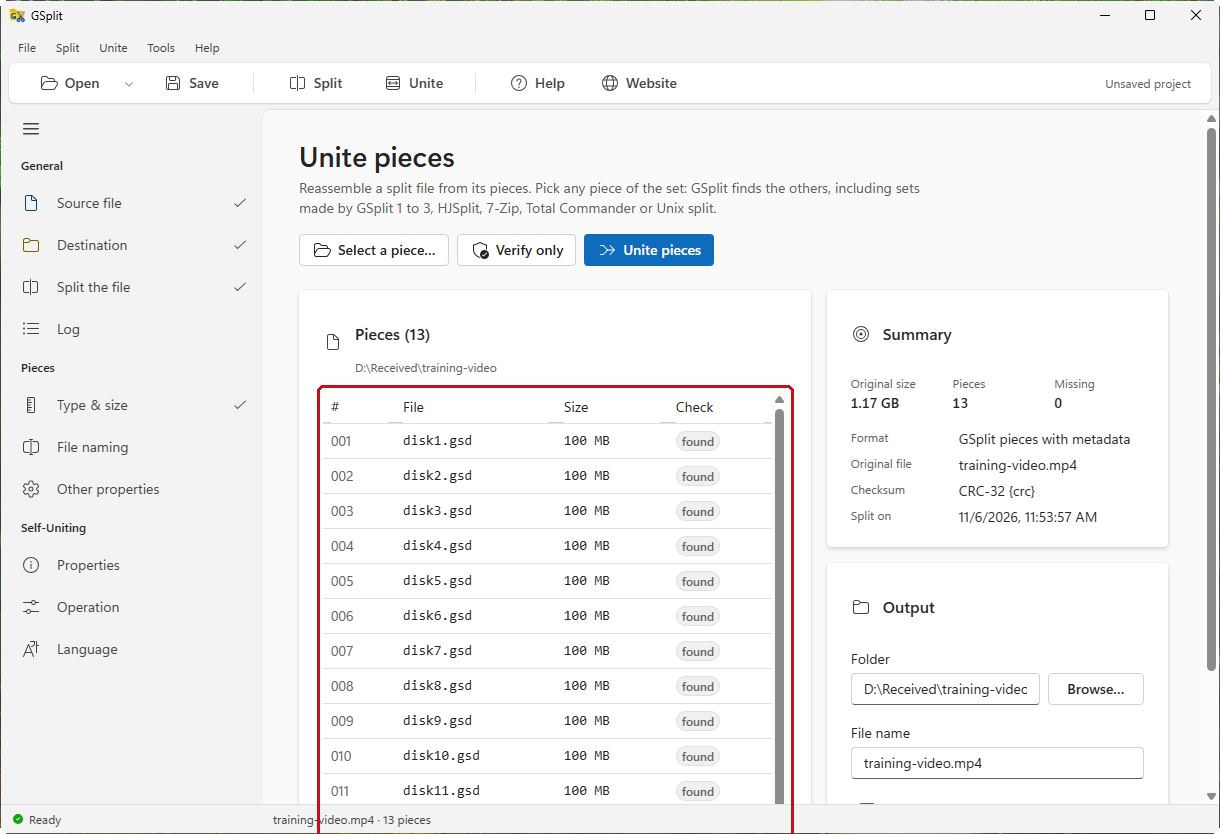
Check the set shown by GSplit: file name, original size, the list of pieces and their state.
-
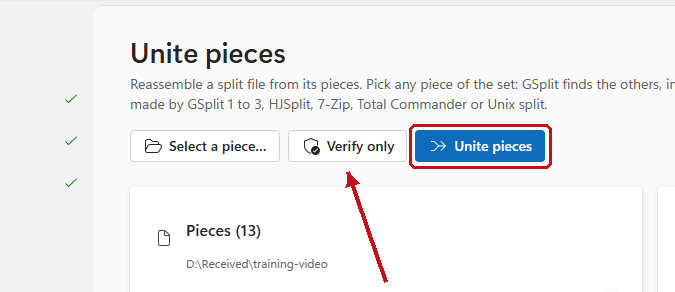
Click Verify only to check the pieces without writing the file, then click Unite pieces to restore it.
-
Wait for File united and verified.
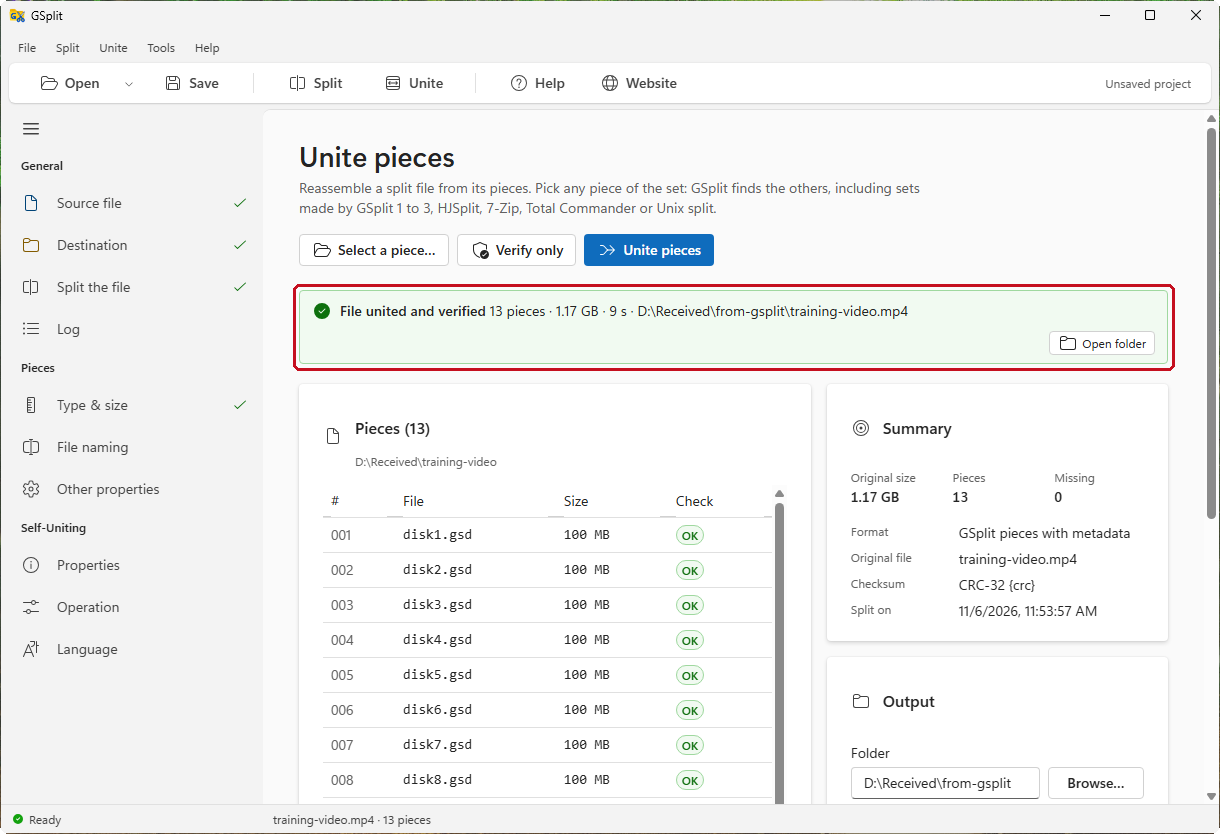
The Unite view has three options: Replace the output file if it exists, Restore the original date and attributes and Skip damaged pieces without asking. Leave Skip damaged pieces without asking off unless you want the damaged pieces left out. See Unite pieces in GSplit.
For scripts: restore with gunitec
Restore with gunitec
Section titled “Restore with gunitec”gunitec is the console version of GUnite, for scripts and for servers without a desktop. Open a terminal in the folder of the pieces:
gunitec disk1.gsdIt restores the file next to the pieces under its original name. These switches cover the usual cases:
gunitec disk1.gsd -igunitec disk1.gsd -vgunitec disk1.gsd -o D:\Restored\training-video.mp4 -y-i shows what the set contains and exits, -v verifies the pieces and writes nothing, -o names the output file and -y replaces it if it exists. The exit code is 0 when the file was restored, 3 when a piece stopped the run and 5 when the result differs from the original (the output is kept). All codes are in Command line: gunitec.