
How to split a large file into smaller pieces with GSplit?
In This Article
A file that is too big for an e-mail, a hosting service or a single disc can be cut into smaller files and joined again later. GSplit does this on Windows: it writes the smaller files, called pieces, to a folder or drive of your choice, and it can add a small program that rejoins them on any computer. GSplit is freeware, and its license lets you install, use and distribute it at no charge, commercial use included.
What you need
Section titled “What you need”Download GSplit 3 from the download page, which offers an installer and portable editions. It runs on Windows 11, 10, 8 and 7, in 32-bit and 64-bit (system requirements).
How to split a file
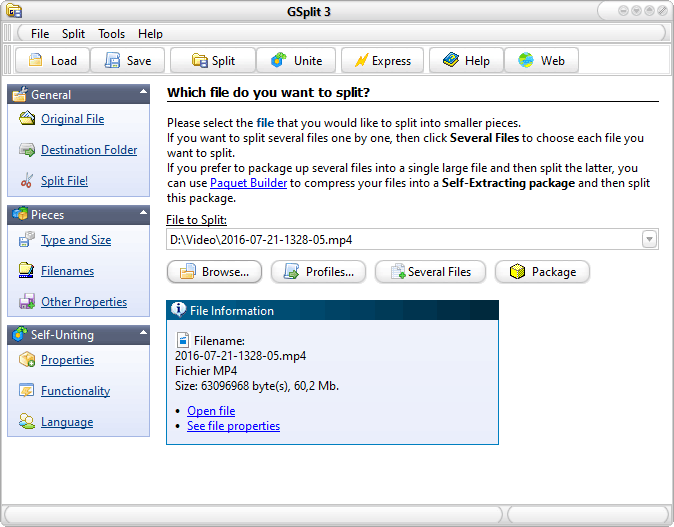
Section titled “How to split a file”GSplit configures its options itself at startup and each time you choose a file, so you only decide three things: the file, where its pieces go, and the type of pieces (getting started).
-
Click Original File in the navigation bar, then type the path of the large file or click Browse. Dropping the file onto the window, or using the context menu in Windows Explorer, works too.
-
Click Destination Folder and choose a folder or a drive such as
E:\. -
Under Pieces, click Type and Size and choose the piece type described below.
-
Optional: set a mask for the piece names, described below.
-
Click Split or press F5. You can pause, resume or abort, and a log appears at the end.
Which piece type to choose
Section titled “Which piece type to choose”GSplit offers two types, explained on the piece types page. After you pick the destination, it proposes one: disk spanned for a removable drive, blocked for other destinations.

Blocked pieces are separate files of equal size. They suit files you send over the Internet, a network or e-mail, upload to a hosting service, or back up to CD or DVD. You can cut by:
- one size for every piece, in bytes, KB, MB or GB, or taken from the Predefined list, which includes 1.44 MB;
- a number of pieces, with GSplit working out each size;
- a list where you give each piece its own size until the remaining bytes counter reads 0;
- a number of lines or pattern occurrences, for text files such as logs (lines and patterns).
Disk spanned pieces are for removable disks such as floppy disks, Zip disks and USB flash keys. GSplit asks you to insert each disk in turn and sizes the piece to that disk's free space, so the number of disks is not known in advance.
How the pieces are named
Section titled “How the pieces are named”GSplit builds each name from a mask with variables in braces. {num} is the piece number, and {oru} is the number padded with zeros (001 up to 999), so Windows Explorer lists the pieces in order. {ofw} is the original name without its extension. The mask must contain {num} or {oru}. For an original file named IMAGE1.BMP, the mask {ofw}_{oru}.gsd gives IMAGE1_001.gsd. The piece filenames page lists the other variables.
How the recipient restores the file
Section titled “How the recipient restores the file”A Self-Uniting program
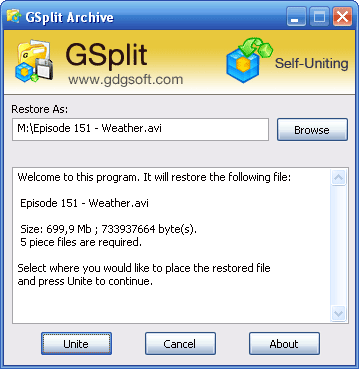
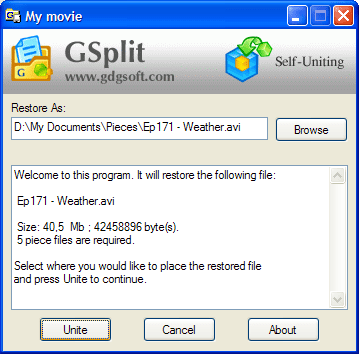
Section titled “A Self-Uniting program”With the option Add SFU functionality to the piece set, GSplit builds a small Windows program next to the pieces. It uses the same engine as GUnite, so the recipient does not need GSplit: they run it, check the destination folder and start the join. By default it is named after the first piece with the extension .EXE. Send it together with the pieces. The Self-Uniting page covers its messages and other options.
GUnite
Section titled “GUnite”GUnite is the free uniting tool shipped with GSplit, for pieces made without a Self-Uniting program.
-
Start GUnite and select the first piece. It must not be a Self-Uniting piece.
-
Choose the folder to restore into, or choose to only check the pieces. The check writes nothing to your disk, and GUnite reports whether it found problems.
-
Click the final button. Elapsed and estimated times are shown.
More details are on the working with GUnite page, and GUnite is also offered separately on the GUnite page.